Author: Karl

  • Flexing on LinkedIn with the LinkedIn-Skillbot

    Flexing on LinkedIn with the LinkedIn-Skillbot

    This little experiment wasn’t meant to encourage cheating—far from it. It actually began as a casual conversation with a colleague about just how “cheatable” online tests can be. Curiosity got the better of me, and one thing led to another.

    If you’ve come across my earlier post, “Get an A on Moodle Without Breaking a Sweat!” you already know that exploring the boundaries of these platforms isn’t exactly new territory for me. I’ve been down this road before, always driven by curiosity and a love for tinkering with systems (not to mention learning how they work from the inside out).

    This specific tool, the LinkedIn-Skillbot, is a project I played with a few years ago. While the bot is now three years old and might not be functional anymore, I did test it back in the day using a throwaway LinkedIn account. And yes, it worked like a charm. If you’re curious about the original repository, it was hosted here: https://github.com/Ebazhanov/linkedin-skill-assessments-quizzes. (Just a heads-up: the repo has since moved.)

    Important Disclaimer: I do not condone cheating, and this tool was never intended for use in real-world scenarios. It was purely an experiment to explore system vulnerabilities and to understand how online assessments can be gamed. Please, don’t use this as an excuse to cut corners in life. There’s no substitute for honest effort and genuine skill development.

    Technologies

    This project wouldn’t have been possible without the following tools and platforms:

    • Python: The backbone of the project. Python’s versatility and extensive library support made it the ideal choice for building the bot. It handled everything from script automation to data parsing. You can learn more about Python at python.org.
    • Selenium: Selenium was crucial for automating browser interactions. It allowed the bot to navigate LinkedIn, answer quiz questions, and simulate user actions in a seamless way. If you’re interested in web automation, check out Selenium’s documentation here.
    • LinkedIn (kind of): While LinkedIn itself wasn’t a direct tool, its skill assessment feature was the target of this experiment. This project interacted with LinkedIn’s platform via automated scripts to complete the quizzes.

    How it works

    To get the LinkedIn-Skillbot up and running, I had to tackle a couple of major challenges. First, I needed to parse the Markdown answers from the assessment-quiz repository. Then, I built a web driver (essentially a scraper) that could navigate LinkedIn without getting blocked—which, as you can imagine, was easier said than done.

    Testing was a nightmare. LinkedIn’s blocks kicked in frequently, and I had to endure a lot of waiting periods. Plus, the repository’s answers weren’t a perfect match to LinkedIn’s questions. Minor discrepancies like typos or extra spaces were no big deal for a human, but they threw the bot off completely. For example:

    "Is earth round?""Is earth round ?"

    That one tiny space could break everything. To overcome this, I implemented a fuzzy matching system using Levenshtein Distance.

    Levenshtein Distance measures the number of small edits (insertions, deletions, or substitutions) needed to transform one string into another. Here’s a breakdown:

    • Insertions: Adding a letter.
    • Deletions: Removing a letter.
    • Substitutions: Replacing one letter with another.

    For example, to turn “kitten” into “sitting”:

    1. Replace “k” with “s” → 1 edit.
    2. Replace “e” with “i” → 1 edit.
    3. Add “g” → 1 edit.

    Total edits: 3. So, the Levenshtein Distance is 3.

    Using this technique, I was able to identify the closest match for each question or answer in the repository. This eliminated mismatches entirely and ensured the bot performed accurately.

    Here’s the code I used to implement this fuzzy matching system:

    import numpy as np
    
    def levenshtein_ratio_and_distance(s, t, ratio_calc = False):
        rows = len(s)+1
        cols = len(t)+1
        distance = np.zeros((rows,cols),dtype = int)
    
        for i in range(1, rows):
            for k in range(1,cols):
                distance[i][0] = i
                distance[0][k] = k
      
        for col in range(1, cols):
            for row in range(1, rows):
                if s[row-1] == t[col-1]:
                    cost = 0 
                else:
                    if ratio_calc == True:
                        cost = 2
                    else:
                        cost = 1
                distance[row][col] = min(distance[row-1][col] + 1,
                                     distance[row][col-1] + 1,
                                     distance[row-1][col-1] + cost)
        if ratio_calc == True:
            Ratio = ((len(s)+len(t)) - distance[row][col]) / (len(s)+len(t))
            return Ratio
        else:
            return distance[row][col]

    I also added a failsafe mode that searches for an answer in all documents possible. If it can’t be found, the bot quits the question and lets you answer it manually.

    Conclusion

    This project was made to show how easy it is to cheat on online tests such as the LinkedIn skill assessments. I am not sure if things have changed in the last 3 years, but back then it was easily possible to finish almost all of them in the top ranks.

    I have not pursued the cheating of online exams any further as I found my time to be used better on other projects. However, it did teach me a lot about fuzzy matching of strings and, back then, web scraping as well as getting around bot detection mechanisms. These are skills that have helped me a lot in my cybersecurity career thus far.

    Try it out here: https://github.com/StasonJatham/linkedin-skillbot

  • Get an A on Moodle Without Breaking a Sweat!

    Get an A on Moodle Without Breaking a Sweat!

    Ah, Moodle quizzes. Love them or hate them, they’re a staple of modern education. Back in the day, when I was a student navigating the endless barrage of quizzes, I created a little trick to make life easier. Now, I’m sharing it with you—meet the Moodle Solver, a simple, cheeky tool that automates quiz-solving with the help of bookmarklets. Let’s dive into the how, the why, and the fine print.

    Legally, I am required to clarify that this is purely a joke. I have never used this tool, and neither should you. This content is intended solely for educational and entertainment purposes.

    You can check out the code on my GitHub here: https://github.com/StasonJatham/moodle_solver

    I should note that this code is quite old and would need a lot of tweaking to work again.

    What is Moodle Solver?

    The Moodle Solver is a set of JavaScript scripts you can save as bookmarklets. These scripts automate the process of taking Moodle quizzes, saving you time, clicks, and maybe a bit of stress.

    The basic idea:

    1. Do a random first attempt on a quiz to see the correct answers.
    2. Use the scripts to save those answers.
    3. Automatically fill in the correct answers on the next attempt and ace the quiz.

    How It Works

    Step 1: Do the Quiz (Badly)

    Most Moodle quizzes give you two or more attempts. On the first attempt, go in blind—pick random answers without worrying about the outcome. If you’re feeling adventurous, I even have a script that fills in random answers for you (not included in the repo, but it’s out there).

    Why do this? Because Moodle shows you the correct answers on the review page after the first try. That’s where the magic happens.

    Step 2: Run get_answers_german.js

    Once you’re on the review page, it’s time to run the get_answers_german.js script. This script scans the page, identifies the correct answers, and saves them to your browser’s localStorage.

    One caveat: The script is written in German (a throwback to my school days), so you might need to modify it for your language. Moodle’s HTML structure might also change over time, but a little tweaking should do the trick.

    Step 3: Nail the Second Attempt

    When you’re ready for your second attempt, use the set_answers.js script. This script fills in all the correct answers for you. Want to go full automation? Use autosubmit.js to submit the quiz with a randomized timer, so it doesn’t look suspicious. After all, no teacher will believe you aced a 50-question quiz in 4 seconds.

    Bonus Features

    Got the answers from a friend or Google? No problem. The fallback_total.js script lets you preload question-answer pairs manually. Simply format them like this:

      var cheater = {
        answers: [
          {
            question:
              "Thisisanexamplequestion?",
            answer: "thecorrectanswer",
          },
          {
            question: "Whatisthisexamplequestion?",
            answer: "youwillpass.",
          },
          {
            question: "Justlikethis?",
            answer: "yes,dude.",
          },
          .......
        ],
      };

    Swap out the default questions and answers in the script, save it as a bookmarklet, and you’re good to go.

    Why Bookmarklets?

    Bookmarklets are incredibly convenient for this kind of task. They let you run JavaScript on any webpage directly from your browser’s bookmarks bar. It’s quick, easy, and doesn’t require you to mess around with browser extensions. It is also really sneaky in class 😈

    To turn the Moodle Solver scripts into bookmarklets, use this free tool.

    1. Download the Scripts: Grab the code from my GitHub repo: github.com/StasonJatham/moodle_solver.
    2. Convert to Bookmarklets: Use the guide linked above to save each script as a bookmarklet in your browser.
    3. Test and Tweak: Depending on your Moodle setup, you might need to adjust the scripts slightly (e.g., to account for language or HTML changes).

    The Fine Print

    Let’s be real: This script is a bit cheeky. Use it responsibly and with caution. The goal here isn’t to cheat your way through life—it’s to save time on tedious tasks so you can focus on learning the stuff that matters.

    That said, automation is a skill in itself. By using this tool, you’re not just “solving Moodle quizzes”—you’re learning how to script, automate, and work smarter.

    Wrapping Up

    The Moodle Solver is a lighthearted way to make Moodle quizzes less of a hassle. Whether you’re looking to save time, learn automation, or just impress your friends with your tech skills, it’s a handy tool to have in your back pocket.

    Check it out:

    Good luck out there, and remember: Work smarter, not harder! 🚀

  • Good Morning Berlin: Work Smarter, Not Harder!

    Good Morning Berlin: Work Smarter, Not Harder!

    Are you like me—a fan of working smarter, not harder, and squeezing every last drop of efficiency out of your day? Do you enjoy multitasking so much that even your coffee break is double-booked? If you’re nodding along, welcome to my world!

    Every morning, I log in to about 16 different tools—some online, some local—and most require separate accounts and credentials. Oh, and because most corporate networks are allergic to fun, scripting options are usually limited to PowerShell or VBScript. (If your network has no restrictions… well, you might want to rethink that. Seriously. 😅)

    But fear not! I’ve come up with a PowerShell-based solution to let your computer do the heavy lifting while you enjoy your coffee. Whether it’s logging into websites, launching mail clients, or sending a cheerful “Good Morning!” on Slack, this script automates the grind so you can focus on the important stuff.

    The code is public and open source on GitHub!

    Dependencies

    • PowerShell (because it’s the last scripting tool standing in restrictive environments)
    • KeePass 2/XC (or any password manager with auto-type functionality—no hardcoding passwords here!)

    KeePass is key to this system. It allows you to set up auto-type rules like:

    “If a window titled ‘Blah Manager’ is open, and I press Ctrl + Alt + I, enter username, press Tab, enter password, and press Enter.

    Examples of Automation

    Starting a Mail Client

    Open your mail app, wait for the login window, and let KeePass fill in the credentials.

    function start_mail_client() {
        wait_till_keepass_open
    
        $notes_running = Get-Process MAIL_CLIENT -ErrorAction SilentlyContinue
        if (-Not $notes_running) {
            Start-Process "C:\Program Files (x86)\MAIL_CLIENT\MAIL_CLIENT.exe"
        
            while(-Not $wshell.AppActivate('MAIL_CLIENT Login Window Title')) {
                $wait_counter = $wait_counter + 2
                if ($wait_counter -ge 12) {
                    $wait_counter = 0
                    return
                }
                Sleep 2
            }
            $wshell.SendKeys('{TAB}')
            $wshell.SendKeys('(^%(i))') #-> KeePass autotype keyboard shortcut, standard is $wshell.SendKeys('(^%(l))')
            Sleep 5
        }
    }

    Logging into Websites

    Launch your browser, open tabs, and log in automatically.

    function login_website() {
        $wshell.AppActivate('Edge')
        start microsoft-edge:https://some-website.com
        Sleep 5
        $wshell.SendKeys('(^%(i))') #-> KeePass autotype keyboard shortcut, standard is $wshell.SendKeys('(^%(l))')
        Sleep 9

    Messaging on Slack

    Start Slack, focus the chat window, and send a cheerful morning message to your team.

    function open_chat() {
        $wshell.AppActivate('Edge')
        start microsoft-edge:https://this-is-messenger.com
        if (is_first_start) {
            $wshell.SendKeys('(^+(l))') # -> slack keyboard to focus chat window 
            Sleep 2
            $wshell.SendKeys('Good Morning everyone! :wave: ')
            Sleep 8
            $wshell.SendKeys('{ENTER}')
            Sleep 1
        } 
        Sleep 5
    }

    Deployment Options

    Option 1: Manual

    Run the script as needed, but make sure to adjust paths (e.g., KeePass database location).

    # Name of KeePass DB
    $keepass_db_name = "SomeKeePassDatabaseName.kdbx"

    Option 2: Automatic on Startup

    Set the script to run every time you boot up by combining PowerShell with a simple VBScript.

    Dim objShell
    Set objShell = Wscript.CreateObject("WScript.Shell")
    
    objShell.Run("Path\to\Desktop\Scripts\keypresser.vbs")
    WScript.Sleep 1000
    objShell.Run("powershell -noexit -file Path\to\Desktop\Scripts\GoodMorningBerlin.ps1")
    
    Set objShell = Nothing

    Bonus: VBS-Caffeine Script ☕

    Because no one wants their computer falling asleep mid-task, this tiny VBScript toggles the Num Lock key every two minutes to keep the system awake. It’s a lifesaver for long processes.

    Dim objResult
    
    Set objShell = WScript.CreateObject("WScript.Shell")
    i = 0
    
    do while i = 0
    	objResult = objShell.sendkeys("{NUMLOCK}{NUMLOCK}")
    	WScript.Sleep (120000)
    
    Loop 

    Conclusion

    This script isn’t just about convenience—it’s about reclaiming your time and starting the day on your terms. So grab your coffee, lean back, and let your PC handle the morning grind for you. ☕✨

    Get started with the code today: https://github.com/StasonJatham/good-morning-berlin

  • Passkeys: Your Key to a Safer, Simpler Online World

    Passkeys: Your Key to a Safer, Simpler Online World

    Passwords have been the cornerstone of online security for decades, but let’s face it: they’re far from perfect. Whether it’s phishing attacks, password leaks, or the sheer frustration of remembering dozens of them, passwords are a weak link in our digital lives. Enter passkeys—a revolutionary way to log in online that promises better security, more convenience, and fewer headaches.

    In this blog post, we’ll explain what passkeys are, why they’re a game-changer, and what challenges need to be addressed before they can replace passwords entirely.

    I also want to share with you a lot of other great resources to learn about Passkeys:

    Be sure to check these out.

    What Are Passkeys, and Why Do We Need Them?

    Imagine never having to remember another password. That’s the promise of passkeys. Instead of typing in a password, passkeys let you log in with something you already have—like your smartphone—and something you already know or are, such as a PIN or fingerprint.

    Here’s how passkeys work in simple terms:

    1. Unique and Secure: A passkey is like a digital key that’s unique to each website. If one website gets hacked, your other accounts stay safe.
    2. Phishing-Proof: Unlike passwords, passkeys can’t be stolen through fake websites or phishing scams.
    3. Fast and Convenient: Signing in with a passkey is as easy as scanning your fingerprint or face—no more typing or resetting forgotten passwords.

    For example, if you’re signing into a shopping website, you just use your phone’s biometric sensor or a PIN to verify your identity. It’s quick, secure, and hassle-free.

    Why Passkeys Are Better Than Passwords

    Passwords are a pain for users and a goldmine for hackers. Most cyberattacks succeed because someone’s password gets stolen, guessed, or reused across multiple accounts. Even with additional layers of security like Multi-Factor Authentication (MFA), passwords remain a common weak point.

    Passkeys eliminate many of these risks:

    • No Reuse: Every website gets its own passkey, so a data breach on one platform doesn’t compromise others.
    • No Guessing: Passkeys are generated by your device, making them impossible to guess or crack.
    • No Phishing: Even if a hacker creates a fake login page, they can’t steal your passkey.

    What’s more, passkeys save time. Microsoft found that passkey logins take just 8 seconds on average, compared to 69 seconds for traditional password-based logins. That’s a win for security and convenience.

    So, Why Aren’t Passkeys Everywhere Yet?

    While passkeys sound amazing, they’re not yet a perfect solution. Several challenges need to be addressed before they can replace passwords entirely:

    Inconsistent User Experience

    Passkeys come in different types. Some are tied to a specific device, while others are synced across your devices through services like Apple iCloud or Google Password Manager. This inconsistency makes it hard for websites to support all passkey types and creates confusion for users.

    For instance, some websites only support device-bound passkeys, while others accept synced passkeys. This lack of standardization can frustrate users who just want a seamless login experience.

    What Happens If You Lose Your Device?

    If your phone or laptop holds your passkeys, what happens when you lose or replace it? While syncing passkeys across devices solves this problem for many users, not everyone is familiar with how to set it up or recover their accounts.

    Switching Platforms

    Let’s say you decide to switch from Android to iPhone. Moving your passkeys to a new platform is still a challenge. Industry groups like the FIDO Alliance are working on solutions, but seamless migration isn’t here yet.

    Account Recovery Risks

    As passkeys become more secure, hackers may shift their focus to exploiting account recovery processes (e.g., fake support calls or phishing for recovery credentials). Websites will need to harden these processes to maintain the security benefits of passkeys.

    Accessibility for Everyone

    Passkeys assume users have personal, modern devices, but that’s not always the case. Shared devices, limited internet access, or compatibility issues with biometrics can make passkeys harder to use for some people.

    What’s Being Done to Address These Issues?

    The good news is that the cybersecurity industry is working hard to overcome these challenges. Here’s what’s happening:

    1. Standardization: Groups like the FIDO Alliance and W3C are developing standards to ensure passkeys work the same way across all platforms and websites.
    2. Education: Companies and governments are educating users on how to set up and recover passkeys, making the transition smoother.
    3. Government Leadership: The UK government is exploring passkeys for its GOV.UK One Login system, setting an example for other organizations.
    4. Better Tools for Developers: New tools and guides are being created to help websites implement passkeys without the hassle. Like WebAuthn or using Auth0.

    How to Start Using Passkeys Today

    If you’re ready to ditch passwords, here’s how to get started:

    • Check Your Devices: Most modern smartphones, tablets, and computers already support passkeys through services like Apple iCloud Keychain, Google Password Manager, or Microsoft Authenticator.
    • Enable Passkeys on Supported Websites: Platforms like Google, Microsoft, and some banking apps already offer passkey support. Look for the option in your account settings.
    • Backup Your Passkeys: Make sure your passkeys are synced with a secure Credential Manager so you can recover them if you lose your device.

    For website owners, offering passkeys as a login option is a great way to enhance security and user experience. Just ensure you address potential issues like account recovery and multi-device support.

    The Future of Passkeys

    Passkeys represent a significant leap forward in online security. They solve many of the problems that plague passwords while offering a faster, more user-friendly experience. However, challenges like platform differences, device loss, and accessibility need to be addressed before they can replace passwords entirely.

    The good news? Progress is happening quickly. With the help of organizations like the NCSC, FIDO Alliance, and major tech companies, passkeys are becoming more standardized and accessible.

    If you’re tired of forgetting passwords, worrying about phishing, or resetting your credentials, passkeys are worth exploring. Start small—try them on a few services—and experience the future of secure, hassle-free authentication today.

  • The Privacy-Friendly Mail Parser You’ve Been Waiting For

    The Privacy-Friendly Mail Parser You’ve Been Waiting For

    As you may or may not know (but now totally do), I have another beloved website, Exploit.to. It’s where I let my inner coder run wild and build all sorts of web-only tools. I’ll save those goodies for another project post, but today, we’re talking about my Mail Parser—a little labor of love born from frustration and an overdose of caffeine.

    See, as a Security Analyst and incident responder, emails are my bread and butter. Or maybe my curse. Parsing email headers manually? It’s a one-way ticket to losing your sanity. And if you’ve ever dealt with email headers, you know they’re basically the Wild West—nobody follows the rules, everyone’s just slapping on whatever they feel like, and chaos reigns supreme.

    The real kicker? Every single EML parser out there at the time was server-side. Let me paint you a picture: you, in good faith, upload that super-sensitive email from your mom (the one where she tells you your laundry’s done and ready for pick-up) to some rando’s sketchy server. Who knows what they’re doing with your mom’s loving words? Selling them? Training an AI to perfect the art of passive-aggressive reminders? The horror!

    So, I thought, “Hey, wouldn’t it be nice if we had a front-end-only EML parser? One that doesn’t send your personal business to anyone else’s server?” Easy peasy, right? Wrong. Oh, how wrong I was. But I did it anyway.

    You can find the Mail Parser here and finally parse those rogue headers in peace. You’re welcome.

    Technologies

    • React: Handles the user interface and dynamic interactions.
    • Astro.js: Used to generate the static website efficiently. (technically not needed for this project)
    • TailwindCSS: For modern and responsive design.
    • ProtonMail’s jsmimeparser: The core library for parsing email headers.

    When I first approached this project, I tried handling email header parsing manually with regular expressions. It didn’t take long to realize how complex email headers have become, with an almost infinite variety of formats, edge cases, and inconsistencies. Regex simply wasn’t cutting it.

    That’s when I discovered ProtonMail’s jsmimeparser, a library purpose-built for handling email parsing. It saved me from drowning in parsing logic and ensured the project met its functional goals.

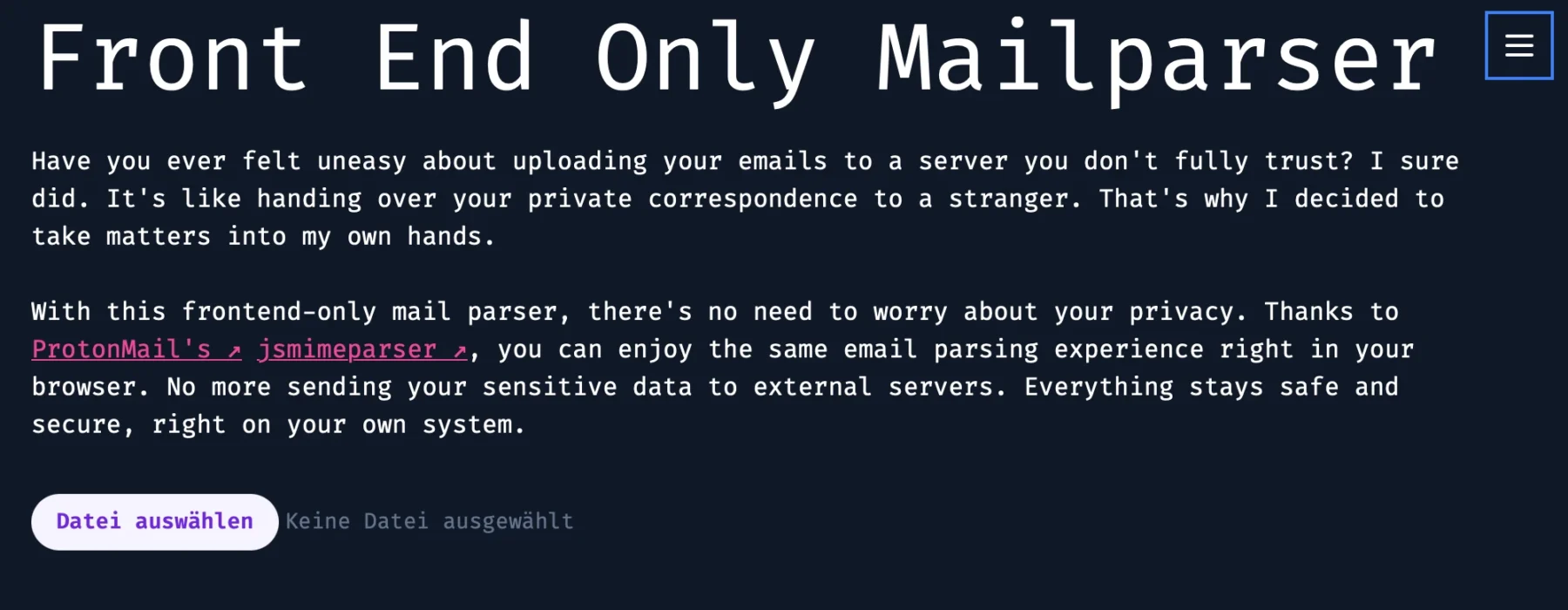
    Sharing the output of this tool without accidentally spilling personal info all over the place is kinda tricky. But hey, I gave it a shot with a simple empty email I sent to myself:

    The Code

    As tradition dictates, the code isn’t on GitHub but shared right here in a blog post 😁.

    Kidding (sort of). The repo is private, but no gatekeeping here—here’s the code:

    mailparse.tsx
    import React, { useState } from "react";
    import { parseMail } from "@protontech/jsmimeparser";
    
    type Headers = {
      [key: string]: string[];
    };
    
    const MailParse: React.FC = () => {
      const [headerData, setHeaderData] = useState<Headers>({});
      const [ioc, setIoc] = useState<any>({});
    
      function extractEntitiesFromEml(emlContent: string) {
        const ipRegex =
          /\b(?:\d{1,3}\.){3}\d{1,3}\b|\b(?:[0-9a-fA-F]{1,4}:){7}[0-9a-fA-F]{1,4}\b/g;
        const emailRegex = /\b[A-Za-z0-9._%+-]+@[A-Za-z0-9.-]+\.[A-Z|a-z]{2,}\b/g;
        const urlRegex = /(?:https?|ftp):\/\/[^\s/$.?#].[^\s]*\b/g;
        const htmlTagsRegex = /<[^>]*>/g; // Regex to match HTML tags
    
        // Match IPs, emails, and URLs
        const ips = Array.from(new Set(emlContent.match(ipRegex) || []));
        const emails = Array.from(new Set(emlContent.match(emailRegex) || []));
        const urls = Array.from(new Set(emlContent.match(urlRegex) || []));
    
        // Remove HTML tags from emails and URLs
        const cleanEmails = emails.map((email) => email.replace(htmlTagsRegex, ""));
        const cleanUrls = urls.map((url) => url.replace(htmlTagsRegex, ""));
    
        return {
          ips,
          emails: cleanEmails,
          urls: cleanUrls,
        };
      }
    
      function parseDKIMSignature(signature: string): Record<string, string> {
        const signatureParts = signature.split(";").map((part) => part.trim());
        const parsedSignature: Record<string, string> = {};
    
        for (const part of signatureParts) {
          const [key, value] = part.split("=");
          parsedSignature[key.trim()] = value.trim();
        }
    
        return parsedSignature;
      }
    
      const handleFileChange = async (
        event: React.ChangeEvent<HTMLInputElement>
      ) => {
        const file = event.target.files?.[0];
        if (!file) return;
    
        const reader = new FileReader();
        reader.onload = async (e) => {
          const buffer = e.target?.result as ArrayBuffer;
    
          // Convert the buffer to a string
          const bufferArray = Array.from(new Uint8Array(buffer)); // Convert Uint8Array to number[]
          const bufferString = String.fromCharCode.apply(null, bufferArray);
    
          const { attachments, body, subject, from, to, date, headers, ...rest } =
            parseMail(bufferString);
    
          setIoc(extractEntitiesFromEml(bufferString));
          setHeaderData(headers);
        };
    
        reader.readAsArrayBuffer(file);
      };
    
      return (
        <>
          <div className="p-4">
            <h1>Front End Only Mailparser</h1>
            <p className="my-6">
              Have you ever felt uneasy about uploading your emails to a server you
              don't fully trust? I sure did. It's like handing over your private
              correspondence to a stranger. That's why I decided to take matters
              into my own hands.
            </p>
            <p className="mb-8">
              With this frontend-only mail parser, there's no need to worry about
              your privacy. Thanks to{" "}
              <a
                href="https://proton.me/"
                className="text-pink-500 underline dark:visited:text-gray-400 visited:text-gray-500 hover:font-bold after:content-['_↗']"
              >
                ProtonMail's
              </a>{" "}
              <a
                className="text-pink-500 underline dark:visited:text-gray-400 visited:text-gray-500 hover:font-bold after:content-['_↗']"
                href="https://github.com/ProtonMail/jsmimeparser"
              >
                jsmimeparser
              </a>
              , you can enjoy the same email parsing experience right in your
              browser. No more sending your sensitive data to external servers.
              Everything stays safe and secure, right on your own system.
            </p>
    
            <input
              type="file"
              onChange={handleFileChange}
              className="block w-full text-sm text-slate-500
          file:mr-4 file:py-2 file:px-4
          file:rounded-full file:border-0
          file:text-sm file:font-semibold
          file:bg-violet-50 file:text-violet-700
          hover:file:bg-violet-100
        "
            />
    
            {Object.keys(headerData).length !== 0 && (
              <table className="mt-8">
                <thead>
                  <tr className="border dark:border-white border-black">
                    <th>Header</th>
                    <th>Value</th>
                  </tr>
                </thead>
                <tbody>
                  {Object.entries(headerData).map(([key, value]) => (
                    <tr key={key} className="border dark:border-white border-black">
                      <td>{key}</td>
                      <td>{value}</td>
                    </tr>
                  ))}
                </tbody>
              </table>
            )}
          </div>
    
          {Object.keys(ioc).length > 0 && (
            <div className="mt-8">
              <h2>IPs:</h2>
              <ul>
                {ioc.ips && ioc.ips.map((ip, index) => <li key={index}>{ip}</li>)}
              </ul>
              <h2>Emails:</h2>
              <ul>
                {ioc.emails &&
                  ioc.emails.map((email, index) => <li key={index}>{email}</li>)}
              </ul>
              <h2>URLs:</h2>
              <ul>
                {ioc.urls &&
                  ioc.urls.map((url, index) => <li key={index}>{url}</li>)}
              </ul>
            </div>
          )}
        </>
      );
    };
    
    export default MailParse;

    Yeah, I know, it looks kinda ugly as-is—but hey, slap it into VSCode and let the prettifier work its magic.

    Most of the heavy lifting here is courtesy of the library I used. The rest is just some plain ol’ regex doing its thing—filtering for indicators in the email header and body to make life easier for further investigation.

    Conclusion

    Short and sweet—that’s the vibe here. Sometimes, less is more, right? Feel free to use this tool wherever you like—internally, on the internet, or even on a spaceship. You can also try it out anytime directly on my website.

    Don’t trust me? Totally fair. Open the website, yank out your internet connection, and voilà—it still works offline. No sneaky data sent to my servers, pinky promise.

    As for my Astro.js setup, I include the “mailparse.tsx” like this:

    ---
    import BaseLayout from "../../layouts/BaseLayout.astro";
    import Mailparse from "../../components/mailparse";
    ---
    
    <BaseLayout>
      <Mailparse client:only="react" />
    </BaseLayout>

    See you on the next one. Love you, byeeeee ✌️😘

  • KarlGPT – My Push to Freedom

    KarlGPT – My Push to Freedom

    KarlGPT represents my pursuit of true freedom, through AI. I’ve realized that my ultimate life goal is to do absolutely nothing. Unfortunately, my strong work ethic prevents me from simply slacking off or quietly quitting.

    This led me to the conclusion that I need to maintain, or even surpass, my current level of productivity while still achieving my dream of doing nothing. Given the advancements in artificial intelligence, this seemed like a solvable problem.

    I began by developing APIs to gather all the necessary data from my work accounts and tools. Then, I started working on a local AI model and server to ensure a secure environment for my data.

    Now, I just need to fine-tune the entire system, and soon, I’ll be able to automate my work life entirely, allowing me to finally live my dream: doing absolutely nothing.

    This is gonna be a highly censored post as it involves certain details about my work I can not legally disclose

    Technologies

    Django and Django REST Framework (DRF)

    Django served as the backbone for the server-side logic, offering a robust, scalable, and secure foundation for building web applications. The Django REST Framework (DRF) made it simple to expose APIs with fine-grained control over permissions, serialization, and views. DRF’s ability to handle both function-based and class-based views allowed for a clean, modular design, ensuring the APIs could scale as the project evolved.

    Celery Task Queue

    To handle asynchronous tasks such as sending emails, performing background computations, and integrating external services (AI APIs), I implemented Celery. Celery provided a reliable and efficient way to manage long-running tasks without blocking the main application. This was critical for tasks like scheduling periodic jobs and processing user-intensive data without interrupting the API’s responsiveness.

    React with TypeScript and TailwindCSS

    For the frontend, I utilized React with TypeScript for type safety and scalability. TypeScript ensured the codebase remained maintainable as the project grew. Meanwhile, TailwindCSS enabled rapid UI development with its utility-first approach, significantly reducing the need for writing custom CSS. Tailwind’s integration with React made it seamless to create responsive and accessible components.

    This is my usual front end stack, usually also paired with Astrojs. I use regular React, no extra framework.

    Vanilla Python

    Due to restrictions that prohibited the use of external libraries in local API wrappers, I had to rely on pure Python to implement APIs and related tools. This presented unique challenges, such as managing HTTP requests, data serialization, and error handling manually. Below is an example of a minimal API written without external dependencies:

    import re
    import json
    from http.server import BaseHTTPRequestHandler, HTTPServer
    
    
    items = {"test": "mewo"}
    
    
    class ControlKarlGPT(BaseHTTPRequestHandler):
        def do_GET(self):
            if re.search("/api/helloworld", self.path):
                self.send_response(200)
                self.send_header("Content-type", "application/json")
                self.end_headers()
                response = json.dumps(items).encode()
                self.wfile.write(response)
            else:
                self.send_response(404)
                self.end_headers()
                
    def run(server_class=HTTPServer, handler_class=ControlKarlGPT, port=8000):
        server_address = ("", port)
        httpd = server_class(server_address, handler_class)
        print(f"Starting server on port http://127.0.0.1:{port}")
        httpd.serve_forever()
    
    
    if __name__ == "__main__":
        run()

    By weaving these technologies together, I was able to build a robust, scalable system that adhered to the project’s constraints while still delivering a polished user experience. Each tool played a crucial role in overcoming specific challenges, from frontend performance to backend scalability and compliance with restrictions.

    File based Cache

    To minimize system load, I developed a lightweight caching framework based on a simple JSON file-based cache. Essentially, this required creating a “mini-framework” akin to Flask but with built-in caching capabilities tailored to the project’s needs. While a pull-based architecture—where workers continuously poll the server for new tasks—was an option, it wasn’t suitable here. The local APIs were designed as standalone programs, independent of a central server.

    This approach was crucial because some of the tools we integrate lack native APIs or straightforward automation options. By building these custom APIs, I not only solved the immediate challenges of this project (e.g., powering KarlGPT) but also created reusable components for other tasks. These standalone APIs provide a solid foundation for automation and flexibility beyond the scope of this specific system

    How it works

    The first step was to identify what tasks I perform in the daily and the tools I use for each of them. To automate anything effectively, I needed to abstract these tasks into programmable actions. For example:

    • Read Emails
    • Respond to Invitations
    • Check Tickets

    Next, I broke these actions down further to understand the decision-making process behind each. For instance, when do I respond to certain emails, and how do I determine which ones fall under my responsibilities? This analysis led to a detailed matrix that mapped out every task, decision point, and tool I use.

    The result? A comprehensive, structured overview of my workflow. Not only did this help me build the automation framework, but it also provided a handy reference for explaining my role. If my boss ever asks, “What exactly do you do here?” I can present the matrix and confidently say, “This is everything.”

    As you can see, automating work can be a lot of work upfront—an investment in reducing effort in the future. Ironically, not working requires quite a bit of work to set up! 😂

    The payoff is a system where tasks are handled automatically, and I have a dashboard to monitor, test, and intervene as needed. It provides a clear overview of all ongoing processes and ensures everything runs smoothly:

    AI Magic: Behind the Scenes

    The AI processing happens locally using Llama 3, which plays a critical role in removing all personally identifiable information (PII) from emails and text. This is achieved using a carefully crafted system prompt fine-tuned for my specific job and company needs. Ensuring sensitive information stays private is paramount, and by keeping AI processing local, we maintain control over data security.

    In most cases, the local AI is fully capable of handling the workload. However, for edge cases where additional computational power or advanced language understanding is required, Claude or ChatGPT serve as backup systems. When using cloud-based AI, it is absolutely mandatory to ensure that no sensitive company information is disclosed. For this reason, the system does not operate in full-auto mode. Every prompt is reviewed and can be edited before being sent to the cloud, adding an essential layer of human oversight.

    To manage memory and task tracking, I use mem0 in conjunction with a PostgreSQL database, which acts as the system’s primary “brain” 🧠. This database, structured using Django REST Framework, handles everything from polling for new tasks to storing results. This robust architecture ensures that all tasks are processed efficiently while maintaining data integrity and security.

    Conclusion

    Unfortunately, I had to skip over many of the intricate details and creative solutions that went into making this system work. One of the biggest challenges was building APIs around legacy tools that lack native automation capabilities. Bringing these tools into the AI age required innovative thinking and a lot of trial and error.

    The preparation phase was equally demanding. Breaking down my daily work into a finely detailed matrix took time and effort. If you have a demanding role, such as being a CEO, it’s crucial to take a step back and ask yourself: What exactly do I do? A vague answer like “represent the company” won’t cut it. To truly understand and automate your role, you need to break it down into detailed, actionable components.

    Crafting advanced prompts tailored to specific tasks and scenarios was another key part of the process. To structure these workflows, I relied heavily on frameworks like CO-START and AUTOMAT (stay tuned for an upcoming blog post about these).

    I even created AI personas for the people I interact with regularly and designed test loops to ensure the responses generated by the AI were accurate and contextually appropriate. While I drew inspiration from CrewAI, I ultimately chose LangChain for most of the complex workflows because its extensive documentation made development easier. For simpler tasks, I used lightweight local AI calls via Ollama.

    This project has been an incredible journey of challenges, learning, and innovation. It is currently in an early alpha stage, requiring significant manual intervention. Full automation will only proceed once I receive explicit legal approval from my employer to ensure compliance with all applicable laws, company policies, and data protection regulations.

    Legal Disclaimer: The implementation of any automation or AI-based system in a workplace must comply with applicable laws, organizational policies, and industry standards. Before deploying such systems, consult with legal counsel, relevant regulatory bodies, and your employer to confirm that all requirements are met. Unauthorized use of automation or AI may result in legal consequences or breach of employment contracts. Always prioritize transparency, data security, and ethical considerations when working with sensitive information.

  • Locking Down the Web: How I Secure My WordPress and Other Self-Hosted Public Sites

    Locking Down the Web: How I Secure My WordPress and Other Self-Hosted Public Sites

    Securing a WordPress hosting setup requires more than just the basics—it’s about creating a layered defense to protect your server and adapt to emerging threats. Today I am going to show you what I do to keep Karlcom hosted systems secure from outside attackers.

    Firewall Restriction

    To minimize exposure, my server only accepts traffic from Cloudflare’s IP ranges and only on port 443. This ensures that attackers cannot directly access my server’s IP address, significantly reducing the attack surface.

    On my Firewall it looks like this:

    • One rule to allow Cloudflare
    • One to allow my server to come back in from the internet
    • One block all rule for anything else

    This works pretty well so far.

    Cloudflare’s Web Application Firewall (WAF)

    I leverage Cloudflare’s free WAF to filter out malicious traffic before it reaches my server. It’s an effective first line of defense that helps block known attack patterns and suspicious behavior.

    Here you can find some more Information about it.

    I felt kind of weird sharing my WAF rules here, since you know people reading this can use them to build scans that get around but I figured, I am up for the challenge so lets go:

    (starts_with(http.request.full_uri, "http://10.107.0.150//xmlrpc.php")) or (starts_with(http.request.full_uri, "http://10.107.0.150/xmlrpc.php")) or (ends_with(http.request.uri, "xmlrpc.php")) or (http.request.full_uri contains "setup-config.php") or (http.request.full_uri contains "wp-admin/install.php") or (http.request.uri.path wildcard r"//*")

    This is pretty WordPress specific, I know you can set these on your reverse proxy as well as your wordpress server as well, but I figured letting Cloudflare handle it with their admittedly much more powerful server and taking some steam off of mine would be a good thing to do.

    EDIT:

    While writing this post attacks changed a little and I got some really annoying scans from some IP ranges that all came from Russia, so I ended up Rick Rolling all Russian IPs trying to get through to my home network. Nothing personal.

    Continuous Monitoring with Grafana Labs Loki

    Despite these measures, some scanners and attackers still manage to slip through. To address this, I use Grafana Labs Loki to analyze server logs. By identifying suspicious activity or unusual access paths, I can create new Cloudflare WAF rules to block emerging threats proactively.

    Here you can see some scans from the outside that made it through. I have since updated the WAF rules to block them as well.

    Updates

    As I mentioned in my post about backing up data, I automate the updates for all my LXCs, VMs, and container images. While this approach does carry the risk of introducing breaking changes, the time and effort saved by automating these updates outweigh the potential downsides for me at this stage. Manual maintenance just isn’t practical for my setup right now.

    Since I do daily backups I can recover real fast.

    The Cycle of Security

    This process of monitoring, analyzing, and refining creates an ongoing cycle of security improvements. It’s a proactive and dynamic approach that keeps my server well-protected against evolving threats.

    If you’re using a similar setup or have additional tips for securing WordPress hosting, I’d love to hear your thoughts. Sharing strategies and experiences is one of the best ways to stay ahead of attackers.

    That said, I’m genuinely curious if any attackers reading this will now take it as a challenge to get around my defenses. For that very reason, I stay vigilant, regularly auditing my Grafana logs at home. Security is a constant effort, and in my case, we have SIEM at home, son!

  • My Home Server: “PrettyLittleKitten” – A Personal Tech Haven

    My Home Server: “PrettyLittleKitten” – A Personal Tech Haven

    Hardware

    RAM

    My server is equipped with a total of 128GB of DDR5 RAM, made up of two Kingston FURY Beast kits (each consisting of 2 x 32GB, 6000 MHz, DDR5-RAM, DIMM).

    The RAM operates at around 3600 MHz and consistently maintains 32GB in active usage:

    Cooling

    I kept the fan coolers as they were and opted for an all-in-one liquid cooling solution: the Arctic Liquid Freezer III – 280. No particular reason, really—I just thought it was a cool choice (pun intended).

    PC Case

    This setup was originally intended to be a gaming-only PC, so I chose a sleek and clean-looking case: the Fractal Design North XL. While it’s an aesthetically pleasing choice, the one downside for use as a server is its limited storage capacity.

    CPU

    I chose the AMD Ryzen 7 7800X3D (AM5, 4.20 GHz, 8-Core), which is fantastic for gaming. However, as a server for my needs, I regret that it doesn’t have a better built-in GPU. Intel’s iGPUs are far superior for media transcoding, and using an integrated GPU instead of an external one would save a significant amount of energy.

    GPU

    I do have a dedicated GPU, the ASUS TUF Gaming AMD Radeon RX 7900 XTX OC Edition 24GB, which I chose primarily for its massive VRAM. This allows me to run larger models locally without any issues. However, when it comes to media transcoding, AMD GPUs fall short compared to other options, as highlighted in the Jellyfin – Selecting Appropriate Hardware guide.

    Mainboard

    I chose the MSI MAG B650 TOMAHAWK WIFI (AM5, AMD B650, ATX) as it seemed like a great match for the CPU. However, my GPU is quite large and ends up covering the only other PCI-E x16 slot. This limits my ability to install a decent hardware RAID card or other large expansion cards.

    Storage

    For the main OS, I selected the WD_BLACK SN770 NVMe SSD 2 TB, providing fast and reliable performance. To handle backups and media storage, I added a Seagate IronWolf 12 TB (3.5”, CMR) drive.

    For fast and redundant storage, I set up a ZFS mirror using two Intenso Internal 2.5” SSD SATA III Top, 1 TB drives. This setup ensures that critical data remains safe and accessible.

    Additionally, I included an external Samsung Portable SSD T7, 1 TB, USB 3.2 Gen.2 for extra media storage, rounding out the setup.

    Software

    For my main OS, I stick to what I know best—Proxmox. It’s absolutely perfect for home or small business servers, offering flexibility and reliability in a single package.

    I run a variety of services on it, and the list tends to evolve weekly. Here’s what I’m currently hosting:

    • Nginx Proxy Manager: For managing reverse proxies.
    • n8n: Automation tool for workflows.
    • Bearbot: A production-grade Django app.
    • Vaultwarden: A lightweight password manager alternative.
    • MySpeed: Network speed monitoring.
    • Another Nginx Proxy Manager: Dedicated to managing public-facing apps.
    • Code-Server: A browser-based IDE for developing smaller scripts.
    • Authentik: Single-Sign-On (SSO) solution for all local apps.
    • WordPress: This blog is hosted here.
    • Logs: A comprehensive logging stack including Grafana, Loki, Rsyslog, Promtail, and InfluxDB.
    • Home Assistant OS: Smart home management made easy.
    • Windows 11 Gaming VM: For gaming and other desktop needs.
    • Karlflix: A Jellyfin media server paired with additional tools to keep my media library organized.

    And this list is far from complete—there’s always something new to add or improve!

    Performance

    The core allocation may be displayed incorrectly, but otherwise, this is how my setup looks:

    Here’s the 8-core CPU usage over the last 7 days. As you can see, there’s plenty of headroom, ensuring the system runs smoothly even with all the services I have running:

    Energy costs for my server typically range between 20-25€ per month, but during the summer months, I can run it at 100% capacity during the day using the solar energy generated by my panels. My battery also helps offset some of the power usage during this time.

    Here’s a solid representation of the server’s power consumption:

    I track everything in my home using Home Assistant, which allows me to precisely calculate the energy consumption of each device, including my server. This level of monitoring ensures I have a clear understanding of where my energy is going and helps me optimize usage effectively.

    Conclusion

    Hosting a server locally is a significant investment—both in terms of hardware and energy costs. My setup cost €2405, and I spend about €40 per month on energy, including domain and backup services. While my solar panels make running the server almost free during summer, winter energy costs can be a challenge.

    That said, hosting locally has its advantages. It provides complete control over my data, excellent performance, and the flexibility to upgrade or downgrade hardware as needed. These benefits outweigh the trade-offs for me, even though the energy consumption is higher compared to a Raspberry Pi or Mini-PC.

    I could have gone a different route. A cloud server, or even an alternative like the Apple Mac Mini M4, might have been more efficient in terms of cost and power usage. However, I value upgradability and privacy too much to make those sacrifices.

    This setup wasn’t meticulously planned as a server from the start—it evolved from a gaming PC that was sitting unused. Instead of building a dedicated server from scratch or relying on a Mini-PC and NAS combination, I decided to repurpose what I already had.

    Sure, there are drawbacks. The fans are loud, energy costs add up, and it’s far from the most efficient setup. But for me, the flexibility, control, and performance make it worthwhile. While hosting locally might not be the perfect solution for everyone, it’s the right choice for my needs—and I think that’s what really matters.

  • Inception-Level Data Safety: Backing Up Your Proxmox Backups with Borg on Hetzner

    Inception-Level Data Safety: Backing Up Your Proxmox Backups with Borg on Hetzner

    Today, I want to walk you through how I handle backups for my home server. My primary method is using Proxmox’s built-in backup functionality, which I then sync to a Hetzner Storage Box for added security.

    When it comes to updates, I like to live on the edge. I enable automatic (security) updates on nearly all of my systems at home using UnattendedUpgrades. For containers, I usually deploy a Watchtower instance to keep them updated automatically. While this approach might make some people nervous—fearing a broken system after an update—I don’t sweat it. I back up daily and don’t run any mission-critical systems at home (except for this blog, of course 😉).

    For specific files or directories, like Vaultwarden, I take an extra layer of precaution by creating additional backups within the LXC container itself. These backups are synced to a Nextcloud instance I also manage through Hetzner, but in a different datacenter. Hetzner’s “Storage Shares” offer a great deal—€5 gets you 1TB of managed Nextcloud storage. While not the fastest, they’re reliable enough for my needs.

    I won’t dive into the details here, but my approach for these backups is pretty straightforward: I use ZIP files and rclone to upload everything to Nextcloud.

    Here is my script, maybe it helps you in some way:

    #!/bin/bash
    
    # Variables
    BITWARDEN_DIR="/root/bitwarden"
    BACKUP_DIR="/root/bitwarden-backup"
    NEXTCLOUD_REMOTE="nextcloud:Vaultwarden"
    TIMESTAMP=$(date '+%Y%m%d-%H%M')
    
    # Ensure backup directory exists
    mkdir -p $BACKUP_DIR
    
    # Create a single tarball of the entire Vaultwarden directory
    echo "Creating a full backup of the Vaultwarden directory..."
    tar -czvf $BACKUP_DIR/vaultwarden_full_backup-${TIMESTAMP}.tar.gz -C $BITWARDEN_DIR .
    
    # Sync the backup to Nextcloud
    echo "Uploading backup to Nextcloud..."
    rclone copy $BACKUP_DIR $NEXTCLOUD_REMOTE
    
    # Clean up local backup directory
    echo "Cleaning up local backups..."
    rm -rf $BACKUP_DIR
    
    echo "Backup completed successfully!"

    Basically, all you need to do is create an App Password and follow the Rclone guide for setting up with WebDAV. It’s straightforward and works seamlessly for this kind of setup.

    Backups in Proxmox

    Proxmox makes backups incredibly simple with its intuitive functionality. I back up pretty much everything—except for my Gaming VM. It’s a Windows 11 experiment where I’ve passed through my AMD RX7900XT for gaming. Ironically, instead of gaming, I end up spending more time tweaking backups and writing about them. Let’s just say that gaming setup hasn’t exactly gone as planned.

    I rely on Snapshot mode for my backups, and you can explore all its features and settings right here. As I mentioned earlier, I tend to restore backups more frequently than most people, and I’ve never faced any issues with inconsistencies. It’s been consistently reliable for me!

    For retention, I keep it straightforward by saving only the last two backups. Since I also back up my backups (as you’ll see later), this minimalist approach is more than sufficient for my needs and saves me some space.

    I left the rest of the settings as they are. The note templates are useful if you’re managing a large or multiple instances, but for my setup, I don’t use them.

    Trigger warning: For now, I’m storing these backups on a single internal Seagate IronWolf (12 TB). I know, not ideal. These drives are pretty pricey, but one day I plan to add another and set up a ZFS mirror or RAID for better redundancy. For now, I’m relying on this one drive—fingers crossed, it’s been rock solid so far!

    Borg(Backup)

    The first thing I heard when I proudly told my friends that I was finally taking the golden 3-2-1 backup rule seriously was: “Why not restic?”

    The simple answer? I Googled “backups to Hetzner Storage Box,” and the first result was an article explaining exactly what I wanted to do—using Borg 🤷‍♂️. Before I even considered trying restic, I had already set up encrypted incremental backups with Borg. Feel free to share what you use and why you might have switched, but for now, this setup works perfectly for me!

    Hetzner Storage Box

    Just to clarify, I’m not talking about Hetzner Storage Share 😁. I’m using their 5TB Storage Box and opted for Finland 🇫🇮 as the location since I already have other Karlcom-related stuff in their German datacenter. It helps keep things spread out a bit!

    Essentially, it’s a big, affordable storage backend with multiple options for uploading data. You could mount it using the “Samba/CIFS” option, but I decided against that. Instead, I went with a more secure SSH connection to send my backups there.

    Setup

    First, you’ll need to upload your SSH key to the Hetzner Storage Box. You can follow this step by step guide.

    Once that’s done, the next step is to install and Configure BorgBackup, which you can also follow the simple guide I linked to.

    I know, it seems like you came here just to find links to set this up somewhere else. But don’t worry—I’ve got some cool stuff to share with you next. Here’s my backup script:

    /usr/local/bin/proxmox_borg_backup.sh
    #!/bin/bash
    
    # Variables
    BORG_REPO="ssh://[email protected]:23/home/backups/central"
    
    BORG_PASSPHRASE=''
    BACKUP_SOURCE="/mnt/pve/wd_hdd_internal/dump"                               
    LOG_FILE="/var/log/proxmox_borg_backup.log"                                 
    MAX_LOG_SIZE=10485760
    RID=`uuidgen`
    CHECK_ID="ggshfo8-9ca6-1234-1234-326571681"
    
    # start
    curl -fsS -m 10 --retry 5 "https://ping.yourdomain.de/ping/$CHECK_ID/start?rid=$RID"
    
    # Export Borg passphrase
    export BORG_PASSPHRASE
    
    # Rotate log file if it exceeds MAX_LOG_SIZE
    if [ -f "$LOG_FILE" ] && [ $(stat -c%s "$LOG_FILE") -gt $MAX_LOG_SIZE ]; then
        mv "$LOG_FILE" "${LOG_FILE}_$(date +"%Y-%m-%d_%H-%M-%S")"
        touch "$LOG_FILE"
    fi
    
    # Check for BorgBackup installation
    if ! command -v borg &> /dev/null; then
        echo "ERROR: BorgBackup is not installed or not in PATH." >> "$LOG_FILE"
        exit 1
    fi
    
    # Check for SSH connection
    if ! ssh -q -o BatchMode=yes -o ConnectTimeout=5 -p 23 -i ~/.ssh/backup u123456@ u123456.your-storagebox.de exit; then
        echo "ERROR: Unable to connect to Borg repository." >> "$LOG_FILE"
        exit 1
    fi
    
    # Logging start time
    {
      echo "==== $(date +"%Y-%m-%d %H:%M:%S") Starting Proxmox Backup ===="
    
      # Check if the backup source exists
      if [ ! -d "$BACKUP_SOURCE" ]; then
          echo "ERROR: Backup source directory $BACKUP_SOURCE does not exist!"
          exit 1
      fi
    
      # Create a new Borg backup
      echo "Creating Borg backup..."
      borg create --stats --compression zstd \
          "$BORG_REPO::backup-{now:%Y-%m-%d}" \
          "$BACKUP_SOURCE" >> "$LOG_FILE" 2>&1
    
    
      if [ $? -ne 0 ]; then
          echo "ERROR: Borg backup failed!"
          exit 1
      fi
    
      # Prune old backups to save space
      echo "Pruning old backups..."
      borg prune --stats \
          --keep-daily=7 \
          --keep-weekly=4 \
          --keep-monthly=6 \
          "$BORG_REPO"
    
      if [ $? -ne 0 ]; then
          echo "ERROR: Borg prune failed!"
          exit 1
      fi
    
      echo "==== $(date +"%Y-%m-%d %H:%M:%S") Proxmox Backup Completed ===="
    } >> "$LOG_FILE" 2>&1
    
    # finished
    curl -fsS -m 10 --retry 5 "https://ping.yourdomain.de/ping/$CHECK_ID?rid=$RID"

    The curl requests at the top and bottom of the script are for my Healthchecks.io instance—I even wrote a blog post about it here.

    Before moving on, you should definitely test this script. Depending on the size of your setup, the initial backup could take several hours. However, if it doesn’t fail within the first 10 seconds, that’s usually a good sign. To be sure it’s running smoothly, check the log file to confirm it started correctly:

    /var/log/proxmox_borg_backup.log
    ==== 2025-01-10 01:39:07 Starting Proxmox Backup ====
    Creating Borg backup...
    ------------------------------------------------------------------------------
    Repository: ssh://u123456@ u123456.your-storagebox.de:23/home/backups/central
    Archive name: backup-2025-01-10
    Archive fingerprint: z724gf2789hgf972hf9uh...
    Time (start): Fri, 2025-01-10 01:39:08
    Time (end):   Fri, 2025-01-10 05:36:41
    Duration: 3 hours 57 minutes 32.92 seconds
    Number of files: 72
    Utilization of max. archive size: 0%
    ------------------------------------------------------------------------------
                           Original size      Compressed size    Deduplicated size
    This archive:               62.03 GB             61.98 GB             61.60 GB
    All archives:               62.03 GB             61.98 GB             61.60 GB
    
                           Unique chunks         Total chunks
    Chunk index:                   24030                40955
    ------------------------------------------------------------------------------
    Pruning old backups...
    ------------------------------------------------------------------------------
                           Original size      Compressed size    Deduplicated size
    Deleted data:                    0 B                  0 B                  0 B
    All archives:               62.03 GB             61.98 GB             61.60 GB
    
                           Unique chunks         Total chunks
    Chunk index:                   24030                40955
    ------------------------------------------------------------------------------
    ==== 2025-01-10 05:36:42 Proxmox Backup Completed ====

    Security of BORG_PASSPHRASE

    I decided to include the passphrase for encryption and decryption directly in the script because it fits within my threat model. My primary concern isn’t someone gaining access to my local Proxmox server and restoring or deleting my backups—my focus is on protecting against snooping by cloud providers or malicious admins.

    Having the passphrase in the script works for me. Sure, there are other ways to handle this, but for the script to run automatically, you’ll always need to store the passphrase somewhere on your system. At the very least, it has to be accessible by root. This setup strikes the right balance for my needs.

    Systemd timers

    I created a system service to handle this backup process. For long-running jobs, it’s generally better to use systemd timers instead of cron, as they’re less prone to timeouts. I found this post particularly helpful when setting it up.

    Here’s the service that actually runs my bash script:

    /etc/systemd/system/proxmox_borg_backup.service
    [Unit]
    Description=Proxmox BorgBackup Service
    After=network.target
    
    [Service]
    Type=oneshot
    ExecStart=/usr/local/bin/proxmox_borg_backup.sh

    And here’s the systemd timer that handles scheduling the service:

    /etc/systemd/system/proxmox_borg_backup.timer
    [Unit]
    Description=Run Proxmox BorgBackup Daily at 3 AM
    
    [Timer]
    OnCalendar=*-*-* 03:00:00
    Persistent=true
    
    [Install]
    WantedBy=timers.target

    Now, instead of enabling the service directly, you enable and start the timer. The timer will take care of starting the service according to the schedule you’ve defined. This setup ensures everything runs smoothly and on time!

    Bash
    systemctl enable proxmox_borg_backup.timer
    systemctl start proxmox_borg_backup.timer 
    systemctl status proxmox_borg_backup.timer

    That’s it! You’re all set. You can check the log file we created or use the journalctl command to review any errors or confirm successful runs. Happy backing up! 🎉

    Bash
    journalctl -xeu proxmox_borg_backup.timer
    
    # or 
    
    tail -n 50 /var/log/proxmox_borg_backup.log

    Conclusion

    You should now have an easy and efficient solution to back up your Proxmox backups to a Hetzner Storage Box using Borg Backup. Both Borg and Restic support a variety of storage targets, so you can adapt this approach to suit your needs. In my setup, Borg performs incremental backups, uploading only new data, which helps keep storage costs low while maintaining security.

    A word of caution: don’t lose your secrets—your encryption key or passphrase—because without them, you won’t be able to restore your data. Trust me, I’ve been there before! Thankfully, I had local backups to fall back on.

    On Hetzner, I schedule daily backups at noon, after all my backup jobs have completed. I retain only the last three days, which works perfectly for me, though your needs might differ. Just remember that snapshot storage counts toward your total storage capacity—so if you have 1TB, the space used by snapshots will reduce the available storage for new data.

    Thank you for reading! May your backups always be safe, your disks last long, and your systems run smoothly. Wishing you all the best—love you, byeeeeee! ❤️🚀

  • Before “PrettyLittleKitten”: A Brief Affair with the Mac Mini M4

    Before “PrettyLittleKitten”: A Brief Affair with the Mac Mini M4

    Before I built my beloved server, affectionately named “PrettyLittleKitten“, I had a brief fling with the brand-new Mac Mini M4. Spoiler alert: it was a short-lived relationship.

    Let me start with the good stuff: processing power-to-power usage ratio. It’s absolutely unmatched. The Mac Mini M4 is a beast in terms of efficiency—an essential factor for me. I wanted hardware that could handle Jellyfin with smooth hardware acceleration while still hosting all my containers.

    The Hardware

    On paper (and in practice as a desktop), the Mac Mini M4 shines. It offers:

    • 4 Thunderbolt USB-C ports, making storage expansion a breeze. Pair it with an external NVMe enclosure, and you can achieve speeds close to that of internal storage.
    • Hardware that punches way above its price point, making it a reasonable investment for many use cases.

    The Disappointment

    Here’s where the romance fell apart. While the Mac Mini M4 is brilliant as a desktop, using it as a server is a whole different ball game—and not a fun one.

    The iCloud Conundrum

    First up: the dreaded iCloud account requirement. This wasn’t a total shock (it’s Apple, after all), but it made me long for the simplicity of Debian and Proxmox, where everything is blissfully offline.

    I went ahead and set it up with my personal iCloud account—big mistake. To run the Mac Mini as I wanted, it needed to stay logged in indefinitely. And here’s the kicker: to achieve that, I had to disable authentication entirely. Translation? If anyone got their hands on my Mini, they’d have full access to my iCloud account. Yikes.

    Pro tip: Use a burner iCloud account if you’re planning to go down this route. (Is this what you want, Apple?!)

    Dummy HDM

    Then there’s the issue of fooling the Mac into thinking it’s doing desktop work. Without a connected display, macOS doesn’t fully utilize the GPU or cores, which impacts performance. Enter the Dummy HDMI Plug—a little device to trick the system into thinking a monitor is attached. At ~€40, it’s not a dealbreaker, but definitely annoying.

    Power Saving Woes

    You’ll also need to disable power-saving features. While the Mac Mini M4 consumes very little power in idle, turning off power-saving negates some of its efficiency benefits.

    Recap of Mac Mini Server Challenges

    If you’re still tempted to use the Mac Mini M4 as a server, here’s your checklist:

    • Dummy HDMI Plug: €40 (because macOS needs to “see” a monitor).
    • Burner iCloud Account: Necessary to avoid risking your real account.
    • Disable Authentication: Say goodbye to security.
    • Disable Power Saving: Because macOS doesn’t believe in idle servers.

    Final Thoughts

    If you’re determined, Evan Bartlett has written an excellent guide on setting up the Mac Mini as a server. However, as someone coming from the Linux world—where operating systems are designed for server use—it just didn’t feel right. Forcing macOS, an OS that clearly does not want to be a server, felt morally and ethically wrong.

    Here’s hoping Big Siri AI will be kind to me when it inevitably takes over. 🙇‍♂️🍏

    Bonus: Check this website’s response headers to see that it runs on PrettyLittleKitten