Tag: Proxmox

  • Windows 11 VM Performance: Hardening, Debloating, and Setup Guide

    I am currently testing a Windows 11 VM for gaming with GPU passthrough, instead of CachyOS, which I talked about in my previous post. While Linux has made massive strides as a host, Windows still holds several advantages for high-performance virtualization: seamless driver management and crucially-superior handling of virtual displays.

    The “Dummy Plug” Problem

    In most Linux distributions, users resort to a physical HDMI “dummy plug” to trick the GPU into detecting a monitor. However, Windows supports a much more elegant software-based approach.

    Why does this matter? If you are aiming for high-bandwidth, high-refresh-rate remote access, resolution matching is vital. If your physical client is 1080p but your dummy plug forces a 4K output, you are wasting significant compute power and network bandwidth. By utilizing a virtual display, you can match your exact screen size, eliminating unnecessary overhead and maximizing Windows 11 VM performance for streaming.

    Gear Up: What You’ll Need

    Before we flip the switch, make sure you have these essentials ready:

    The Quick-Start Installation

    Once you’ve gathered your files, the process is straightforward (if a little tedious).

    Here is the “TL;DR” version of the setup:

    • You should follow this guide here, it tells you how you need to install Win 11 with drivers (to detect drive and network). Just mount both in Proxmox and when the Win 11 screen allow you to search and install all the drivers.
    • Start the VM

    Finish Setup: Complete the OS installation and navigate through the (admittedly annoying) Windows 11 “Are you sure you do not want to install M365 and send us telemetry ?”…”Are you really sure? You can decide later too”.

    The “Windows Hello” Hurdle (Or: Why I’m Screaming)

    Before you can enjoy the glory of Remote Desktop (RDP), you have to dance the Windows security tango.

    By default, Windows 11 loves Windows Hello (PINs, biometrics), but RDP usually demands a traditional password.

    To get this working, you need to:

    1. Disable Windows Hello in the Account Settings.
    2. Enable Password Login.
    3. Log in manually with your password at least once.
    4. Enable Remotedesktop

    The Struggle is Real: My Microsoft password is a 64-character fortress of symbols and digits. Trying to type that manually into a Windows host with a Mac keyboard while setting up a VM is a special kind of torture. If you see me screaming into the void, this is why.
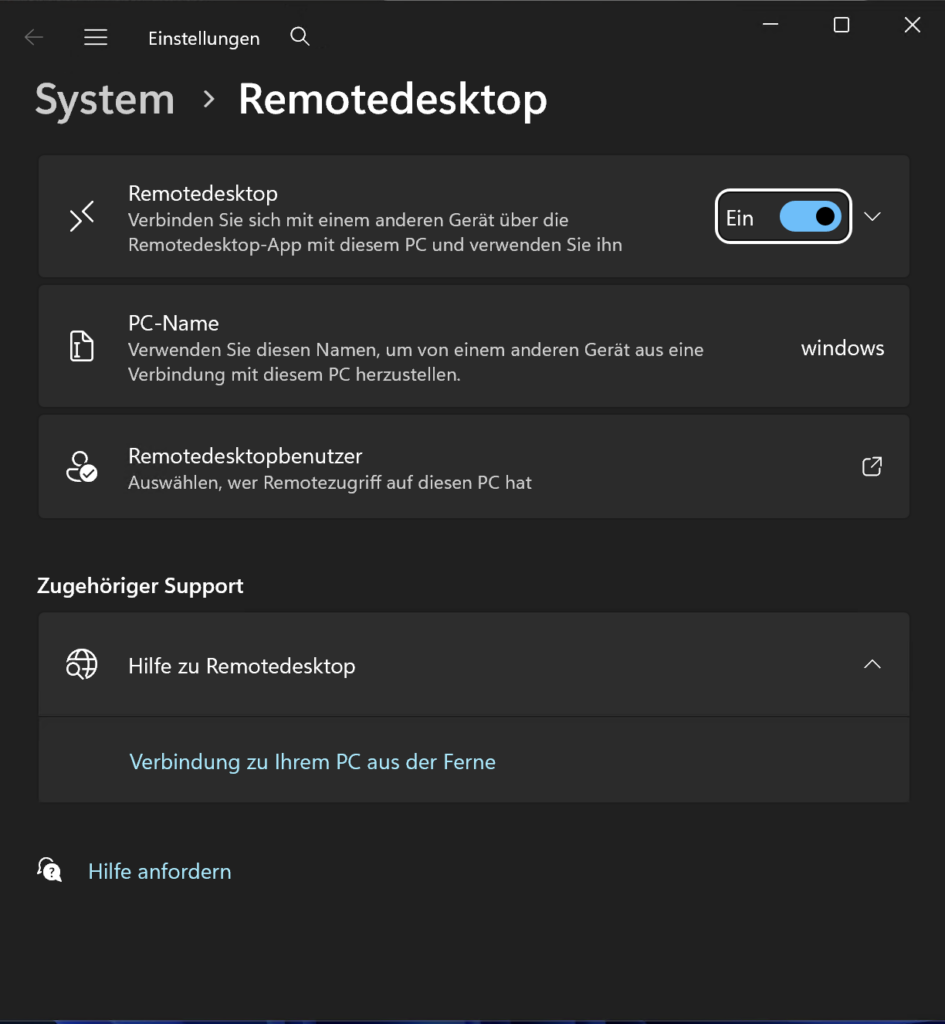
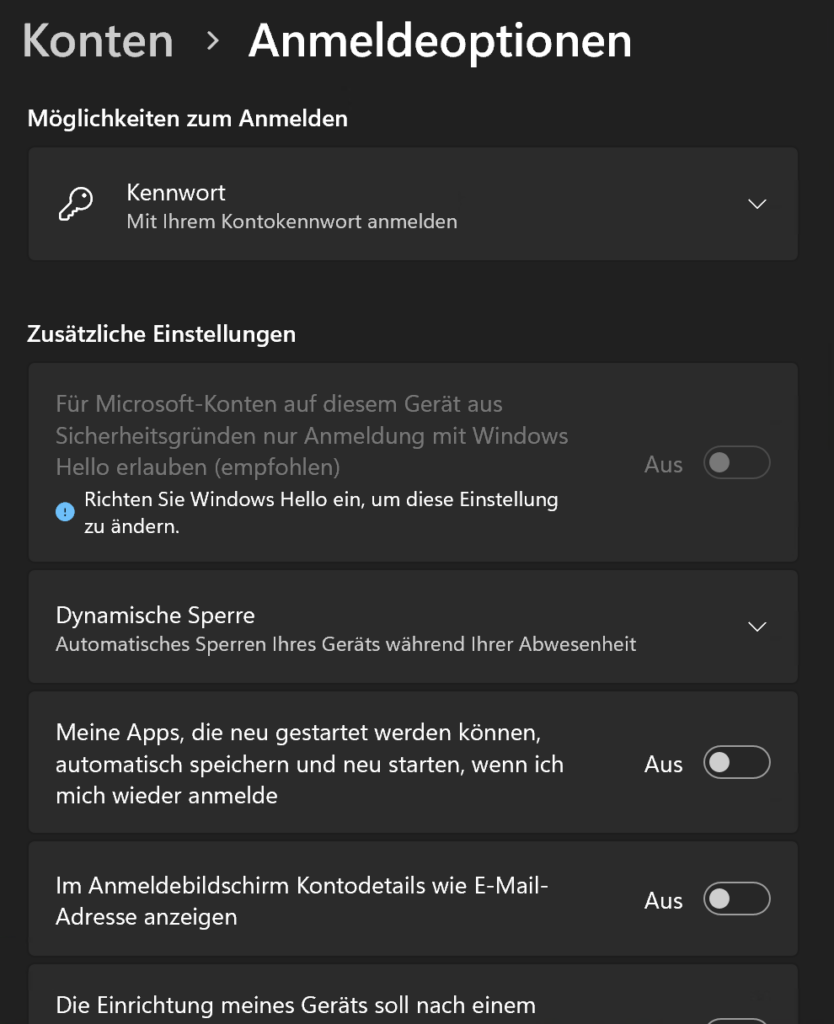
    Trimming the Fat: Debloating Windows 11

    Out of the box, Windows 11 is… well, it’s a lot. It’s bloated, heavy, and full of features you’ll never use for gaming. It’s basically the OS equivalent of me after two Döner Kebabs, sluggish and in desperate need of a nap.

    Thankfully, Raphire created an incredible script to fix this. (To be clear, it fixes the Windows bloat, not my Döner habit, I tried opening a GitHub issue for the latter, but no luck so far.)

    When I run this script, I don’t hold back. I remove basically everything. For a dedicated gaming VM, you want every spare cycle of your CPU and every megabyte of RAM focused on the game, not on “News and Interests” or background telemetry.
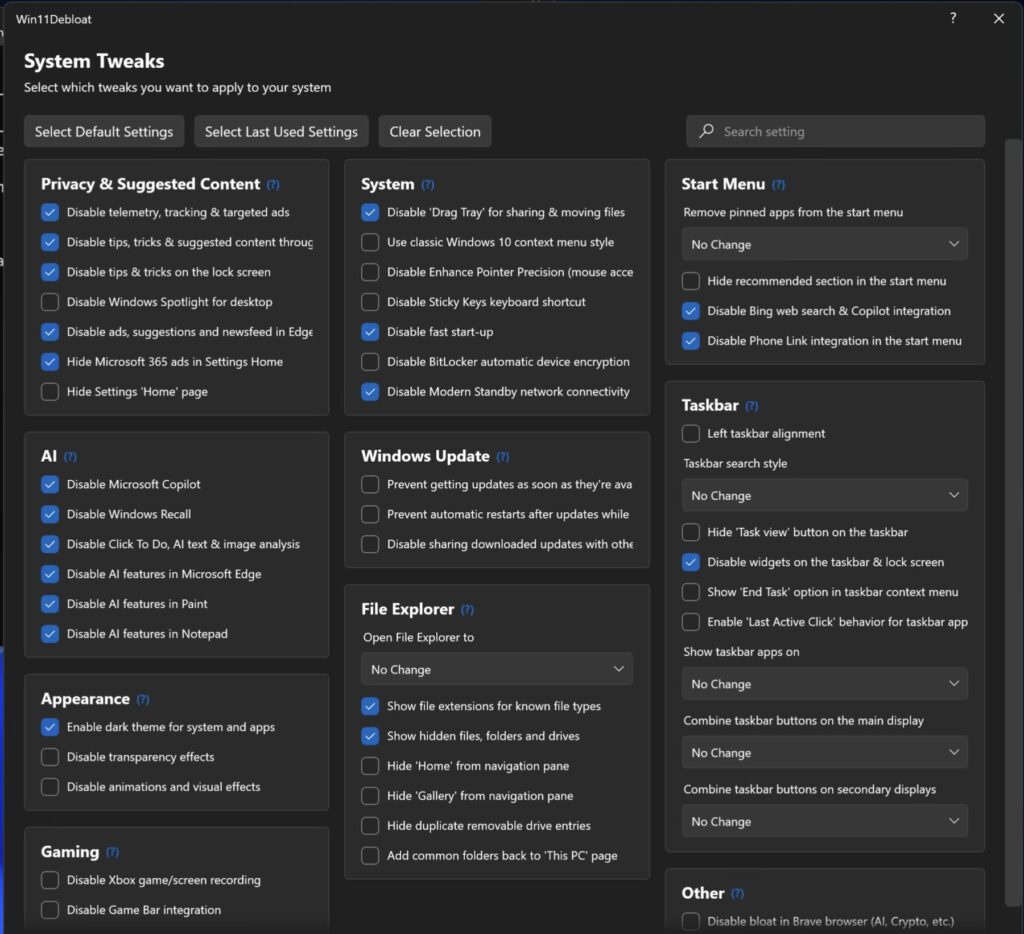
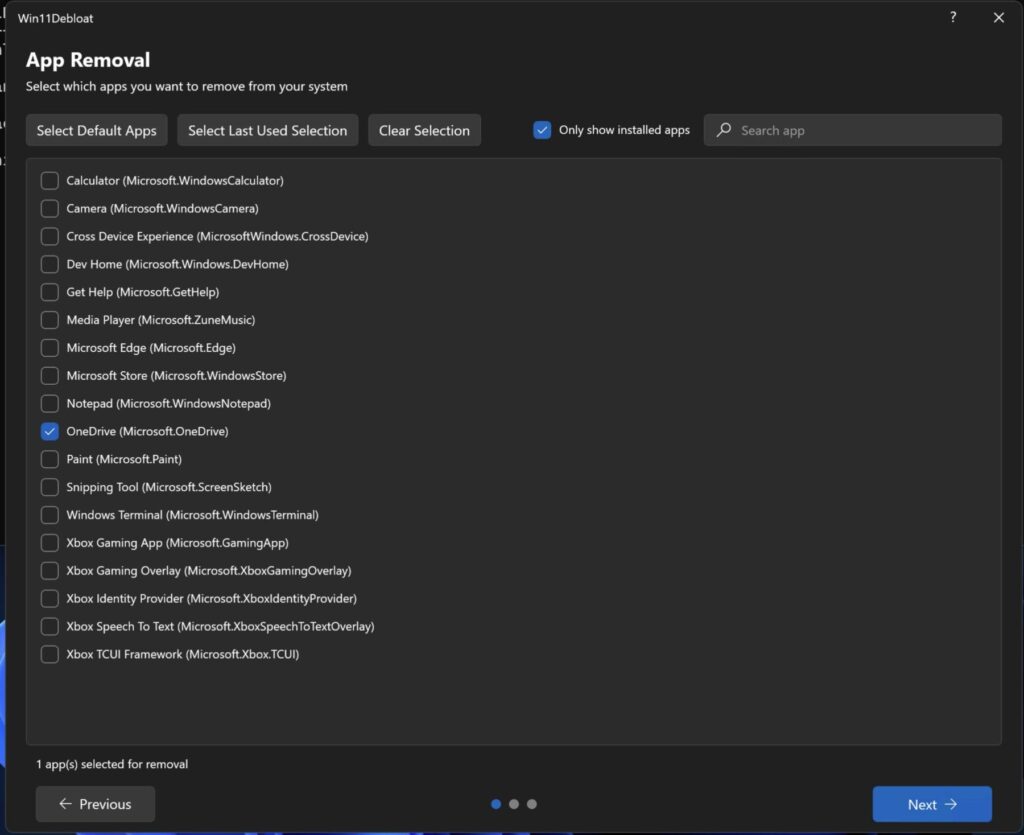
    The screenshot on the right shows what’s left after my purge, I removed about 100 preinstalled apps. While the script lets you set system tweaks however you like, I chose to be a bit more selective with the gaming features.

    Why I kept the Xbox App: Even though “Xbox” sounds like bloat to some, I decided to keep it in my VM. I use it for actual gaming, I own an Xbox console, and I frequently use gamepads that need those background services to function correctly.

    Rule of Thumb: If you plan on using Game Pass or an Xbox Controller, don’t let the script nuking those specific services!

    Hardening Windows 11 (Without Breaking It)

    Despite what people say, Windows with Defender can be a reasonably secure OS, provided you tweak the right settings and lock it down.

    Step 0: SNAPSHOT YOUR VM!

    Before you touch a single security setting, take a snapshot in Proxmox. Everything we’re about to do is difficult to reverse. If something breaks, it’s 10x faster to roll back a snapshot than it is to troubleshoot a locked-down registry.

    Why Most Hardening Scripts Fail

    There are plenty of “Ultra-Hardening” PowerShell scripts out there, but in my experience, they break Windows 100% of the time. People enable every toggle, and suddenly the OS is a digital paperweight.

    Instead, I recommend Harden-Windows-Security. You can actually find it in the Microsoft App Store. It provides a GUI that helps you audit your system and align with industry standards (like NIST or CIS).

    What I Enable (and Why)

    Here is the breakdown of the modules I use:

    • Microsoft Security Baseline
    • Microsoft Baseline Overrides
    • Microsoft Defender
    • Attack Surface Reduction (ASR): These are essentially “behavioral” blocks. They stop things like Office apps from creating child processes or scripts from running obfuscated code.
    • TLS Security
    • Windows Firewall
    • Windows Update
    • Edge Browser
    • Country IP Blocking: Uses Windows Firewall to block traffic from specific geographic regions known for high botnet activity.
    • Non-Admin Commands

    If you want a detailed description and explanation the original documentation is absolutely fabulous.

    Fixing the RDP Lockout

    Heads up: Enabling these settings will break your RDP login. The “Non-Admin” and “Security Baseline” modules often trigger a policy that views RDP as a security risk for local accounts. You’ll be locked out and forced to log back in via the Proxmox console to fix it:

    1. Open Local Security Policy: Press Win + R, type secpol.msc, and hit Enter.
    2. Navigate to User Rights: In the left pane, go to Local Policies > User Rights Assignment.
    3. Find the “Deny” Policy: Look for “Deny log on through Remote Desktop Services” on the right side.
    4. Remove the Block: Double-click it. If you see “Local account” or “Administrators” listed, select them and click Remove.
    5. Apply & OK: You should now be able to RDP back in.

    Summary

    By using Raphire’s debloater and Harden-Windows-Security, we’ve transformed a clunky, telemetry-heavy OS into a streamlined secure gaming beast.

    Why this setup wins:

    • Performance: No more 4K “dummy plug” overhead, just 120 FPS optimized for your actual screen.
    • Security: You’ve got a hardened system that would make a CISO proud, without the “broken OS” headaches of more aggressive scripts.
    • Convenience: You kept the Xbox services you actually use while nuking the 100+ apps you don’t.

    Just remember: Snapshot early and snapshot often. Whether you’re fighting Windows Hello or accidentally locking yourself out of RDP, that “Rollback” button in Proxmox is your best friend.

    Now that the OS is lean, mean, and secure, it’s finally time to stop looking at loading bars and start actually playing.

    Thank you for reading my short blog post today! Hugs and kisses 😚 byeeeeeeeeee ❤️

  • Visualizing Home Assistant Logs in Grafana with InfluxDB: A Practical Guide Using FRITZ!Box Data

    Visualizing Home Assistant Logs in Grafana with InfluxDB: A Practical Guide Using FRITZ!Box Data

    Let’s face it—this is a pretty specific use case. But if you’ve ever had your internet throttled, you’ll understand why I’m doing this. I wanted a way to store my router connectivity data for up to a year to have solid proof (and maybe even get some money back from my ISP). Here’s what my setup looks like:

    • Log Server: Running Grafana, Loki, Promtail, rsyslog, and InfluxDB.
    • Home Assistant: I run the OS version. Judge me if you must—yes, the Docker version is way more lightweight, but I like the simplicity of the OS version.
    • FRITZ!Box: My modem, with a Dream Machine handling the rest of my network behind it.

    For those curious about Home Assistant on Proxmox, the easiest method is using the Proxmox VE Helper Scripts. There’s also a detailed blog post I found about other installation methods if you’re exploring your options.

    A more detailed look on my setup

    Proxmox

    Proxmox Virtual Environment (VE) is the backbone of my setup. It’s a powerful, open-source virtualization platform that allows you to run virtual machines and containers efficiently. I use it to host Home Assistant, my logging stack, and other services, all on a single physical server. Proxmox makes resource allocation simple and offers great features like snapshots, backups, and an intuitive web interface. It’s perfect for consolidating multiple workloads while keeping everything isolated and manageable.

    FRITZ!Box

    The FRITZ!Box is one of the most popular home routers in Germany, developed by AVM Computersysteme Vertriebs GmbH. It’s known for its reliability and user-friendly features. I use it as my primary modem, and I’ve configured it to forward logs about internet connectivity and other metrics to my logging stack. If you’re curious about their lineup, check out their products here.

    Home Assistant

    Home Assistant is my go-to for managing smart home devices, and I run the OS version (yes, even though the Docker version is more lightweight). It’s incredibly powerful and integrates with almost any device. I use it to collect data from the FRITZ!Box and send it to my logging setup. If you’re using Proxmox, installing Home Assistant is a breeze with the Proxmox VE Helper Scripts.

    The Logserver

    I run all of these services on a Debian LXC inside of my Proxmox. I assigned the following resources to it:

    • RAM: 2GB
    • SWAP: 2GB
    • Cores: 2
    • Disk: 100GB (NVMe SSD,)

    As I later realized, 100GB are overkill. For 30 days of data I need about 5GB of Storage. My log retention policy is currently set to 30 days, but my InfluxDB retention is Bucket based, so that I need to watch.

    I still do have a lot of duplicate logs and more or less useless systems logs I never look at, so I can probably improve this by a lot.

    Grafana

    Grafana is, in my opinion, one of the best free tools for visualizing logs and metrics. It allows you to create beautiful, customizable dashboards that make it easy to monitor your data at a glance. Plus, it integrates seamlessly with Loki, InfluxDB, and many other tools.

    Loki

    Think of Loki as a “database for logs.” It doesn’t require complex indexing like traditional logging systems, which makes it lightweight and efficient. Once your logs are sent to Loki, you can easily search, filter, and analyze them through Grafana.

    Promtail

    Promtail is an agent that collects logs from your local system and sends them to Loki. For example, you can point it to your /var/log/directory, set up rules to pick specific logs (like system or router logs), and Promtail will forward those logs to your Loki instance. It’s simple to configure and keeps everything organized.

    rsyslog

    This is a flexible logging system that can forward or store logs. In my setup, it collects logs from devices like routers and firewalls—especially those where you can’t easily install an agent or service—and makes those logs available for Promtail to pick up and send to Loki.

    InfluxDB

    InfluxDB is one of the most popular time-series databases, perfect for storing numerical data over time, like network speeds or uptime metrics. I use it alongside Grafana to visualize long-term trends in my router’s performance.

    Metrics vs. Logs: What’s the Difference?

    Metrics track numerical trends over time (e.g., CPU usage, internet speed), while logs provide detailed event records (e.g., an error message when your router loses connection). Both are incredibly useful for troubleshooting and monitoring, especially when used together.

    In this post, I’ll show you how I’ve tied all these tools together to monitor my internet connectivity and keep my ISP accountable. Let’s get started!

    Setting up Home Assistant with InfluxDB

    In Home Assistant, I have a dashboard that shows the internet speed my devices are getting within the network, along with the speeds my FRITZ!Box is receiving from my ISP. Don’t worry about the big difference in download speeds—I’m currently syncing a bunch of backups, which is pulling a lot of data.

    Home Assistant keeps data from the FRITZ!Box for only 10 days, which isn’t enough to prove to my ISP that they’re throttling my connection. A technician came by today, which is why my download speeds are back to normal. However, as you can see here, they had me on a slower speed before that.

    In Home Assistant, you can adjust data retention with the Recorder, but this applies to all sensors, which was a bit annoying in my case since I only wanted to keep data for specific entities for a year. Since I already use Grafana for other visualizations and have InfluxDB running, I decided to take that route instead.

    Home Assistant conveniently includes a built-in integration to export metrics directly to InfluxDB, making the setup straightforward.

    In InfluxDB, I created a new bucket specifically for this data—who knows, I might add more Home Assistant data there someday! I’ve set it to store data for two years, but if I ever run out of space, I can always adjust it. 😁

    Next, I created a new API token for the bucket. I opted for both read and write permissions, just in case I ever want to pull data from InfluxDB back into Home Assistant.

    In the Home Assistant file editor you simply have to edit your configuration.yaml

    configuration.yaml
    influxdb:
      api_version: 2
      ssl: true
      host: influx.home.karl.fail
      port: 443
      token: YOUR_INFLUX_TOKEN
      organization: XXXXXXa01d9de0a8
      bucket: home-assistant
      include:
        entity_globs:
          - sensor.fritz_box_7510*
          - sensor.speedtest_*

    You can find the organization ID for your InfluxDB organization by clicking the user icon in the top left and selecting “About” at the bottom of the page. That’s where the ID is listed. As you can see, I’m using port 443 because my setup uses HTTPS and is behind a reverse proxy. If you’re interested in setting up HTTPS with a reverse proxy, check out my post How to Get Real Trusted SSL Certificates with ACME-DNS in Nginx Proxy Manager.

    Once everything is configured, restart Home Assistant. Go to the Data Explorer tab in your InfluxDB UI to verify that data is flowing into your bucket.

    The Grafana Dashboard

    Alright, please don’t judge my dashboard too harshly! I’m still learning the ropes here. I usually rely on prebuilt ones, but this is my first attempt at creating one from scratch to help me learn.

    You’ll need to check the Explore tab in Grafana to find your specific entities, but here are the queries I used for reference:

    from(bucket: "home-assistant")
      |> range(start: v.timeRangeStart, stop: v.timeRangeStop)
      |> filter(fn: (r) => r["entity_id"] == "fritz_box_7510_link_download_durchsatz" and r["_field"] == "value")
      |> map(fn: (r) => ({ r with _value: float(v: r._value) / 1000.0 }))

    The filter for the entity ID comes from Home Assistant. You can easily find it on your dashboard by double-clicking (or double-tapping) the widget and checking its settings.

    You do the same for Upload

    Keep in mind that the upload speed is only measured every few hours by your FRITZ!Box.

    from(bucket: "home-assistant")
      |> range(start: v.timeRangeStart, stop: v.timeRangeStop)
      |> filter(fn: (r) => r["entity_id"] == "fritz_box_7510_link_upload_durchsatz" and r["_field"] == "value")
      |> map(fn: (r) => ({ r with _value: float(v: r._value) / 1000.0 }))

    For measuring data within the network, I’m using the Speedtest.net integration in Home Assistant.

    from(bucket: "home-assistant")
      |> range(start: v.timeRangeStart, stop: v.timeRangeStop)
      |> filter(fn: (r) => r["entity_id"] == "speedtest_download" and r["_field"] == "value")

    The query for this is quite similar, as you can see.

    Now, here’s the tricky part: extracting your public IP from the FRITZ!Box metrics. Out of the box, the metrics sent to InfluxDB seem to be messed up—maybe I did something wrong (feel free to comment and let me know 😁). To handle this, I wrote a filter that checks if an IP is present. I kept running into errors, so I ended up casting everything to a string before applying the check. Since my IP doesn’t change often (about once a week), I use a range of -30 days for the query:

    import "regexp"
    
    from(bucket: "home-assistant")
      |> range(start: -30d)
      |> filter(fn: (r) => r["entity_id"] == "fritz_box_7510_externe_ip")
      |> toString()
      |> filter(fn: (r) => regexp.matchRegexpString(r: /^([0-9]{1,3}\.){3}[0-9]{1,3}$/, v: r._value))
      |> map(fn: (r) => ({ IP: r._value, Date: r._time }))

    Now, you’ll get a neat little table showing the changes to your public IP (don’t worry, I’ve changed my public IP for obvious reasons). It’s a simple way to keep track of when those changes happen!

    I’m planning to write a longer post about how I set up my logging server and connected all these pieces together. But for now, I just wanted to share what I worked on tonight and how I can now hold my ISP accountable if I’m not getting what I paid for—or, as is often the case, confirm if it’s actually my fault 😅.

  • Small business private cloud

    Small business private cloud

    In Germany, we’re fortunate to have strong data privacy laws. For small businesses handling sensitive data in the era of remote work, it’s crucial to have a secure server based locally. I built a small business network optimized for remote work and security. From setting up secure workstations to implementing top-notch backup solutions, I ensured compliance with regulations and customer expectations. Adding montioring with CheckMK I ensure to keep things running smooth.