Tag: monitoring

  • Monitoring Your Personal Attack Surface with Shodan and n8n

    Monitoring Your Personal Attack Surface with Shodan and n8n

    Let’s be honest. You wouldn’t leave your front door wide open with a neon sign pointing to your expensive new TV while you went on vacation.

    Yet, on the internet, many of us do exactly that every day.

    We open ports on our home routers for Plex servers, Minecraft games with friends, NAS drives, or that smart toaster that desperately needs to talk to the mothership for some reason. We poke tiny holes in our home firewalls, assume nobody will notice because the internet is “too big,” and forget about them.

    This collection of open digital doors and windows is your personal attack surface. And guess what? There are bots scanning the entire internet 24/7 looking for those open windows. It does not matter if you are a huge company or tiny home user, most attacks are automated, they do not make a difference initially.

    Today, we’re going to build an automated watchdog that barks at you on Discord whenever your digital fly is down.

    The Toolkit

    To build this self-monitoring system, we combined two incredibly powerful tools: n8n and Shodan.

    What is n8n?

    Think of n8n as digital duct tape with a PhD. It’s a workflow automation tool (like IFTTT or Zapier, but way more powerful and self-hostable) that lets you connect services that have no business talking to each other. It listens for triggers, runs some logic, and performs actions. It’s the butler that runs our automation household.

    What is Shodan?

    Google crawls websites to see what text is on them. Shodan crawls the infrastructure of the internet. It’s a search engine that doesn’t scan for cute cat blog posts; it scans for IP addresses, open ports, webcams with default passwords, and industrial control systems.

    Shodan is basically a global, automated census taker that knocks on every single digital door on the planet, 24/7, and records who answers and what they say.

    Our Goal

    We wanted a system that runs automatically, checks our home IP address against Shodan’s massive database, and reports back in a human-readable way.

    Here is the workflow we built together:

    Step 1: The Moving Target (DynDNS)

    Most home internet connections have dynamic IPs, they change whenever your ISP feels like it. Trying to monitor yesterday’s IP is useless.

    We solved this by using a DynDNS domain (like my-house.example.com). Our script doesn’t check an IP directly; it asks the internet “What is the current IP address for this domain name?” This ensures we are always scanning our current front door.

    import socket
    import requests
    
    
    DYNDNS_DOMAIN = "dyndns.example.de"
    SHODAN_API_KEY = 'abcdef12345'
    
    try:
        # 2. Resolve the DynDNS Domain to an IP
        # We use socket to look up the 'A' record (IPv4) for your domain
        target_ip = socket.gethostbyname(DYNDNS_DOMAIN)
    
        # 3. Lookup IP on Shodan (Passive Scan)
        shodan_url = f"https://api.shodan.io/shodan/host/{target_ip}?key={SHODAN_API_KEY}"
        shodan_response = requests.get(shodan_url, timeout=10)
        
        # Check results
        if shodan_response.status_code == 200:
            scan_data = shodan_response.json()
            found = True
        elif shodan_response.status_code == 404:
            scan_data = {"message": "IP not found in Shodan database."}
            found = False
        else:
            scan_data = {"error": f"Shodan API Error: {shodan_response.status_code}"}
            found = False
    
        # 4. Return to n8n
        return [{
            "json": {
                "domain": DYNDNS_DOMAIN,
                "resolved_ip": target_ip,
                "shodan_found": found,
                "shodan_data": scan_data
            }
        }]
    
    except socket.gaierror:
        # Handle DNS resolution errors (e.g., if the domain doesn't exist)
        return [{
            "json": {
                "error": "Could not resolve hostname. Check your DynDNS domain.",
                "domain": DYNDNS_DOMAIN
            }
        }]
    except Exception as e:
        return [{
            "json": {
                "error": str(e)
            }
        }]

    Step 2: Knocking on Shodan’s Door (The API)

    Once n8n knows our current IP, it uses a Python script to politely tap Shodan on the shoulder via their API.

    We are performing a passive lookup. We aren’t asking Shodan to actively attack our router right now (that costs extra credits and is noisy). We are asking: “Hey Shodan, in your vast database of everything you’ve scanned recently, what do you already know about this IP address?”

    We have already included the Shodan API request in the code above.

    Step 3: Datacrunching

    Shodan replies with a massive, terrifying blob of JSON data. It lists ISPs, geographical locations, open ports (like 80, 443, or weird ones like 8089), and the “banners”—the text those services spit out when connected to.

    If we just emailed this raw JSON to ourselves, we’d never read it. We used Python within n8n to sift through the noise. It determines if the scan is “Clean” (safe) or a “Warning” (ports open) and formats a beautiful, color-coded report.

    from datetime import datetime
    
    # 1. Get the input data using your preferred syntax
    data = _items[0]["json"]
    
    domain = data.get("domain", "Unknown Domain")
    ip = data.get("resolved_ip", "Unknown IP")
    is_found = data.get("shodan_found", False)
    shodan_data = data.get("shodan_data", {})
    
    # 2. Initialize Embed Variables
    embed_fields = []
    
    if is_found:
        # --- STATUS: WARNING (Red/Orange) ---
        color = 16744192  # 0xFF7700 (Orange)
        title = f"⚠️ Shodan Alert: {domain}"
        description = f"**Target IP:** `{ip}`\n**Status:** Exposed services found."
    
        # Extract specific details from your JSON structure
        # Use 'get' with defaults to prevent crashes
        org = shodan_data.get("org", "Unknown Org")
        city = shodan_data.get("city", "Unknown City")
        country = shodan_data.get("country_name", "Unknown Country")
        
        # Extract Ports
        # In your JSON, 'ports' is a list [8089]
        ports = shodan_data.get("ports", [])
        ports_str = ", ".join(map(str, ports)) if ports else "None detected"
    
        # Extract Service Banners (from the 'data' list in your JSON)
        # This shows *what* is running on the port (e.g., HTTP 404)
        service_details = []
        for service in shodan_data.get("data", []):
            p = service.get("port")
            # Try to get a product name, otherwise grab the raw data banner
            banner = service.get("product") or service.get("data", "").strip()
            # Truncate banner if it's too long for Discord
            if len(banner) > 50: 
                banner = banner[:47] + "..."
            service_details.append(f"**Port {p}:** `{banner}`")
        
        services_str = "\n".join(service_details) if service_details else "No service banners captured."
    
        # Build the Fields
        embed_fields = [
            {"name": "🏢 Organization", "value": org, "inline": True},
            {"name": "🌍 Location", "value": f"{city}, {country}", "inline": True},
            {"name": "🔓 Open Ports", "value": ports_str, "inline": True},
            {"name": "🔎 Service Details", "value": services_str, "inline": False}
        ]
    
    else:
        # --- STATUS: SAFE (Green) ---
        color = 5763719  # 0x57F287 (Green)
        title = f"✅ Clean Scan: {domain}"
        description = f"**Target IP:** `{ip}`\n**Status:** No open ports found on Shodan."
        embed_fields = [
            {"name": "Result", "value": "IP address is not indexed or has no public services.", "inline": False}
        ]
    
    # 3. Construct the Final Discord Webhook Payload
    discord_payload = {
        "username": "Shodan Bot",
        "avatar_url": "https://static-00.iconduck.com/assets.00/shodan-icon-512x512-j6i1s0d4.png",
        "embeds": [{
            "title": title,
            "description": description,
            "color": color,
            "fields": embed_fields,
            "footer": {
                "text": f"Scan Time: {datetime.now().strftime('%Y-%m-%d %H:%M:%S')}"
            }
        }]
    }
    
    # 4. Return formatted for the next node
    return [{"json": discord_payload}]

    Step 4: Discord Webhook

    Finally, n8n takes that nicely formatted report and fires it off to a private Discord channel via a Webhook.

    # n8n Code Node: Post to Discord
    import requests
    
    DISCORD_WEBHOOK_URL = "https://discord.com/api/webhooks/"
    
    # Get the input data (which is the Discord payload itself)
    payload = _items[0]["json"]
    
    try:
        resp = requests.post(
            DISCORD_WEBHOOK_URL,
            json=payload,
            timeout=(5, 10),
        )
        resp.raise_for_status()
        
        # Return success status
        return [{
            "json": {
                "status": resp.status_code,
                "sent": True,
                "target": payload.get('embeds', [{}])[0].get('title', 'Unknown Target')
            }
        }]
    
    except Exception as e:
        # Return error details
        return [{
            "json": {
                "error": str(e),
                "sent": False,
                "failed_payload": payload
            }
        }]

    The Result: Sleeping Better at Night

    Now, I have a dedicated channel in Discord. Most days, I get a comforting little green ping:

    ✅ Clean Scan: https://www.google.com/url?sa=E&source=gmail&q=my-house.example.com

    Target IP: 84.182.x.x

    Status: No open ports found on Shodan.

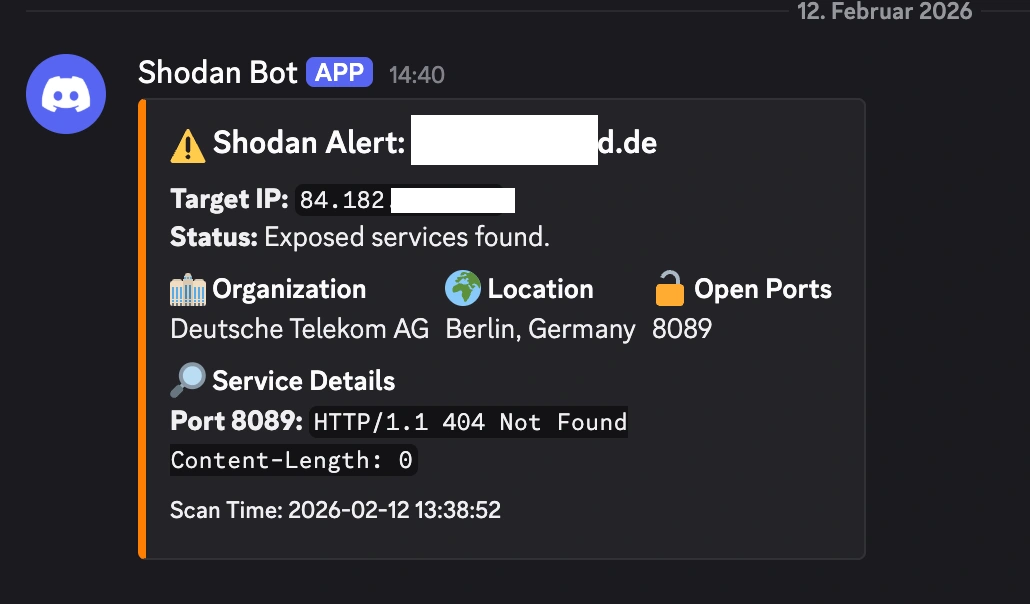
    But sometimes, if I’ve been messing around with a new server project and forgot to close a firewall rule, I get the orange text of doom:

    ⚠️ Shodan Alert: https://www.google.com/url?sa=E&source=gmail&q=my-house.example.com

    Location: Berlin, Germany | ISP: Deutsche Telekom AG

    🔓 Open Ports: 8089

    🔎 Service Details: Port 8089: HTTP/1.1 404 Not Found...
    It’s a fantastic, low-effort way to keep tabs on your personal attack surface and overall cybersecurity posture. If Shodan can see it, the bad guys can see it too. You might as well know first. If you want to go deeper on active testing, check out my hands-on review of AI pentesting agents.

    I am always trying to find cool ways to use my n8n instance, we could just have it run an nmap scan like in my Node-RED nmap-as-a-service post:

    but I figured why not use the Shodan API this time ✌️

    Anyways thanks for being here to read my post, sleep tight, kisses, byeeeeeee 😍

  • Effortless Cron Job Monitoring: A Guide to Self-Hosting with Healthchecks.io

    Effortless Cron Job Monitoring: A Guide to Self-Hosting with Healthchecks.io

    Do you ever find yourself lying awake at night, staring at the ceiling, wondering if your beloved cronjobs ran successfully? Worry no more! Today, we’re setting up a free, self-hosted solution to ensure you can sleep like a content little kitten 🐱 from now on.

    I present to you Healthchecks.io. According to their website:

    Simple and Effective Cron Job Monitoring

    We notify you when your nightly backups, weekly reports, cron jobs, and scheduled tasks don’t run on time.

    How to monitor any background job:

    1. On Healthchecks.io, generate a unique ping URL for your background job.
    2. Update your job to send an HTTP request to the ping URL every time the job runs.
    3. When your job does not ping Healthchecks.io on time, Healthchecks.io alerts you!

    Today, we’re taking the super easy, lazy-day approach by using their Docker image. They’ve provided a well-documented, straightforward guide for deploying it right here: Running with Docker.

    What I love most about Healthchecks.io? It’s built on Django, my all-time favorite Python web framework. Sorry, FastAPI—you’ll always be cool, but Django has my heart!

    Prerequisites:

    1. A Server: You’ll need a server to host your shiny new cronjob monitor. A Linux distro is ideal.
    2. Docker & Docker Compose: Make sure these are installed. If you’re not set up yet, here’s the guide.
    3. Bonus Points: Having a domain or subdomain, along with a public IP, makes it accessible for all your systems.

    You can run this on your home network without any hassle, although you might not be able to copy and paste all the code below.

    Need a free cloud server? Check out Oracle’s free tier—it’s a decent option to get started. That said, in my experience, their free servers are quite slow, so I wouldn’t recommend them for anything mission-critical. (Not sponsored, pretty sure they hate me 🥺.)

    Setup

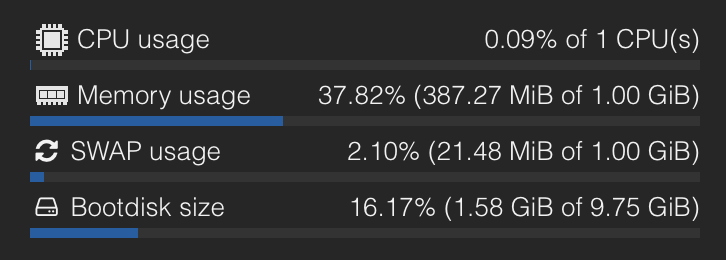
    I’m running a Debian LXC container on my Proxmox setup with the following specs:

    • CPU: 1 core
    • RAM: 1 GB
    • Swap: 1 GB
    • Disk: 10 GB (NVMe SSD)

    After a month of uptime, these are the typical stats: memory usage stays pretty consistent, and the boot disk is mostly taken up by Docker and the image. As for the CPU? It’s usually just sitting there, bored out of its mind.

    First, SSH into your server, and let’s get started by creating a .env file to store all your configuration variables:

    .env
    PUID=1000
    PGID=1000
    APPRISE_ENABLED=True
    TZ=Europe/Berlin
    SITE_ROOT=https://ping.yourdomain.de
    SITE_NAME=Healthchecks
    ALLOWED_HOSTS=ping.yourdomain.de
    CSRF_TRUSTED_ORIGINS=https://ping.yourdomain.de
    DEBUG=False
    SECRET_KEY=your-secret-key

    In your .env file, enter the domain you’ll use to access the service. I typically go with something simple, like “ping” or “cron” as a subdomain. If you want to explore more configuration options, you can check them out here.

    For my setup, this basic configuration does the job perfectly.

    To generate secret keys, I usually rely on the trusty openssl command. Here’s how you can do it:

    Bash
    openssl rand -base64 64
    docker-compose.yml
    services:
      healthchecks:
        image: lscr.io/linuxserver/healthchecks:latest
        container_name: healthchecks
        env_file:
          - .env
        volumes:
          - ./config:/config
        ports:
          - 8083:8000
        restart: unless-stopped

    All you need to do now is run:

    Bash
    docker compose -up

    That’s it—done! 🎉

    Oh, and by the way, I’m not using the original image for this. Instead, I went with the Linuxserver.io variant. There is no specific reason for this —just felt like it! 😄

    Important!

    Unlike the Linuxserver.io guide, I skipped setting the superuser credentials in the .env file. Instead, I created the superuser manually with the following command:

    Bash
    docker compose exec healthchecks python /app/healthchecks/manage.py createsuperuser

    This allows you to set up your superuser interactively and securely directly within the container.

    If you’re doing a standalone deployment, you’d typically set up a reverse proxy to handle SSL in front of Healthchecks.io. This way, you avoid dealing with SSL directly in the app. Personally, I use a centralized Nginx Proxy Manager running on a dedicated machine for all my deployments. I’ve even written an article about setting it up with SSL certificates—feel free to check that out!

    Once your site is served through the reverse proxy over the domain you specified in the configuration, you’ll be able to access the front end using the credentials you created with the createsuperuser command.

    There are plenty of guides for setting up reverse proxies, and if you’re exploring alternatives, I’m also a big fan of Caddy—it’s simple, fast, and works like a charm!

    Here is a finished Docker Compose file with Nginx Proxy Manager:

    docker-compose.yml
    services:
      npm:
        image: 'jc21/nginx-proxy-manager:latest'
        container_name: nginx-proxy-manager
        restart: unless-stopped
        ports:
          - '443:443'
          - '81:81'
        volumes:
          - ./npm/data:/data
          - ./npm/letsencrypt:/etc/letsencrypt
    
      healthchecks:
        image: lscr.io/linuxserver/healthchecks:latest
        container_name: healthchecks
        env_file:
          - .env
        volumes:
          - ./healthchecks/config:/config
        restart: unless-stopped

    In Nginx Proxy Manager your proxied host would be “http://healthchecks:8000”

    If you did not follow my post you will need to expose port 80 on the proxy as well for “regular” Let’s Encrypt certificates without DNS challenge.

    Healthchecks.io

    If you encounter any errors while trying to access the UI of your newly deployed Healthchecks, the issue is most likely related to the settings in your .env file. Double-check the following to ensure they match your domain configuration:

    .env
    SITE_ROOT=https://ping.yourdomain.de
    ALLOWED_HOSTS=ping.yourdomain.de
    CSRF_TRUSTED_ORIGINS=https://ping.yourdomain.de

    Once you’re in, the first step is to create a new project. After that, let’s set up your first simple check.

    For this example, I’ll create a straightforward uptime monitor for my WordPress host. I’ll set up a cronjob that runs every hour and sends an “alive” ping to my Healthchecks.io instance.

    The grace period is essential to account for high latency. For instance, if my WordPress host is under heavy load, an outgoing request might take a few extra seconds to complete. Setting an appropriate grace period ensures that occasional delays don’t trigger false alerts.

    I also prefer to “ping by UUID”. Keeping these endpoints secret is crucial—if someone else gains access to your unique ping URL, they could send fake pings to your Healthchecks.io instance, causing you to miss real downtimes.

    Click on the Usage Example button in your Healthchecks.io dashboard to find ready-to-use, copy-paste snippets for various languages and tools. For this setup, I’m going with bash:

    Bash
    curl -m 10 --retry 5 https://ping.yourdomain.de/ping/67162f7b-5daa-4a31-8667-abf7c3e604d8
    • -m sets the max timeout to 10 seconds. You can change the value but do not leave this out!
    • –retry says it should retry the request 5 times before aborting.

    Here’s how you can integrate it into a crontab:

    Bash
    # A sample crontab entry. Note the curl call appended after the command.
    # FIXME: replace "/your/command.sh" below with the correct command!
    0 * * * * /your/command.sh && curl -fsS -m 10 --retry 5 -o /dev/null https://ping.yourdomain.de/ping/67162f7b-5daa-4a31-8667-abf7c3e604d8
    

    To edit your crontab just run:

    Bash
    crontab -e

    The curl command to Healthchecks.io will only execute if command.sh completes successfully without any errors. This ensures that you’re notified only when the script runs without issues.

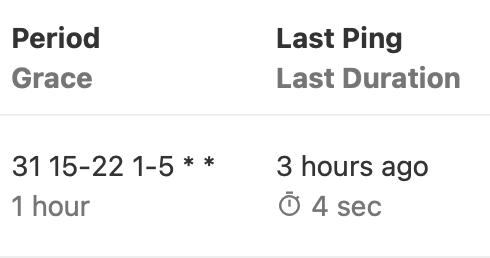
    After you ran that command, your dashboard should look like this:

    Advanced Checks

    While this is helpful, you might often need more detailed information, such as whether the job started but didn’t finish or how long the job took to complete.

    Healthchecks.io provides all the necessary documentation built right into the platform. You can visit /docs/measuring_script_run_time/ on your instance to find fully functional examples.

    Bash
    #!/bin/sh
    
    RID=`uuidgen`
    CHECK_ID="67162f7b-5daa-4a31-8667-abf7c3e604d8"
    
    # Send a start ping, specify rid parameter:
    curl -fsS -m 10 --retry 5 "https://ping.yourdomain.de/ping/$CHECK_ID/start?rid=$RID"
    
    # Put your command here
    /usr/bin/python3 /path/to/a_job_to_run.py
    
    # Send the success ping, use the same rid parameter:
    curl -fsS -m 10 --retry 5 "https://ping.yourdomain.de/ping/$CHECK_ID?rid=$RID"

    As you can see here this will give me the execution time as well:

    Here, I used a more complex cron expression. To ensure it works as intended, I typically rely on Crontab.guru for validation. You can use the same cron expression here as in your local crontab. The grace period depends on how long you expect the job to run; in my case, 10 seconds should be sufficient.

    Notifications

    You probably don’t want to find yourself obsessively refreshing the dashboard at 3 a.m., right? Ideally, you only want to be notified when something important happens.

    Thankfully, Healthchecks.io offers plenty of built-in notification options. And for even more flexibility, we enabled Apprise in the .env file earlier, unlocking a huge range of additional integrations.

    For notifications, I usually go with Discord or Node-RED, since they work great with webhook-based systems.

    While you could use Apprise for Discord notifications, the simplest route is to use the Slack integration. Here’s the fun part: Slack and Discord webhooks are fully compatible, so you can use the Slack integration to send messages directly to your Discord server without any extra configuration!

    This way, you’re only disturbed when something really needs your attention—and it’s super easy to set up.

    Discord already provides an excellent Introduction to Webhooks that walks you through setting them up for your server, so I won’t dive into the details here.

    All you need to do is copy the webhook URL from Discord and paste it into the Slack integration’s URL field in Healthchecks.io. That’s it—done! 🎉

    With this simple setup, you’ll start receiving notifications directly in your Discord server whenever something requires your attention. Easy and effective!

    On the Discord side it will look like this:

    With this setup, you won’t be bombarded with notifications every time your job runs. Instead, you’ll only get notified if the job fails and then again when it’s back up and running.

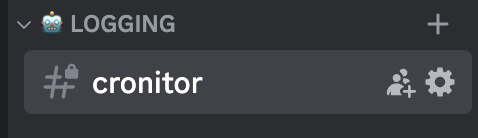
    I usually prefer creating dedicated channels for these notifications to keep things organized and avoid spamming anyone:

    EDIT:

    I ran into some issues with multiple Slack notifications in different projects. If you get 400 errors just use Apprise. The Discord URL would look like this:

    discord://{WebhookID}/{WebhookToken}/
    
    for example:
    
    discord://13270700000000002/V-p2SweffwwvrwZi_hc793z7cubh3ugi97g387gc8svnh

    Status Badges

    In one of my projects, I explained how I use SVG badges to show my customers whether a service is running.

    Here’s a live badge (hopefully it’s still active when you see this):

    bearbot

    Getting these badges is incredibly easy. Simply go to the “Badges” tab in your Healthchecks.io dashboard and copy the pre-generated HTML to embed the badge on your website. If you’re not a fan of the badge design, you can create your own by writing a custom JavaScript function to fetch the status as JSON and style it however you like.

    Here is a code example:

    HTML
    <style>
        .badge {
            display: inline-block;
            padding: 10px 20px;
            border-radius: 5px;
            color: white;
            font-family: Arial, sans-serif;
            font-size: 16px;
            font-weight: bold;
            text-align: center;
            box-shadow: 0 4px 6px rgba(0, 0, 0, 0.1);
            transition: background-color 0.3s ease;
        }
        .badge.up {
            background-color: #28a745; /* Green for "up" */
        }
        .badge.down {
            background-color: #dc3545; /* Red for "down" */
        }
        .badge.grace {
            background-color: #ffc107; /* Yellow for "grace" */
        }
    </style>
    </head>
    <body>
    <div id="statusBadge" class="badge">Loading...</div>
    
    <script>
        async function updateBadge() {
            // replace this 
            const endpoint = "https://ping.yourdmain.de/badge/XXXX-XXX-4ff6-XXX-XbS-2.json"
            const interval = 60000
            // ---
            
            try {
                const response = await fetch(endpoint);
                const data = await response.json();
    
                const badge = document.getElementById('statusBadge');
                badge.textContent = `Status: ${data.status.toUpperCase()} (Total: ${data.total}, Down: ${data.down})`;
    
                badge.className = 'badge';
                if (data.status === "up") {
                    badge.classList.add('up');
                } else if (data.status === "down") {
                    badge.classList.add('down');
                } else if (data.status === "grace") {
                    badge.classList.add('grace');
                }
            } catch (error) {
                console.error("Error fetching badge data:", error);
                const badge = document.getElementById('statusBadge');
                badge.textContent = "Error fetching data";
                badge.className = 'badge down';
            }
        }
    
        updateBadge();
        setInterval(updateBadge, interval);
    </script>
    </body>

    The result:

    It might not look great, but the key takeaway is that you can customize the style to fit seamlessly into your design.

    Conclusion

    We’ve covered a lot of ground today, and I hope you now have a fully functional Healthchecks.io setup. No more sleepless nights worrying about whether your cronjobs ran successfully!

    So, rest easy and sleep tight, little kitten 🐱—your cronjobs are in good hands now.