Tag: automation

  • Ultimate Guide to Self-Hosted Dynamic DNS: Ditch DuckDNS for KarlDNS

    Ultimate Guide to Self-Hosted Dynamic DNS: Ditch DuckDNS for KarlDNS

    We’ve all been there. It’s 2:00 AM, you’re miles away from home trying to SSH into your homelab or access your Nextcloud instance, and you realize your ISP rotated your public IP address. No big deal, right? You check your free Dynamic DNS provider, only to find a devastating email buried in your spam folder:

    “Your hostname has been deleted because you didn’t log into our ad-ridden dashboard and click a manual verification link inside a full moon while standing on one leg.

    Dynamic DNS shouldn’t feel like a part-time job.

    Between aggressive premium upsells from commercial providers and the outright instability of some free alternatives, the self-hosting community has been left in a weird spot. If you want a “set-and-forget” setup under your own control, it’s time to meet KarlDNS. It’s a lightweight, self-hosted DynDNS service built for routers, homelabs, and infrastructure operators who want absolute control over their network edge without the typical platform headache.

    (Or give me, Karl, some control 😘)

    The Problem: Why Traditional DynDNS is an Architectural Trap

    Most Dynamic DNS setups suffer from a critical flaw: they either force you into a commercialized third-party silo, or they require you to build an overly complex, over-engineered DNS infrastructure that takes more time to maintain than the apps it serves.

    Ok yes, I may over exaggerate a little.. I am just jealous that Cloudflare-DDNS has so many more stars than me.

    When designing KarlDNS, we wanted to eliminate three major pain points:

    • The Over-Privileged API Token Problem: Most lightweight DynDNS scripts require you to hardcode an all-powerful Cloudflare or Route 53 global API key directly onto your home router or a random cron job. If that router gets compromised, an attacker inherits full read/write access to your entire domain registry.
    • Account Fatigue: Users shouldn’t have to create a profile, verify an email, and manage passwords just to map a shifting WAN IP to a domain name.
    • Bloated Infrastructure Dependencies: You do not need a multi-node Kubernetes cluster, a Redis caching tier, or a heavy PostgreSQL database engine just to translate a string into an IP address. That is structural overkill.

    Enter KarlDNS: The Elegant CNAME Architecture

    KarlDNS doesn’t try to be an all-encompassing DNS authoritative plane. It doesn’t handle your MX records, your email signatures, or your complex routing policies. Instead, it does one job flawlessly: it accepts an IP update from a client, validates it, and pushes that single update to a zone it explicitly controls.

    My goal was to get you a DDNS Setup in 2 clicks.

    To protect your root domains, KarlDNS relies on a clean CNAME delegation model:

    [Your Custom Domain] -> home.yourdomain.com
           
            (Standard CNAME Record)
    [KarlDNS Target]     -> a1b2c3d4.karldns.de
           
            (Dynamic A/AAAA Record via KarlDNS)
    [Your Home Router]   -> 203.0.113.10 (Your changing WAN IP)
    

    💡 The Trust Boundary Benefit: KarlDNS only directly manages the generated *.karldns.de subdomain target. You keep your root domain safe at your primary registrar. If KarlDNS goes offline or your self-hosted server reboots, your broader domain security configuration remains completely isolated and untouched.

    The Lifecycle of an Update

    When a client wants to spin up a new endpoint, the workflow is entirely decentralized:

    1. Token Generation: The user hits the KarlDNS UI (or API), which instantly provisions a completely randomized hostname slug (e.g., a1b2c3d4.karldns.de).
    2. Link Provisioning: The app hands back a trio of cryptographically secure bearer links: an update URL, a private management dashboard, and a registration link. No user accounts required.
    3. Router Handshake: The update URL is pasted into the router. Every time the WAN interface cycles, the router hits KarlDNS.
    4. Validation & Push: KarlDNS verifies the payload, updates its internal cache, and triggers a lightweight API push to the upstream provider (like Cloudflare or an RFC 2136 BIND server).

    For FRITZ!Box and open-source routing platforms (OpenWrt, pfSense, OPNsense), KarlDNS structures a native, drop-in update query:

    https://karldns.de/api/v1/router/update/<secret>?myip=<ipaddr>&myipv6=<ip6addr>

    The router dynamically swaps out and on the fly. KarlDNS parses the query strings and responds using lean, standard DynDNS-style string literals:

    HTTP Status / ResponseTechnical MeaningBackend Action
    good 203.0.113.10Successful UpdateUpstream DNS updated; local cache committed.
    nochg 203.0.113.10Redundant RequestIP hasn’t changed; execution skipped to save API quota.
    badipValidation FailureString failed regex check; entry immediately dropped.
    911 dns publish failedUpstream OutageCloudflare/BIND failed; local state preserved as “dirty”.

    Under the Hood: Choosing Practical Tech Over Hype

    The technology stack behind KarlDNS is intentionally boring. In an era of over-engineered microservices, KarlDNS leans into rock-solid, single-binary efficiency.

    Python FastAPI (The Asynchronous API Layer)

    Python’s FastAPI acts as the structural backbone. It handles the web UI rendering, serves the fast public /api/v1 namespace, and natively outputs a public OpenAPI JSON spec. Because it’s fully asynchronous, it can handle thousands of incoming router check-ins simultaneously without blocking system threads.

    SQLite in Production (WAL Mode for the Win)

    Yes, we use SQLite in production. For a workload that is 95% reads (checking routes, verifying tokens) and 5% writes (updating an IP once a day), spinning up a separate database container is a waste of RAM.

    By enabling Write-Ahead Logging (WAL), KarlDNS achieves concurrent reads and writes. Readers don’t block writers, and writers don’t block readers. The database is a single file (ddns.sqlite3), making system backups as simple as a standard cp or rsync command.

    Dual-Engine DNS Backends

    KarlDNS features a pluggable architecture that speaks two primary deployment languages:

    • Cloudflare API: Best for public cloud setups where Cloudflare manages the edge.
    • RFC 2136 standard: Best for true air-gapped homelabs or corporate intranets running local BIND, Knot, or PowerDNS daemons.

    The Production Architecture Blueprint

    We don’t just write code; we run it. Our recommended production layout isolates the system components inside a lightweight virtualization stack to minimize overhead while keeping security tight.

    The Actionable Deployment Playbook

    For those running an Alpine Linux LXC environment on Proxmox, here is how you manage the service infrastructure cleanly using native OpenRC and Docker Compose tools.

    Your standard operational stack lives under /opt/karldns. To spin up or update the setup, your terminal workflow is incredibly brief:

    # Drop into your deployment environment
    cd /opt/karldns
    
    # Spin up the container stack in the background
    docker compose up -d --build
    
    # Verify container running state
    docker compose ps
    
    # Tail live application logs for debugging
    docker compose logs -f karldns
    

    For more Info on .env variables consult the README on Github.

    If you are maintaining the system at the operating system layer via Alpine’s init system, you can control the Docker engine lifecycle directly without relying on heavy systemd components:

    # Check runtime engine health
    rc-service docker status
    
    # Set the daemon to automatically start on hypervisor boot
    rc-update add docker default
    

    Because KarlDNS implements strict host header checking to prevent HTTP Host header injection attacks, internal health validation from inside your local area network requires a targeted header payload:

    curl -H 'Host: karldns.de' http://127.0.0.1:8080/healthz

    Once its up you get a really nice Admin UI

    Security Engineering That Isn’t an Afterthought

    We hate passwords. They get leaked, they get reused, and managing them forces you to build password reset flows, registration loops, and MFA handling. KarlDNS bypasses this attack surface entirely by relying strictly on cryptographically secure bearer tokens prefixed with karl_.

    (That was a fancy way of saying: Passwords are “public” in the URL 😂)

    Possession of the specific bearer token is authorization. To make sure these tokens remain locked down, the application enforces deep defensive logic:

    • Lookup Hashes vs. Plaintext Slugs: The application never stores your dashboard URLs or tokens in plain text inside the database. They are converted into secure lookup hashes. If an attacker manages to download your ddns.sqlite3 file, they still cannot derive your private links.
    • Timing Attack Mitigation: Admin endpoints use HTTP Basic Auth powered by constant-time string comparisons. This prevents malicious actors from guessing admin credentials based on subtle CPU clock differentials during string checking.
    • Total Log Redaction: By setting DDNS_REDACT_ACCESS_LOGS=1, the web server strips all bearer keys out of your standard stdout logs, ensuring sensitive keys never leak into downstream log collectors like Grafana Loki or Filebeat.
    • Fortified Security Headers: Out of the box, the system injects a comprehensive security header suite, explicitly serving:
      • Content-Security-Policy (CSP) to prevent cross-site scripting.
      • X-Robots-Tag: noindex, nofollow to prevent search engine spiders from scraping your endpoints.
      • Cache-Control: no-store to prevent shared browsers from caching private token keys in history.

    No Smart Router? No Problem. Enter the Cron Updater

    If you are running a headless Linux server, a dedicated backup node, or a network-attached storage (NAS) appliance that lacks a custom DynDNS configuration UI, you aren’t left out. KarlDNS ships with a highly optimized shell updater utility.

    To provision a brand new hostname and configure an automated system cron loop directly from your command line interface, run:

    curl -fsSL https://karldns.de/install.sh | sudo sh

    For environments where you have already generated an orchestration token via the main web panel, you can anchor the installer directly to that pre-existing target endpoint:

    curl -fsSL https://karldns.de/install.sh | sudo sh -s -- \
      --update-url 'https://karldns.de/api/v1/router/update/karl_secret_token' \
      --hostname 'home.karldns.de'

    The client-side script is incredibly smart: it establishes a local lockfile to guarantee that multiple scheduled instances never collide, stores the last successfully broadcasted IP address locally, and will gracefully short-circuit its own execution unless a physical change in your WAN IP is detected.

    What KarlDNS Is Not

    Architectural discipline means knowing what not to build. KarlDNS is not a competitor to enterprise tools like OctoDNS, or ExternalDNS. It does not want to manage your broader corporate infrastructure DNS layers.

    It does one thing: it provides a bulletproof, self-managed path for dynamic IP synchronization. It keeps its scope locked so its execution footprint stays exceptionally small and its security boundary stays completely clear.

    If you are running a homelab, a small business network, a community infrastructure project, or just a friendly platform for your peers, KarlDNS gives you all the power of premium dynamic DNS without turning your infrastructure into someone else’s monetization strategy.

    In short: this is not a DDNS Service, it is the DDNS Service provider. Free, open source, self hostable.

    Demo

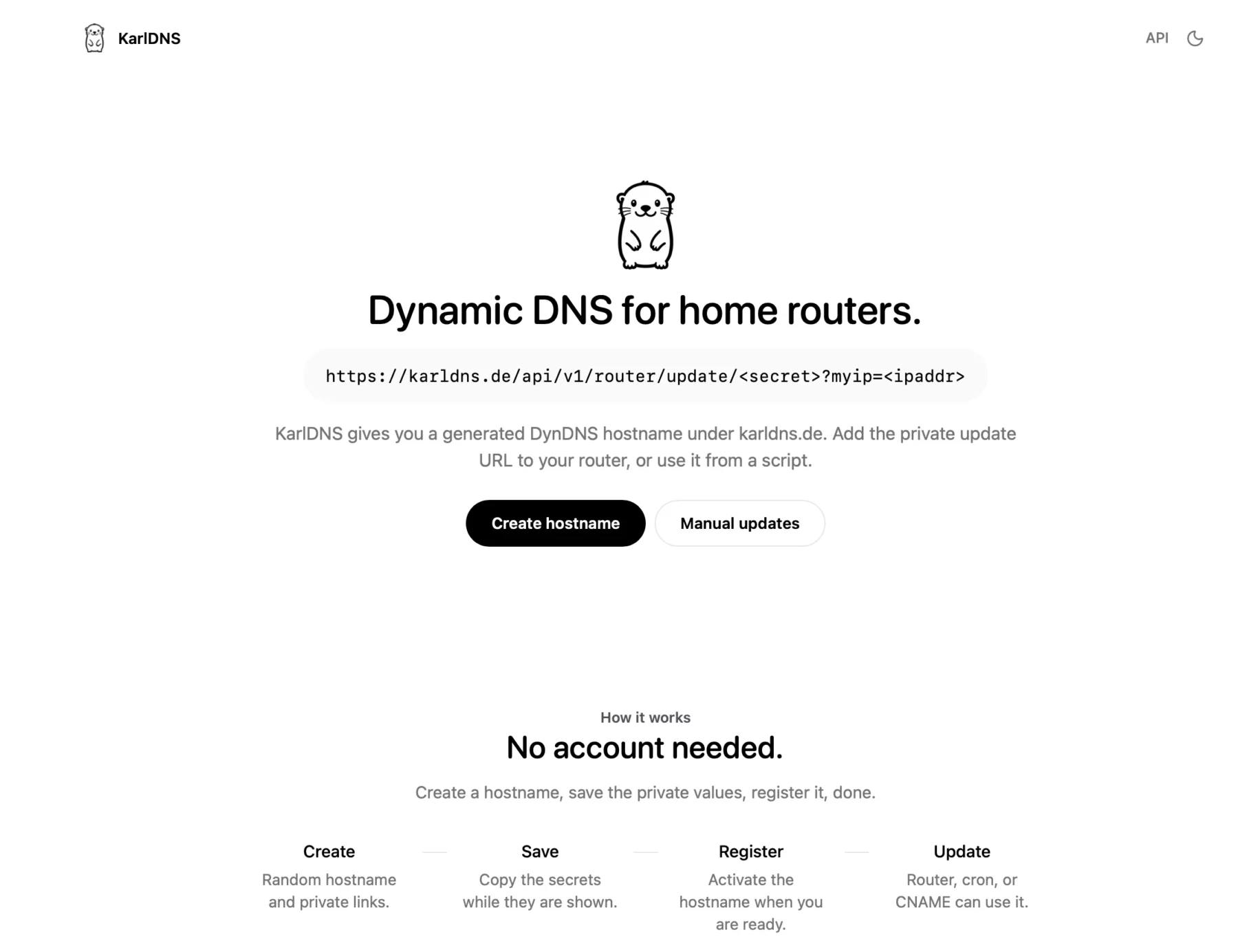
    You can actually use my service right now at KarlDNS.de

    You click on create and see this sort of dash, a subdomain is generated and pre-registered for you. The red values are secrets.

    You just copy the “Update-URL” and add it to your Fritzbox DynDNS tab, you can just add any username and password, they don’t matter but Fritzbox insists.

    In your secret dashboard you can see your current IPv4 and IPv6 Address and your update URL. You canals password protect this page as well and remove the subdomain if you want.

    I am using Cloudflare as my backend so this is what it looks like for karldns in Cloudflare.

    Summary

    To be hontest with you, I simply built this to see if I could. If I ever get a million users I will slap ads on this bad boy and charge for something silly like vanity subdomains and totally sell out and act like I don’t know nobody (shoutout to RiffRaff – the Rapper).

    Anyways we are at the end here, I am going on vacation for a few weeks and I hope I will see you again after, cutie pie 😚 Love you, byeeeeee

  • How I Built a Sub-Millisecond Threat Intelligence API for $0

    How I Built a Sub-Millisecond Threat Intelligence API for $0

    If you’ve ever exposed a server to the open internet, you know the truth: the web is a noisy, hostile place. Within roughly three seconds of opening port 22 or spinning up a web server, a botnet halfway across the globe will start politely inquiring if your wp-admin directory is unlocked or if you’re still running a vulnerable version of Log4j. It is the background radiation of the internet.

    To fight this, I wanted to answer one simple, crucial question: “Is this IP or domain malicious?”

    Censys or Shodan were not always helpful, they did not show me data for a lot of the IP’s that were “attacking” me.

    Normally, to get programmatically fast, highly-available answers to this question, you have to hand over a hefty monthly retainer to an enterprise threat intelligence vendor for an API key, that pretty much just collects open source information to sell to you.

    I decided I didn’t want to do that. Instead, I built isbadip.com.

    It’s a fully homegrown, high-performance API that aggregates dozens of threat feeds, deduplicates them, and answers queries in less than a millisecond. It uses zero paid APIs. All lookup logic runs entirely in-process, entirely in memory. And the backend? It’s not Go. It’s not Rust. It’s a single instance of Node-RED running in a Proxmox LXC container.

    Yes, the drag-and-drop tool usually used to turn on Philips Hue bulbs when your garage door opens is currently acting as a hyper-optimized threat detection engine.

    Here is the technical deep dive into exactly how it works, why it’s blazingly fast, and how I built an automated vengeance loop for my home network.

    The “Over-Engineered Homelab” Architecture

    The infrastructure behind isbadip.com relies on keeping things stupidly simple at the edge and highly optimized in the core. There are no sprawling microservices or Kubernetes clusters weeping under the weight of idle databases.

    Here is the traffic flow:

    1. Cloudflare DNS + WAF: The user navigates to isbadip.com. The initial request hits Cloudflare’s edge network, passing through the DNS resolution and Web Application Firewall.
    2. Cloudflare Pages CDN: Cloudflare serves the React Single Page Application (SPA) directly to the user’s browser from its global CDN.
    3. API Request Initiation: The user interacts with the loaded SPA, which triggers an asynchronous API call to api.isbadip.com.
    4. Fritz!Box Router Firewall: The API request travels to my home network’s public IP and hits the edge gateway, the Fritz!Box Router Firewall.
    5. Ubiquiti Dream Machine: The Fritz!Box passes the traffic downstream to my Ubiquiti Dream Machine, which processes the request through its internal firewall rules and Intrusion Prevention System (IPS).
    6. Nginx Reverse Proxy : The UDM routes the allowed traffic into my Proxmox cluster, specifically handing it off to the Nginx reverse proxy running inside. (I am not using Proxmox firewall)
    7. Node-RED Backend: Nginx terminates the connection and proxies the request to the application backend, the Node-RED container running via Docker inside an Alpine LXC. Only /api/v1/* is allowed here.
    8. Data Query: Node-RED processes the request against its in-memory lookup maps, which were built using the threat intelligence feeds stored on the /data/blocklists/ persistent volume.
    9. Everything is returned to the Website, which then shows you the result.

    The Engine Room:

    We are running Alpine with 2 vCPUs and a generous 2 GB of RAM. Node-RED runs as a Docker container. There is no separate backend service, no Redis cache, and no PostgreSQL database. All processing, aggregation, and API lookup logic lives inside Node-RED function nodes using vanilla JavaScript.

    Phase 1: The Nightly Data Heist

    Every night at roughly 02:00 UTC, a cron-triggered inject node wakes up and goes grocery shopping for bad actors.

    It consults our sources.json “database”, the single source of truth, and fires off parallel HTTP requests to ~20 public IP threat feeds (IPSum, Spamhaus, Blocklist.de) and 7 domain feeds (Phishing Army, ThreatFox, etc.).

    The Wild West of Feed Formats

    Public threat feeds are beautiful, but they do not agree on formatting. Some are plain text (plain), some use /etc/hosts formats (hosts), some are CSVs (csv_domain), and some use complex multi-field formats with CIDR ranges (dshield).

    I built custom parsers for all 6 format types. But once the data is parsed, we run into a bigger problem: Noise.

    Deduplication and The “Confidence” Signal

    If an IP is flagged by a single obscure list, it might be bad, but it might also be a false positive. But if 198.51.100.4 shows up in a Spam feed, a Tor Exit Node list, and a Botnet C2 tracker… you can bet your life it’s malicious.

    All parsed results flow into a single aggregation function. For exact IPs, a plain JS object is used as a hash map. If an IP appears in multiple sources:

    1. All source names are pushed to a sources[] array.
    2. All categories are pushed to a categories[] array.
    3. The highest threat score is preserved using Math.max.

    This cross-source count becomes our confidence score.

    Listed by

    • 3+ independent feeds? High confidence
    • 2 feeds? Medium
    • 1 feed? Low.

    For CIDR ranges (entire subnets of bad IPs), we sort them by start address and mathematically sweep through, extending the end of the last range when the next range overlaps. Merging these overlapping subnets is critical to save CPU cycles later.

    Phase 2: Building the Hyper-Optimized Data Structures

    You cannot simply grep through 15 megabytes of text every time a web request comes in. You need speed.

    Once the nightly deduplication finishes, Node-RED builds three specific data structures directly into the V8 engine’s memory heap.

    1. The Exact IP Map (O(1) Speed)

    const ipMap = new Map(Object.entries(finalObj));
    global.set('ip_map', ipMap);

    We take our deduplicated IPs and load them into an ES6 Map. We have about ~137,000 entries. In V8, a Map provides highly optimized O(1) hash table lookups.

    Pro-tip: When persisting this to disk, I save it as an array of arrays ([[ip, data], ...]).

    Calling JSON.parse() on this format and feeding it directly to new Map() is roughly 30% faster than parsing a massive standard JSON object, because V8 doesn’t have to re-box the object’s prototype chain for 137,000 keys.

    2. The Bloom Filter (The Bouncer)

    Most IPs queried against the API are clean. We don’t want to waste time checking the Map if we don’t have to. Enter the Bloom Filter.

    A Bloom filter is a probabilistic data structure. It uses a tiny amount of memory (about 335 KB for ~2.7 million bits) to answer a crucial question: “Is this IP definitely clean, or maybe malicious?” It has zero false negatives.

    We hash incoming IPs using three independent FNV-1a hash functions:

    function bHash(key, seed) {
      let h = seed;
      for (let i = 0; i < key.length; i++) {
        h ^= key.charCodeAt(i);
        h = Math.imul(h, 0x01000193) >>> 0;  // FNV prime multiply
      }
      return h % bloomBits;
    }

    When building the filter, every malicious IP flips 3 specific bits to 1. During an API lookup, we check those 3 bits.

    • If any of them are 0, the IP is definitely clean. The Node-RED function returns immediately in < 0.1ms without ever touching the Map.
    • If all 3 are 1, it might be malicious (or it’s a 1-3% false positive collision), and then we check the Map.

    The Caveman Explanation: The Footprint Rule

    You are a caveman guarding the cave door.

    You have a Big Heavy Rock with drawings of every Bad Animal in the world. But the rock is very heavy and takes a long time to read. If you read the rock every time an animal walks by, you will get eaten.

    So, you make a fast rule: The Footprint Rule (The Bloom Filter).

    You notice all Bad Animals have exactly 3 sharp toes.

    When an animal walks up to the cave, you look at its footprint in the mud before you look at the Big Heavy Rock:

    1. Missing a toe? (0, 1, or 2 toes) -> DEFINITELY GOOD. You let it in instantly. You don’t even look at the Big Heavy Rock.
    2. Has 3 sharp toes? -> MAYBE BAD. It could be a Bad Animal, or it could just be a weird good animal. Now you take the time to read the Big Heavy Rock to be 100% sure.

    Most animals walking by are good animals missing a toe. You save a lot of time by never looking at the Big Heavy Rock for them!

    3. The Sorted CIDR Array (Binary Search)

    IPv4 addresses are just 32-bit integers wearing a trench coat. The CIDR 192.168.0.0/16 actually represents the integers 3232235520 to 3232301055.

    By converting all 3,992 blocked CIDR ranges to integers and sorting them, we unlock the power of O(log n) binary search:

    let lo = 0, hi = cidrs.length - 1;
    while (lo <= hi) {
      const m = (lo + hi) >> 1;
      if (n >= cidrs[m][0] && n <= cidrs[m][1]) return match;  // hit!
      n < cidrs[m][0] ? hi = m-1 : lo = m+1;
    }

    With ~4,000 subnets, it takes at most 12 comparisons (log2(3992) ≈ 12) to figure out if an IP is hiding in a bad neighborhood.

    Phase 3: The Reversed-Label Trie (Solving Wildcards)

    Domains present a unique challenge. If evil.com is hosting malware, api.evil.com and dev.sub.evil.com are almost certainly malicious too. You need wildcard matching, but regex on 770,000 domains is a death sentence for performance.

    The solution is a Reversed-Label Trie. A trie is a tree data structure. We take domains, split them by their dots, reverse them, and store the Top Level Domain (TLD) at the root.

    // evil.com is stored as:
    trie["com"]["evil"]["$"] = metadata

    If someone looks up sub.evil.com, the lookup engine walks the tree: com → evil → sub.

    But wait! When it hit the evil node, it saw the $ termination marker. That means a parent domain is blocklisted. We get blazing-fast, O(labels) wildcard matching for free.

    function buildTrie(map) {
      const trie = Object.create(null);  // No prototype chain overhead!
      for (const [dom, data] of map.entries()) {
        const parts = dom.split('.').reverse();
        let node = trie;
        for (const p of parts) {
          if (!node[p]) node[p] = Object.create(null);
          node = node[p];
        }
        node.$ = data;
      }
      return trie;
    }

    Notice the Object.create(null). This creates an absolutely bare object without JavaScript’s default properties (like .toString or .constructor), which prevents accidental collisions and speeds up property access.

    Phase 4: The Live API Pipeline

    When a GET /host/198.51.100.4 request hits the API, here is the gauntlet it runs:

    1. Input Normalization: Strip https://, lowercase everything, remove query strings.
    2. 24-Hour Cache Check: We maintain an in-memory Map<target, result> cache. Why 24 hours? Because the feeds only update nightly. If we’ve seen it today, return instantly.
    3. The Bloom Filter: (3 bit tests). Miss? Return clean. Hit? Proceed.
    4. The Exact Map: Map.get(ip).
    5. The CIDR Binary Search: Check the 12 math comparisons.
    6. GeoIP & Reverse DNS: If it’s a domain, we check it against the Trie, check it against the Majestic Top 1 Million list (to flag high-profile false positives), and do a live DNS resolution to see if the domain points to a blocked IP.

    All of this happens inside a single Node-RED function block.

    Phase 5: The Feedback Loop

    At the edge of my network sits a UniFi Dream Router running Intrusion Detection and Prevention (IDS/IPS).The don’t endorse me or anything, actually I am sure they probably think I am annoying and a little ugly, but I must say that I do enjoy the Dream Machine much more than the pfSense I had before it. Just gonna leave that here.

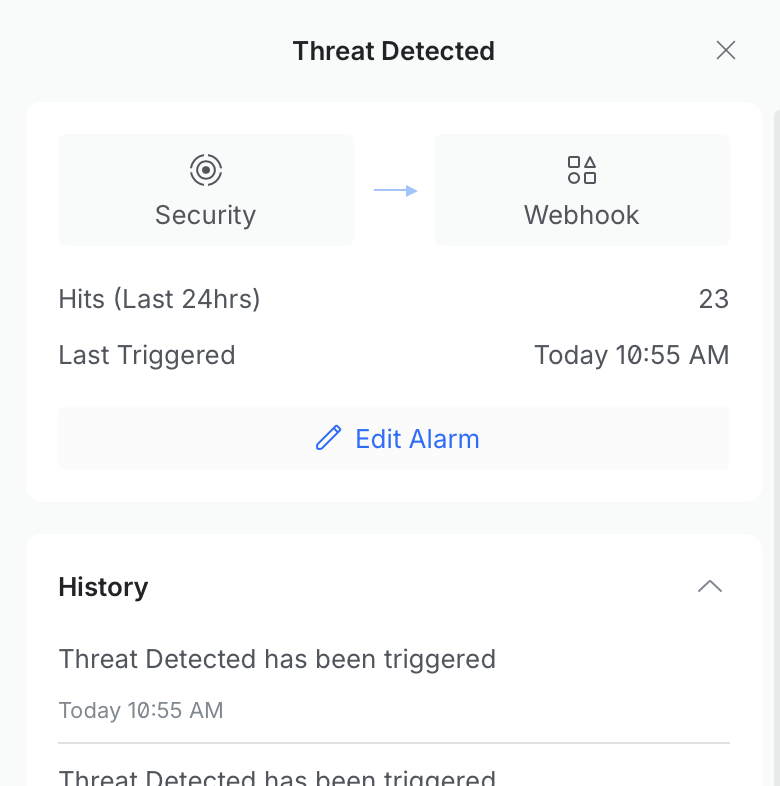
    I configured a Node-RED flow to receive webhook POST requests from the router whenever it detects an intrusion attempt.

    When a script kiddie in a datacenter runs a vulnerability scanner against my home network:

    1. The UniFi router blocks it and fires a webhook payload to Node-RED.
    2. Node-RED parses the payload (extracting the source IP, protocol, and IPS signature).
    3. The source IP is immediately written to a custom_ip.json blocklist via an internal API.
    4. The custom list is added to the API “database”
    5. A color-coded Discord embed is fired off to a private channel alerting me of the attack, complete with a clickable isbadip.com link.

    This closes the loop. If you attack my network, within seconds, your IP is automatically pushed into the global blocklist. Future API queries for your IP will instantly flag you as malicious. It is a beautiful, fully automated feedback loop and more free real time threat intel for you!

    EDIT:

    People like scanning my WordPress page (this one) regularly. I am now exporting the malicious hits from Wordfence to the blocklist as well. My filter is:

    CriterionWhy
    blockType = 'waf'WAF = real attack pattern match (SQLi, XSS, etc.), not rate-limit false-positives
    daysActive >= 2Seen on 2+ separate calendar days, rules out transient scanners
    totalBlocks >= 5Rules out single misconfigurations
    RFC1918/private excludedPrevents submitting internal addresses
    State file dedupNever submits the same IP twice

    Edit 2:

    I wanted to go more into detail about my data sources and how I just built up my security even more.

    I added a Cloudflare IP list which I can use in WAF rules, which looks like:

    You get 1 list for free with 10k entries (fine for my use case). You can then use this in any of our WAF rules.

    The entire Node-RED flow looks something like this:

    Here is an easy to understand flowchart of the setup:

    My goal is to offload as much filtering outside of my network as possible. In my dream machine I have a simple rule that includes all Cloudflare IP-ranges that blocks direct access to my public IP, that is how I ensure that traffic must flow through Cloudflare.

    The Results: RAM, Speed, and Cold Starts

    Because all data lives entirely in the V8 heap, we have strict memory budgets.

    • The IP Map: ~15 MB
    • The Domain Map & Trie: ~350 MB
    • Top 1M allow-list: ~120 MB
    • DNS & Result Caches: ~20 MB

    The total footprint is roughly 510 MB. The LXC container has 2 GB of RAM, leaving plenty of headroom for Node.js garbage collection and Docker overhead.

    What does keeping everything in RAM get us? Absurd speed.

    • Clean IP Lookup: < 0.1 ms (The Bloom filter fires, returns false, function exits).
    • Malicious IP Hit: < 0.5 ms (Bloom passes, Map catches it).
    • Domain Lookup (DNS Cache Miss): < 50 ms (Bound purely by the speed of DNS resolution).
    • Domain Lookup (Cache Hit): < 1 ms.

    When the LXC container reboots or updates, a staggered start-up sequence automatically reads the saved JSON files from the persistent volume, rebuilds the Maps, Tries, and Bloom filters, and sets the global variables.

    This takes about 7 seconds. During this warmup window, any API request receives a standard HTTP 503 Service Unavailable with a Retry-After: 10 header. This acts as a cold-start guard, ensuring the API never returns a false “clean” result just because it hasn’t finished loading the threat lists yet.

    It’s fast, it’s entirely free, it automatically catches bad guys in real-time, and it proves that with a little bit of JavaScript optimization and a whole lot of homelab stubbornness, you can build enterprise-grade network tooling in your pajamas (yea I may over-exaggerate a little here).

    Speaking of pajamas, I know it is past your bed time! But I appreciate that you stayed up late to read my post. Thats really nice of you and I also think you are really cute ❤️❤️❤️

    Until next time, baby!!!! ✌️

  • The Great Karlflix Migration: Moving My Media Stack to a Proxmox LXC

    The Great Karlflix Migration: Moving My Media Stack to a Proxmox LXC

    If you read my last post, you know I love avoiding manual labor so much that I will gladly spend 40 hours automating a 5-minute task. Recently, my eyes fixed on my home media server, affectionately dubbed “Karlflix.”

    Karlflix lived on a bloated, heavy Debian 12 KVM Virtual Machine. It hogged 16 GB of RAM, took three whole minutes to boot, and used a clunky NFS share to talk to the Proxmox host. Oh, and hardware transcoding? Forget about it. My CPU was crying every time someone tried to stream a 4K HEVC file to a toaster.

    It was time for a glow-up. I decided to tear down the entire VM and rebuild the stack inside a sleek, privileged Debian 13 LXC container.

    ⚠️ Disclaimer: I have scrubbed the IPs, domains, and API keys in this post to protect my own network from you lovely internet strangers. Replace my dummy 10.99.0.x IPs with your own if you follow along.

    🎬 Disclaimer: Just so we are absolutely, unequivocally clear: I use this infrastructure exclusively for managing my own personal media, legally acquired content, and open-source Linux ISOs. I do not pirate media, I do not condone piracy, and neither should you. This guide is purely an educational showcase of homelab networking and automation architecture.

    Here is the tale of how I successfully migrated my entire *arr stack, configured a rock-solid WireGuard VPN kill-switch, set up Single Sign-On (SSO), and finally got Jellyfin hardware transcoding to work.

    The “Before and After” Flex

    Before we get into the weeds, let’s look at why this migration was worth the headache:

    AreaBefore (The Bloated VM)After (The Sleek LXC)
    Container TypeFull KVM VMPrivileged LXC
    RAM Allocated16 GB8 GB (Still only uses ~1.5 GB)
    CPU8 Cores4 Cores (probably will go down to 2)
    GPU TranscodingNope (CPU crying)VA-API enabled (13.5× realtime)
    VPNOpenVPN (slow, dropped randomly)WireGuard (fast, enforced kill-switch)
    Single Sign-On6 different login formsAuthentik proxy auth everywhere
    Disk WasteDuplicate files on importZero-waste Hardlinks
    Backup Size16 GB full disk image~9 GB rootfs only (Media excluded!)
    Startup Time~3 minutes~20 seconds

    Phase 1: Creating the LXC and Escaping “Permission Denied” Hell

    LXC containers are incredibly fast, but they have a massive catch: they cannot use host device files by default. If you want your container to access a GPU or a VPN TUN device, you can’t just plug it in.

    You need two things: a cgroup2 device allowlist (telling the kernel it’s okay) and an lxc.mount.entry (actually pushing the device into the container). Get it wrong, and you get a silent Permission denied error.

    I spun up a new Privileged Debian 13 container. Here is the magic configuration I dropped into /etc/pve/lxc/1XX.conf on the Proxmox host to pass through my AMD iGPU and the TUN device:

    Ini, TOML

    # TUN device for gluetun VPN
    lxc.cgroup2.devices.allow: c 10:200 rwm
    lxc.mount.entry: /dev/net/tun dev/net/tun none bind,create=file
    
    # AMD iGPU (Raphael RDNA2) VA-API passthrough
    lxc.cgroup2.devices.allow: c 226:0 rwm
    lxc.cgroup2.devices.allow: c 226:128 rwm
    lxc.mount.entry: /dev/dri dev/dri none bind,optional,create=dir
    
    # Network (Proxmox bridge routing requires /32, not /24!)
    net0: name=eth0,bridge=vmbr0,ip=10.99.0.25/32,gw=10.99.0.1
    
    # Direct Media Bind Mounts (Goodbye, NFS overhead)
    mp0: /mnt/pve/wd_hdd_internal/media,mp=/data/media,backup=0
    mp1: /mnt/pve/wd_hdd_internal/starr-config,mp=/data/config
    

    Lazy Pro-Tip: Notice that backup=0 on the media mount? That excludes my 59 GB media library from Proxmox backups (vzdump). I can redownload Linux ISOs; I only care about backing up my configurations.

    Phase 2: Gluetun, WireGuard, and the Ultimate Kill-Switch

    My old OpenVPN setup had no kill-switch. If the VPN dropped, my torrent traffic just happily continued naked on my ISP’s network. Not great.

    Enter Gluetun. Gluetun is a Docker container that connects to your VPN and creates a secure network namespace. You then tell your other containers (qBittorrentRadarrSonarr) to share Gluetun’s network. If Gluetun dies, they lose the internet entirely. Forced security. I love it.

    Setting up Private Internet Access (PIA) with WireGuard manually is highly annoying because they don’t publish standard config files. You have to generate keys, hit an API for a token, and register it. Once I had my tunnel IP and endpoint, I built my docker-compose.yml:

    gluetun:
      image: qmcgaw/gluetun:latest
      environment:
        VPN_SERVICE_PROVIDER: custom
        VPN_TYPE: wireguard
        WIREGUARD_ADDRESSES: 10.12.240.174/32
        # Crucial: Allow LAN traffic so Jellyfin and Authentik can talk!
        FIREWALL_OUTBOUND_SUBNETS: 10.99.0.0/24   
        FIREWALL_INPUT_PORTS: 7878,8989,9696,8080
    
    radarr:
      network_mode: service:gluetun
      volumes:
        - /data/media:/data/media 
    

    Now, WireGuard handshakes in milliseconds, uses 10% of the CPU of OpenVPN, and is basically bulletproof.

    VPN Provider: Know your Threat Model. If I was to do highly illegal activities I probably would not go to PIA. I do not endorse or am not endorsed by any VPN provider.

    That is a VPN Tunnel

    Phase 3: Hardware Transcoding (Make the GPU do the Work)

    Software transcoding on Jellyfin was destroying my CPU. Getting VA-API to work inside a Docker container, which is inside an LXC container, is like playing a twisted game of Russian nesting dolls.

    For it to work, the Jellyfin process needs to be in the render group. By default on Debian, this is GID 104.

    jellyfin:
      network_mode: host
      devices:
        - /dev/dri/renderD128:/dev/dri/renderD128
      group_add: ["44", "104"]  # video (44) + render (104)
      
      # 104 is not guranateed, run getent group render | cut -d: -f3 to check
    

    Inside Jellyfin, I enabled VA-API, pointed it to /dev/dri/renderD128, and enabled HDR tonemapping (bt2390).

    The result? I am now getting 13.5× realtime 1080p→720p transcodes using my AMD RDNA2 iGPU, while the GPU load sits at a breezy 15%.

    This is what is happening inside of the server now.

    I did not want to use my AMD RX 7900 XTXT because of electricity cost.

    Please don’t show this to my girlfriend 🙇‍♂️

    Phase 4: Fixing Hardlinks (Stop Wasting Disk Space)

    In my old VM, qBittorrent downloaded to /downloads and Radarr imported to /movies. Because Docker saw these as two different filesystems, it copied the file. A 20GB file temporarily used 40GB of disk space.

    The Golden Rule of Hardlinks: Every container must have the exact same volume mount path.

    I changed everything to /data/media.

    1. qBittorrent saves to /data/media/downloads/complete/radarr/movie.mkv
    2. Radarr creates a hardlink at /data/media/movies/movie.mkv
    3. Radarr tells qBittorrent to delete the original.

    Because they share the exact same volume structure, the hardlink is instantaneous and uses zero extra space.

    Phase 5: One Login to Rule Them All (Authentik SSO)

    I was tired of having 6 different passwords for Radarr, Sonarr, Prowlarr, Bazarr, Seerr, and Jellyfin.

    I spun up Authentik as my Single Sign-On (SSO) proxy. By routing everything through Nginx Proxy Manager (NPM), NPM intercepts the request, asks Authentik “Who goes there?”, and passes a trusted X-Authentik-Username header to the backend.

    The trick with the *arr apps is getting the auth settings right:

    • authenticationMethod: external (Trust the Authentik header)
    • authenticationRequired: enabled (Do not leave your API open to the LAN!)

    Now, I log in once with MFA, and I have access to my entire stack. If I want to revoke access, I disable one LDAP user, and they are locked out of everything instantly.

    One of these days I will hook my Macbook into this as well and also set up Samba AD.

    Phase 6: Let the Server Manage Itself

    Because I am exceptionally lazy, I added a few more tools to make sure I never have to touch this LXC again:

    • Watchtower: Runs at 04:00 daily, checks for Docker image updates (for approved containers only), installs them, and cleans up old image layers to save disk space.
    • Cleanuparr: Automatically clears out stalled torrents, blocks known malware hashes, and deletes leftover garbage in my torrent client.
    • Discord Notifications: I set up webhooks for everything. If Radarr grabs a file, Watchtower updates an image, or Proxmox finishes a backup, a bot drops a message in my private Discord server. I never have to open a web UI to check health statuses again.

    Look, I get it. The “what if an update breaks everything” crowd is loud. But let’s be real: an update can catch an attitude whether I’m staring at the progress bar or grabbing a coffee.

    I am on call anyways, which means my laptop is basically a permanent appendage anyway, I’m not losing sleep over it. In the last five years, this approach has been rock solid, unless we’re talking about Windows, but we don’t do that here.

    Final Words

    Was migrating this entire stack an absolute nightmare of undocumented API calls, silent Docker networking failures, and iptables wizardry?

    No, I let Clause Sonnet 4.6 do it all through Copilot for 10€ a month. I did not do a single thing 😂.

    If you are running a heavy VM for your Docker apps, take the weekend, spin up an LXC, and set your CPU free. Sleep tight now, and may your hardlinks always resolve! ❤️

    🐛 The “Why is this broken?” Cheat Sheet

    (For my fellow homelabbers Googling error codes at 3 AM)

    The ProblemThe Root CauseThe Fix
    Docker containers bypass firewallDocker inserts its own iptables. UFW ignores it.Insert rules into the DOCKER-USER chain, ensuring ESTABLISHED,RELATED -j RETURN is at the very top.
    Bazarr writes subtitles to the voidBazarr volume was still set to /movies instead of /data/media.Match the volume mounts across all containers.
    LXC has no internet despite /24routeProxmox bridge networking for LXCs needs a /32 per-host route.Change ip=10.99.0.25/24 to ip=10.99.0.25/32 in the .conffile.
  • Monitoring Your Personal Attack Surface with Shodan and n8n

    Monitoring Your Personal Attack Surface with Shodan and n8n

    Let’s be honest. You wouldn’t leave your front door wide open with a neon sign pointing to your expensive new TV while you went on vacation.

    Yet, on the internet, many of us do exactly that every day.

    We open ports on our home routers for Plex servers, Minecraft games with friends, NAS drives, or that smart toaster that desperately needs to talk to the mothership for some reason. We poke tiny holes in our home firewalls, assume nobody will notice because the internet is “too big,” and forget about them.

    This collection of open digital doors and windows is your personal attack surface. And guess what? There are bots scanning the entire internet 24/7 looking for those open windows. It does not matter if you are a huge company or tiny home user, most attacks are automated, they do not make a difference initially.

    Today, we’re going to build an automated watchdog that barks at you on Discord whenever your digital fly is down.

    The Toolkit

    To build this self-monitoring system, we combined two incredibly powerful tools: n8n and Shodan.

    What is n8n?

    Think of n8n as digital duct tape with a PhD. It’s a workflow automation tool (like IFTTT or Zapier, but way more powerful and self-hostable) that lets you connect services that have no business talking to each other. It listens for triggers, runs some logic, and performs actions. It’s the butler that runs our automation household.

    What is Shodan?

    Google crawls websites to see what text is on them. Shodan crawls the infrastructure of the internet. It’s a search engine that doesn’t scan for cute cat blog posts; it scans for IP addresses, open ports, webcams with default passwords, and industrial control systems.

    Shodan is basically a global, automated census taker that knocks on every single digital door on the planet, 24/7, and records who answers and what they say.

    Our Goal

    We wanted a system that runs automatically, checks our home IP address against Shodan’s massive database, and reports back in a human-readable way.

    Here is the workflow we built together:

    Step 1: The Moving Target (DynDNS)

    Most home internet connections have dynamic IPs, they change whenever your ISP feels like it. Trying to monitor yesterday’s IP is useless.

    We solved this by using a DynDNS domain (like my-house.example.com). Our script doesn’t check an IP directly; it asks the internet “What is the current IP address for this domain name?” This ensures we are always scanning our current front door.

    import socket
    import requests
    
    
    DYNDNS_DOMAIN = "dyndns.example.de"
    SHODAN_API_KEY = 'abcdef12345'
    
    try:
        # 2. Resolve the DynDNS Domain to an IP
        # We use socket to look up the 'A' record (IPv4) for your domain
        target_ip = socket.gethostbyname(DYNDNS_DOMAIN)
    
        # 3. Lookup IP on Shodan (Passive Scan)
        shodan_url = f"https://api.shodan.io/shodan/host/{target_ip}?key={SHODAN_API_KEY}"
        shodan_response = requests.get(shodan_url, timeout=10)
        
        # Check results
        if shodan_response.status_code == 200:
            scan_data = shodan_response.json()
            found = True
        elif shodan_response.status_code == 404:
            scan_data = {"message": "IP not found in Shodan database."}
            found = False
        else:
            scan_data = {"error": f"Shodan API Error: {shodan_response.status_code}"}
            found = False
    
        # 4. Return to n8n
        return [{
            "json": {
                "domain": DYNDNS_DOMAIN,
                "resolved_ip": target_ip,
                "shodan_found": found,
                "shodan_data": scan_data
            }
        }]
    
    except socket.gaierror:
        # Handle DNS resolution errors (e.g., if the domain doesn't exist)
        return [{
            "json": {
                "error": "Could not resolve hostname. Check your DynDNS domain.",
                "domain": DYNDNS_DOMAIN
            }
        }]
    except Exception as e:
        return [{
            "json": {
                "error": str(e)
            }
        }]

    Step 2: Knocking on Shodan’s Door (The API)

    Once n8n knows our current IP, it uses a Python script to politely tap Shodan on the shoulder via their API.

    We are performing a passive lookup. We aren’t asking Shodan to actively attack our router right now (that costs extra credits and is noisy). We are asking: “Hey Shodan, in your vast database of everything you’ve scanned recently, what do you already know about this IP address?”

    We have already included the Shodan API request in the code above.

    Step 3: Datacrunching

    Shodan replies with a massive, terrifying blob of JSON data. It lists ISPs, geographical locations, open ports (like 80, 443, or weird ones like 8089), and the “banners”—the text those services spit out when connected to.

    If we just emailed this raw JSON to ourselves, we’d never read it. We used Python within n8n to sift through the noise. It determines if the scan is “Clean” (safe) or a “Warning” (ports open) and formats a beautiful, color-coded report.

    from datetime import datetime
    
    # 1. Get the input data using your preferred syntax
    data = _items[0]["json"]
    
    domain = data.get("domain", "Unknown Domain")
    ip = data.get("resolved_ip", "Unknown IP")
    is_found = data.get("shodan_found", False)
    shodan_data = data.get("shodan_data", {})
    
    # 2. Initialize Embed Variables
    embed_fields = []
    
    if is_found:
        # --- STATUS: WARNING (Red/Orange) ---
        color = 16744192  # 0xFF7700 (Orange)
        title = f"⚠️ Shodan Alert: {domain}"
        description = f"**Target IP:** `{ip}`\n**Status:** Exposed services found."
    
        # Extract specific details from your JSON structure
        # Use 'get' with defaults to prevent crashes
        org = shodan_data.get("org", "Unknown Org")
        city = shodan_data.get("city", "Unknown City")
        country = shodan_data.get("country_name", "Unknown Country")
        
        # Extract Ports
        # In your JSON, 'ports' is a list [8089]
        ports = shodan_data.get("ports", [])
        ports_str = ", ".join(map(str, ports)) if ports else "None detected"
    
        # Extract Service Banners (from the 'data' list in your JSON)
        # This shows *what* is running on the port (e.g., HTTP 404)
        service_details = []
        for service in shodan_data.get("data", []):
            p = service.get("port")
            # Try to get a product name, otherwise grab the raw data banner
            banner = service.get("product") or service.get("data", "").strip()
            # Truncate banner if it's too long for Discord
            if len(banner) > 50: 
                banner = banner[:47] + "..."
            service_details.append(f"**Port {p}:** `{banner}`")
        
        services_str = "\n".join(service_details) if service_details else "No service banners captured."
    
        # Build the Fields
        embed_fields = [
            {"name": "🏢 Organization", "value": org, "inline": True},
            {"name": "🌍 Location", "value": f"{city}, {country}", "inline": True},
            {"name": "🔓 Open Ports", "value": ports_str, "inline": True},
            {"name": "🔎 Service Details", "value": services_str, "inline": False}
        ]
    
    else:
        # --- STATUS: SAFE (Green) ---
        color = 5763719  # 0x57F287 (Green)
        title = f"✅ Clean Scan: {domain}"
        description = f"**Target IP:** `{ip}`\n**Status:** No open ports found on Shodan."
        embed_fields = [
            {"name": "Result", "value": "IP address is not indexed or has no public services.", "inline": False}
        ]
    
    # 3. Construct the Final Discord Webhook Payload
    discord_payload = {
        "username": "Shodan Bot",
        "avatar_url": "https://static-00.iconduck.com/assets.00/shodan-icon-512x512-j6i1s0d4.png",
        "embeds": [{
            "title": title,
            "description": description,
            "color": color,
            "fields": embed_fields,
            "footer": {
                "text": f"Scan Time: {datetime.now().strftime('%Y-%m-%d %H:%M:%S')}"
            }
        }]
    }
    
    # 4. Return formatted for the next node
    return [{"json": discord_payload}]

    Step 4: Discord Webhook

    Finally, n8n takes that nicely formatted report and fires it off to a private Discord channel via a Webhook.

    # n8n Code Node: Post to Discord
    import requests
    
    DISCORD_WEBHOOK_URL = "https://discord.com/api/webhooks/"
    
    # Get the input data (which is the Discord payload itself)
    payload = _items[0]["json"]
    
    try:
        resp = requests.post(
            DISCORD_WEBHOOK_URL,
            json=payload,
            timeout=(5, 10),
        )
        resp.raise_for_status()
        
        # Return success status
        return [{
            "json": {
                "status": resp.status_code,
                "sent": True,
                "target": payload.get('embeds', [{}])[0].get('title', 'Unknown Target')
            }
        }]
    
    except Exception as e:
        # Return error details
        return [{
            "json": {
                "error": str(e),
                "sent": False,
                "failed_payload": payload
            }
        }]

    The Result: Sleeping Better at Night

    Now, I have a dedicated channel in Discord. Most days, I get a comforting little green ping:

    ✅ Clean Scan: https://www.google.com/url?sa=E&source=gmail&q=my-house.example.com

    Target IP: 84.182.x.x

    Status: No open ports found on Shodan.

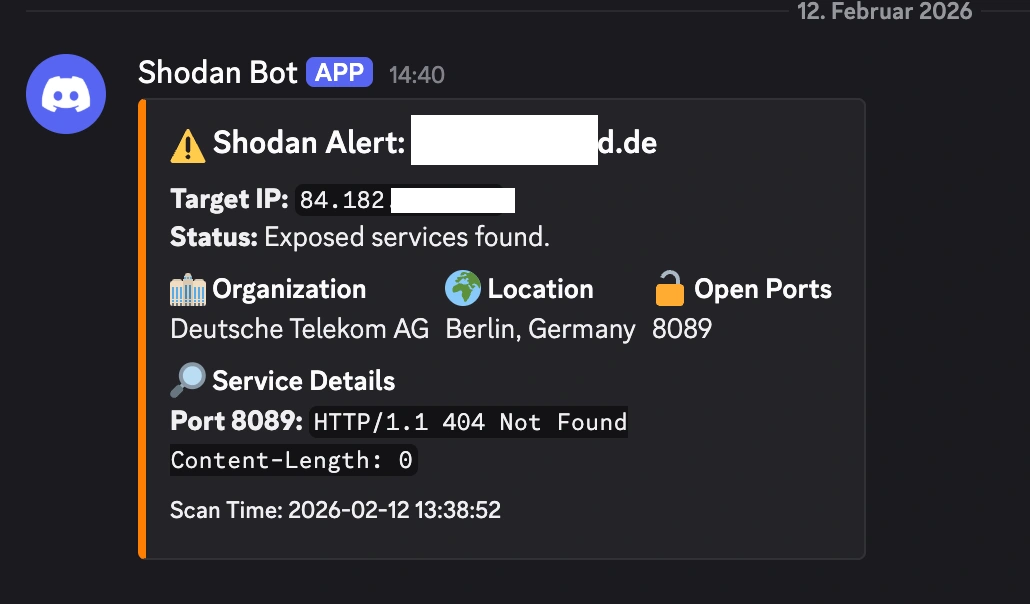
    But sometimes, if I’ve been messing around with a new server project and forgot to close a firewall rule, I get the orange text of doom:

    ⚠️ Shodan Alert: https://www.google.com/url?sa=E&source=gmail&q=my-house.example.com

    Location: Berlin, Germany | ISP: Deutsche Telekom AG

    🔓 Open Ports: 8089

    🔎 Service Details: Port 8089: HTTP/1.1 404 Not Found...

    It’s a fantastic, low-effort way to keep tabs on your personal attack surface and overall cybersecurity posture. If Shodan can see it, the bad guys can see it too. You might as well know first. If you want to go deeper on active testing, check out my hands-on review of AI pentesting agents.

    I am always trying to find cool ways to use my n8n instance, we could just have it run an nmap scan like in my Node-RED nmap-as-a-service post:

    but I figured why not use the Shodan API this time ✌️

    Anyways thanks for being here to read my post, sleep tight, kisses, byeeeeeee 😍

  • How I Automated My WoW Nerd Obsession with n8n, Browserless & Python (A Self-Hosting Guide)

    How I Automated My WoW Nerd Obsession with n8n, Browserless & Python (A Self-Hosting Guide)

    In which a grown adult builds an entire self-hosted automation flow just to find out which World of Warcraft specs are popular this week.

    Priorities? Never heard of her.

    The Problem Nobody Asked Me to Solve

    Look, every Wednesday after the weekly Mythic+ reset, I used to open raider.io, squint at the spec popularity tables, and whisper “Frost Mage mains in shambles” or “When will Ret Pala finally get nerfed??” to myself like some kind of WoW-obsessed gremlin.

    Then one day I thought: “What if a robot did this for me and posted the results to Discord?” – which I then also check once a week, but it is different! Don’t question meeee!

    I have this n8n instance running, I basically never have a real use case for it. Most of the flows people build, in my opinion, are pretty wild like connecting ChatGPT to Tinder.. I am writing about using coding and n8n to automate World of Warcraft..you think Tinder is a use case for me ??

    This guide will walk you through the entire self-hosted setup. Even if you don’t care about WoW (first of all, how dare you), the stack itself is incredibly useful for any web scraping or automation project.

    The Stack: What Are We Even Working With?

    Here’s the dream team:

    ServiceWhat It DoesWhy You Need It
    n8nVisual workflow automation (think Zapier, but self-hosted and free)The brains of the operation
    BrowserlessHeadless Chrome as a service, accessible via APIRenders JavaScript-heavy pages so you can scrape them
    Python Task RunnerA sidecar container that executes Python code for n8nBecause sometimes JavaScript just isn’t enough (don’t @ me)
    PostgreSQLDatabase for n8nStores your workflows, credentials, and execution history
    WatchtowerAuto-updates your Docker containersSet it and forget it, like a slow cooker for your infrastructure

    Step 0: What we will build

    You will need these files in your directory:

    deploy/
    ├── docker-compose.yml
    ├── Dockerfile
    ├── n8n-task-runners.json
    └── .env

    This is my example flow it gets the current top classes in world of warcraft, saves them to a database, and calculates deltas in case they change:

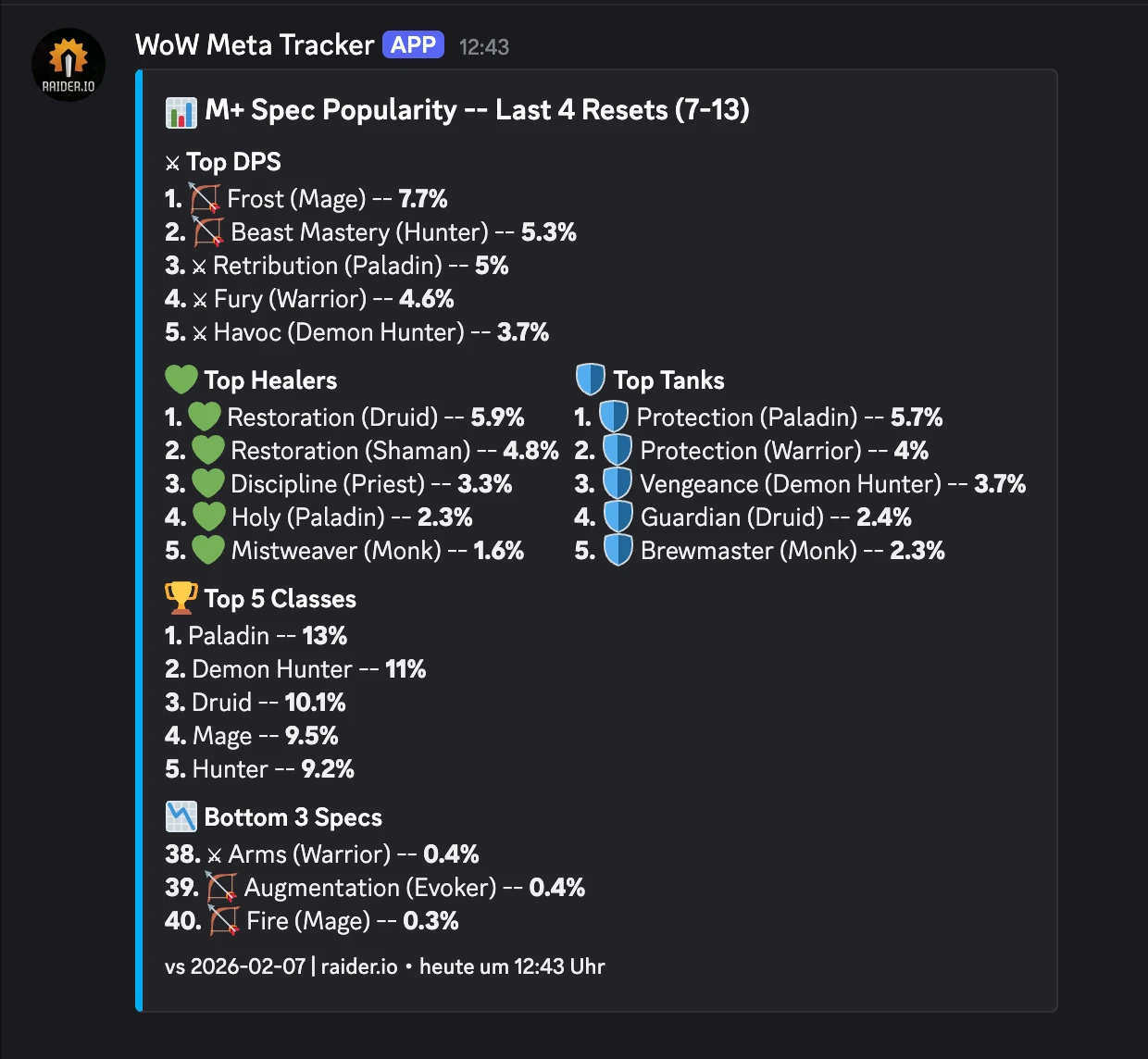
    This is the final output for me, them main goal is to show n8n and the “sidecar” python container. I just use it for World of Warcraft stuff and also reoccurring billing for customers of my consulting business.

    One major bug I noticed is that the classes I play are usually never the top ones. I have not found a fix yet.
    Guardian Druid and Disc Priest, if you care 😘

    Step 1: The Docker Compose File

    Create a deploy/ folder and drop this docker-compose.yml in it. I’ll walk through exactly what’s happening in each service below.

    services:
      browserless:
        image: browserless/chrome:latest
        ports:
          - "3000:3000"
        environment:
          - CONCURRENT=5
          - TOKEN=your_secret_token # <- change this 
          - MAX_CONCURRENT_SESSIONS=5
          - CONNECTION_TIMEOUT=60000
        restart: unless-stopped
    
      n8n:
        image: docker.n8n.io/n8nio/n8n:latest
        restart: always
        ports:
          - "5678:5678"
        environment:
          - N8N_PROXY_HOPS=1
          - GENERIC_TIMEZONE=${GENERIC_TIMEZONE}
          - DB_TYPE=postgresdb
          - DB_POSTGRESDB_DATABASE=${POSTGRES_DB}
          - DB_POSTGRESDB_HOST=${POSTGRES_HOST}
          - DB_POSTGRESDB_PORT=${POSTGRES_PORT}
          - DB_POSTGRESDB_USER=${POSTGRES_USER}
          - DB_POSTGRESDB_PASSWORD=${POSTGRES_PASSWORD}
          - N8N_BASIC_AUTH_ACTIVE=true
          - N8N_BASIC_AUTH_USER=${N8N_BASIC_AUTH_USER}
          - N8N_BASIC_AUTH_PASSWORD=${N8N_BASIC_AUTH_PASSWORD}
          - N8N_ENCRYPTION_KEY=${N8N_ENCRYPTION_KEY}
          - WEBHOOK_URL=https://${DOMAIN_NAME}
          # --- External Python Runner Config ---
          - N8N_RUNNERS_ENABLED=true
          - N8N_RUNNERS_MODE=external
          - N8N_RUNNERS_BROKER_LISTEN_ADDRESS=0.0.0.0
          - N8N_RUNNERS_AUTH_TOKEN=${N8N_RUNNERS_AUTH_TOKEN}
          - N8N_RUNNERS_TASK_TIMEOUT=60
          - N8N_RUNNERS_AUTO_SHUTDOWN_TIMEOUT=15
        volumes:
          - n8n_data:/home/node/.n8n
          - ./n8n-storage:/home/node/.n8n-files
        depends_on:
          - postgres
    
      task-runners:
        build: .
        restart: always
        environment:
          - N8N_RUNNERS_TASK_BROKER_URI=http://n8n:5679
          - N8N_RUNNERS_AUTH_TOKEN=${N8N_RUNNERS_AUTH_TOKEN}
          - GENERIC_TIMEZONE=${GENERIC_TIMEZONE}
          - N8N_RUNNERS_STDLIB_ALLOW=*
          - N8N_RUNNERS_EXTERNAL_ALLOW=*
          - N8N_RUNNERS_TASK_TIMEOUT=60
          - N8N_RUNNERS_MAX_CONCURRENCY=3
        depends_on:
          - n8n
        volumes:
          - ./n8n-task-runners.json:/etc/n8n-task-runners.json
    
      postgres:
        image: postgres:15
        restart: always
        environment:
          - POSTGRES_DB=${POSTGRES_DB}
          - POSTGRES_USER=${POSTGRES_USER}
          - POSTGRES_PASSWORD=${POSTGRES_PASSWORD}
        volumes:
          - postgres_data:/var/lib/postgresql/data
    
      watchtower:
        image: containrrr/watchtower
        restart: always
        volumes:
          - /var/run/docker.sock:/var/run/docker.sock
        command: --interval 3600 --cleanup
        environment:
          - WATCHTOWER_CLEANUP=true
    
    volumes:
      n8n_data:
        external: false
      postgres_data:
        external: false
    

    You will notice that I use a .env file, it looks like this:

    # General settings
    DOMAIN_NAME=n8n.home.karl.fail
    GENERIC_TIMEZONE=Europe/Berlin
    
    # Database configuration
    POSTGRES_DB=n8n
    POSTGRES_USER=randomusername
    POSTGRES_PASSWORD=change_this
    POSTGRES_HOST=postgres
    POSTGRES_PORT=5432
    
    # Authenticatio
    N8N_BASIC_AUTH_USER=[email protected]
    N8N_BASIC_AUTH_PASSWORD=change_this
    
    # Encryption
    N8N_ENCRYPTION_KEY=supersecretencryptionkey
    N8N_RUNNERS_AUTH_TOKEN=change_this

    Breaking Down the Logic

    Let’s actually look at what we just pasted.

    1. Browserless (The Headless Chrome Butler)

    A lot of modern websites (including raider.io) render their content with JavaScript. If you just curl the page, you get a sad empty shell. I chose Browserless, because of the simple setup for headless browser with REST API.

    • image: browserless/chrome: This spins up a real Chrome browser.
    • TOKEN: This is basically the password to your Browserless instance. Change this! You’ll use this token in your Python script later.

    2. n8n (The Workflow Engine)

    • N8N_RUNNERS_MODE=external: This tells n8n, “Hey, don’t run code yourself. Send it to the specialized runner container.” This is critical for security and stability.
    • N8N_RUNNERS_AUTH_TOKEN: This is a shared secret between n8n and the task runner. If these don’t match, the runner won’t connect, and your workflows will hang forever.

    3. The Task Runner (The Python Powerhouse)

    I really wanted to try this, I run n8n + task runners in the same LXC so it does not give me any performance benefits, but it is nice to know I could scale this globally if I wanted:

    Source: orlybooks
    • N8N_RUNNERS_EXTERNAL_ALLOW=*: This allows you to import any Python package (like pandas or requests). By default, n8n blocks imports for security. We are turning that off because we want to live dangerously (and use libraries).
    • volumes: We mount n8n-task-runners.json into /etc/. This file acts as a map, telling the runner where to find the Python binary.

    Step 2: The Python Task Runner Configuration

    This is the section that took me the longest to figure out. n8n needs two specific files in your deploy/ folder to run Python correctly.

    The official n8n documentation is really bad for this (at the time of writing), they have actually been made aware as well by multiple people but do not care. (I think Node-RED is much much better in that regard)

    We need to build an image that has our favorite Python libraries pre-installed. The base n8n runner image is bare-bones. We use uv (included in the base image) because it installs packages significantly faster than pip.

    FROM n8nio/runners:latest
    
    USER root
    
    ENV VIRTUAL_ENV=/opt/runners/task-runner-python/.venv
    ENV PATH="$VIRTUAL_ENV/bin:$PATH"
    
    RUN uv pip install \
        # HTTP & web scraping
        requests \
        beautifulsoup4 \
        lxml \
        html5lib \
        httpx \
        # Data & analysis
        pandas \
        numpy \
        # Finance
        yfinance \
        # AI / LLM
        openai \
        # RSS / feeds
        feedparser \
        # Date & time
        python-dateutil \
        pytz \
        # Templating & text
        jinja2 \
        pyyaml \
        # Crypto & encoding
        pyjwt \
        # Image processing
        pillow
    
    USER runner
    

    ⚠️ Important: If you need a new Python library later, you must add it to this file and run docker compose up -d --build task-runners. You cannot just pip install while the container is running.

    You can choose different libraries, those are just ones I use often.

    The n8n-task-runners.json

    This file maps the internal n8n commands to the actual binaries in the container. It tells n8n: “When the user selects ‘Python’, run this command.”

    {
      "task-runners": [
        {
          "runner-type": "javascript",
          "workdir": "/home/runner",
          "command": "/usr/local/bin/node",
          "args": [
            "--disallow-code-generation-from-strings",
            "--disable-proto=delete",
            "/opt/runners/task-runner-javascript/dist/start.js"
          ],
          "health-check-server-port": "5681",
          "allowed-env": [
            "PATH",
            "GENERIC_TIMEZONE",
            "NODE_OPTIONS",
            "N8N_RUNNERS_AUTO_SHUTDOWN_TIMEOUT",
            "N8N_RUNNERS_TASK_TIMEOUT",
            "N8N_RUNNERS_MAX_CONCURRENCY",
            "N8N_SENTRY_DSN",
            "N8N_VERSION",
            "ENVIRONMENT",
            "DEPLOYMENT_NAME",
            "HOME"
          ],
          "env-overrides": {
            "NODE_FUNCTION_ALLOW_BUILTIN": "crypto",
            "NODE_FUNCTION_ALLOW_EXTERNAL": "*",
            "N8N_RUNNERS_HEALTH_CHECK_SERVER_HOST": "0.0.0.0"
          }
        },
        {
          "runner-type": "python",
          "workdir": "/home/runner",
          "command": "/opt/runners/task-runner-python/.venv/bin/python",
          "args": [
            "-m",
            "src.main"
          ],
          "health-check-server-port": "5682",
          "allowed-env": [
            "PATH",
            "GENERIC_TIMEZONE",
            "N8N_RUNNERS_LAUNCHER_LOG_LEVEL",
            "N8N_RUNNERS_AUTO_SHUTDOWN_TIMEOUT",
            "N8N_RUNNERS_TASK_TIMEOUT",
            "N8N_RUNNERS_MAX_CONCURRENCY",
            "N8N_SENTRY_DSN",
            "N8N_VERSION",
            "ENVIRONMENT",
            "DEPLOYMENT_NAME"
          ],
          "env-overrides": {
            "PYTHONPATH": "/opt/runners/task-runner-python",
            "N8N_RUNNERS_STDLIB_ALLOW": "*",
            "N8N_RUNNERS_EXTERNAL_ALLOW": "*",
            "N8N_RUNNERS_MAX_CONCURRENCY": "3",
            "N8N_RUNNERS_HEALTH_CHECK_SERVER_HOST": "0.0.0.0"
          }
        }
      ]
    }

    You can and should only allow the libraries you actually use, however at some point I got so annoyed with n8n telling me that even if I built the darn Dockerfile with the lib in it and it is installed, I can not use it because the config does not list it.

    The most annoying part was that Python standard libs kept getting blocked because I did not include them all…

    Judge me if you must 💅

    Step 3: Fire It Up

    Alright, moment of truth. Make sure your file structure looks like this:

    deploy/
    ├── docker-compose.yml
    ├── Dockerfile
    ├── n8n-task-runners.json
    └── .env
    

    (Don’t forget to create a .env file with your secrets like POSTGRES_PASSWORD and N8N_RUNNERS_AUTH_TOKEN!)

    If you scroll up a little I included an example .env

    cd deploy/
    docker compose up -d --build
    

    The --build flag ensures Docker builds your custom Python runner image. Grab a coffee ☕, the first build takes a minute because it’s installing all those Python packages.

    Once it’s up, visit http://localhost:5678 and you should see the n8n login screen.

    Bonus: What I Actually Use This For

    Okay, now that you’ve got this beautiful automation platform running, let me tell you what I did with it.

    The WoW Meta Tracker

    Every week, I wanted to know: which specs are dominating Mythic+ keys?

    I do this because I want to play these classes so people take me with them on high keys: It be like that sometimes. In Season 2 of TWW I had a maxed out, best in slot, +3k rating guardian druid and people would not take me as their tank because it was not meta.

    Here’s the n8n workflow logic:

    1. Schedule Trigger: Runs every Wednesday at 13:00 UTC.
    2. Grab data
    3. Prepare and store the data
    4. Send to Discord

    I will show you some of the code I use below

    # this sets the URL to fetch 
    
    BASE = "https://raider.io/stats/mythic-plus-spec-popularity"
    
    sources = [
        {
            "label": "Last 4 Resets (7-13)",
            "scope": "last-4-resets",
            "url": BASE + "?scope=last-4-resets&minMythicLevel=7&maxMythicLevel=13&groupBy=popularity",
        },
    ]
    
    results = []
    for s in sources:
        results.append({"json": {
            "label": s["label"],
            "scope": s["scope"],
            "browserless_body": {
                "url": s["url"],
                "waitFor": 8000,
            },
        }})
    
    return results

    This code here actually fetches the HTML data from raider.io:

    # n8n Code Node: Fetch HTML
    # Calls browserless to render the raider.io page.
    import requests
    
    BROWSERLESS_URL = "http://browserless:3000/content?token=your_secret_token"
    
    item = _items[0]["json"]
    
    try:
        resp = requests.post(
            BROWSERLESS_URL,
            json=item["browserless_body"],
            timeout=(5, 20),
        )
        resp.raise_for_status()
        html = resp.text
    except Exception as e:
        return [{"json": {
            "label": item["label"],
            "scope": item["scope"],
            "error": str(e),
        }}]
    
    return [{"json": {
        "label": item["label"],
        "scope": item["scope"],
        "html": html,
    }}]
    

    The Result:

    (I just built this today, so no deltas yet)

    Production Tips (For the Responsible Adults)

    If you’re putting this on a real server:

    1. Reverse Proxy: Put n8n behind Nginx or Traefik with HTTPS. Set N8N_PROXY_HOPS=1 so n8n trusts the proxy headers.
    2. Firewall: Don’t expose Browserless (port 3000) or the DB (port 5432) to the internet. Only port 5678 (n8n) should be accessible via your proxy.
    3. Secrets: Use a .env file. Do not hardcode passwords in docker-compose.yml.
    4. Backups: The postgres_data volume holds everything. Back it up regularily.

    Troubleshooting

    “Python Code node doesn’t appear in n8n”

    • Check if N8N_RUNNERS_ENABLED=true is set on the n8n container.
    • Check logs: docker compose logs task-runners. It should say “Connected to broker”.

    “ModuleNotFoundError: No module named ‘requests’”

    • You probably didn’t set N8N_RUNNERS_EXTERNAL_ALLOW=* in the environment variables.
    • Or, you modified the Dockerfile but didn’t rebuild. Run docker compose up -d --build task-runners.

    “Task timed out after 60 seconds”

    • Web scraping is slow. Browserless takes time. Increase N8N_RUNNERS_TASK_TIMEOUT to 120 in the docker-compose file.

    Summary

    You should now have a working local n8n instance with browser API and remote python task runner. You can build all sorts of cool things, automate tasks and go touch some grass sometimes with all that free time.

    Thanks for reading xoxo, hugs and kisses. Sleep tight, love you 💕

  • BBOT: The Swiss Army Knife for Recon, Bug Bounties, and ASM

    Meet BBOT: Your New Favorite Recon Tool

    BBOT (short for Bee·bot) is a powerful, multipurpose Python-based scanner designed to automate recon, bug bounty hunting, and attack surface management (ASM). Inspired by tools like Spiderfoot but modernized for today’s needs, BBOT delivers speed, modularity, and scalability for cybersecurity professionals and hobbyists alike.

    With native support for multiple targets, extensive output options, and seamless integration with popular APIs, BBOT is more than a tool-it’s a full-fledged recon framework that adapts to your workflow.

    Why BBOT?

    Reconnaissance is the foundation of offensive security. BBOT streamlines this critical phase with:

    • Subdomain enumeration that consistently outperforms other tools
    • Web spidering and email harvesting
    • Light and aggressive web scanning presets
    • YAML-driven customization with modular architecture
    • Support for over a dozen output formats including Neo4j, CSV, JSON, and Splunk

    Installation Made Simple

    To get started with BBOT, simply run:

    pipx install bbot

    For the latest development version:

    pipx install --pip-args '--pre' bbot

    Docker images and advanced installation options are available via the official Getting Started guide.

    Core Features & Usage Examples

    Subdomain Enumeration

    Discover subdomains using passive APIs and brute-force techniques:

    bbot -t evilcorp.com -p subdomain-enum

    BBOT finds 20-50% more subdomains than other tools, especially on larger domains.

    Web Spidering

    Extract emails and files by crawling target websites:

    bbot -t evilcorp.com -p spider

    Email Harvesting

    Scrape email addresses from web content and APIs:

    bbot -t evilcorp.com -p email-enum

    Web Scanning

    Run lightweight or aggressive web scans:

    bbot -t www.evilcorp.com -p web-basic
    bbot -t www.evilcorp.com -p web-thorough

    Everything at Once

    For comprehensive recon in one go:

    bbot -t evilcorp.com -p kitchen-sink --allow-deadly

    Targets and Scope

    BBOT accepts a wide range of target types, including:

    • Domains (e.g. evilcorp.com)
    • IP ranges (e.g. 1.2.3.0/24)
    • URLs, emails, organizations, usernames
    • Even mobile app package names and file paths

    Define scope via command-line or config files to keep scans focused and efficient.

    Output Options

    BBOT can export scan data to:

    • Neo4j, Elasticsearch, and Splunk for advanced querying
    • Slack, Discord, and Microsoft Teams for real-time alerts
    • SQL databases and CSV/JSON files for storage and analysis

    Security and Dependencies

    BBOT supports API key configuration for services like Shodan, VirusTotal, and SecurityTrails. Keys can be added to your ~/.config/bbot/bbot.yml file or passed directly via the command line.

    All dependencies are auto-installed, and Ansible scripts are provided for streamlined environment setup.

    Python API for Developers

    Use BBOT as a library for custom applications. Both synchronous and asynchronous scanning are supported:

    from bbot.scanner import Scanner
    scan = Scanner("evilcorp.com", presets=["subdomain-enum"])

    Community & Contributions

    BBOT thrives on community contributions-from module ideas to code enhancements. Check out the developer docs to get involved.

    Final Thoughts

    BBOT isn’t just another recon tool. It’s a flexible, extensible framework built for modern offensive security workflows. Whether you’re working on bug bounties or managing enterprise attack surfaces, BBOT gives you the power to automate and innovate your reconnaissance efforts.

    Ready to scan smarter? Explore BBOT now.

  • Master Web Reconnaissance with reNgine: A Powerful Toolkit for Bug Bounty Hunters

    What is reNgine?

    reNgine is a powerful open-source web reconnaissance and vulnerability scanning suite designed for penetration testers, bug bounty hunters, and cybersecurity teams. It brings together the best of automation, intelligence, and flexibility to streamline your reconnaissance workflow.

    Why Use reNgine?

    Traditional recon tools often lack the scalability and customization modern security teams need. reNgine addresses these gaps with:

    • Highly configurable YAML-based scan engines
    • Continuous monitoring with alerts via Discord, Slack, and Telegram
    • GPT-powered vulnerability reports and attack surface suggestions
    • Real-time subscanning and advanced recon data filtering
    • Database-backed recon with natural language-like queries

    Installation Steps

    1. Clone the repository: git clone https://github.com/yogeshojha/rengine && cd rengine
    2. Configure the environment in .env (set admin credentials, PostgreSQL password, etc.)
    3. Set concurrency levels based on your system’s RAM
    4. Run the installer: sudo ./install.sh

    For full setup on Windows or Mac, check the official documentation.

    Core Features

    • Subdomain Discovery: Find alive domains, filter intelligently by HTTP status or keywords
    • Vulnerability Scanning: Integrated tools like Nuclei, Dalfox, CRLFuzzer, and misconfigured S3 checks
    • Role-Based Access Control: Assign users as Sys Admin, Pen Tester, or Auditor
    • Project Dashboard: Separate scopes for bug bounty, internal testing, or client projects
    • PDF Reporting: Fully customizable reports with branding, executive summaries, and GPT integration

    Enterprise Features

    Organizations can benefit from reNgine’s support for multiple users, periodic scans, and detailed recon data analytics. With support for integrations like HackerOne and robust tooling for data import/export, reNgine fits seamlessly into team workflows.

    Security and Community

    reNgine is backed by a passionate open-source community. You can contribute via pull requests, suggest features, or help with documentation. It uses the GPL-3.0 license and emphasizes secure practices like version-controlled vulnerability reporting and role isolation.

    Final Thoughts

    If you’re serious about recon, reNgine is a must-have. It blends automation with deep analysis, helping you stay ahead in a fast-evolving threat landscape. From hobbyists to professional red teams, reNgine delivers value at every level.

  • Ciphey: The AI-Powered Automated Decryption Tool Every Hacker Should Know

    Introduction

    If you’ve ever stumbled upon a string of encrypted or encoded text and thought, “What the heck is this?”, then Ciphey is about to become your favorite cybersecurity companion. Created by Bee and supported by a passionate community, Ciphey is a fully automated decryption, decoding, and cracking tool powered by artificial intelligence and natural language processing. And the best part? You don’t need to know what the encryption is – Ciphey figures it out for you!

    Purpose and Real-World Use Cases

    Ciphey is built for speed, intelligence, and accessibility. Whether you’re playing CTFs, analyzing suspicious payloads, or just curious about encrypted content, Ciphey helps you by:

    • Automatically detecting and decoding unknown encrypted inputs
    • Supporting over 50 cipher types and hashes, including Base64, Caesar, Vigenère, XOR, and Morse
    • Providing quick solutions without requiring deep cryptography knowledge
    • Serving as a smart pre-analysis tool in digital forensics or penetration testing

    Installation and Setup

    Installing Ciphey is straightforward across major platforms:

    • Python:
      python3 -m pip install ciphey --upgrade
    • Docker:
      docker run -it --rm remnux/ciphey
    • Homebrew:
      brew install ciphey
    • MacPorts:
      sudo port install ciphey

    For full installation instructions and platform-specific help, check the official guide.

    Core Features and Commands

    Ciphey stands out due to its AI-based logic and blazing speed. Key features include:

    • AI-Powered Cipher Detection: Uses AuSearch to infer the encryption type
    • Natural Language Processing: Smart recognition of when text becomes readable plaintext
    • Multi-Language Support: Currently supports English and German
    • Support for Hashes: Something many competitors don’t offer
    • Speed: Most decryptions take less than 3 seconds

    Example usage:

    • ciphey -t "EncryptedInput" – standard usage
    • ciphey -f file.txt – decrypt contents of a file
    • ciphey -t "Input" -q – quiet mode without progress or noise

    Why Ciphey Beats the Competition

    Compared to tools like CyberChef or Katana, Ciphey offers several advantages:

    • No need to manually configure decoding steps
    • Faster and more accurate at determining encryption methods
    • Supports hashes and encryption formats that others miss
    • Built with performance in mind using a C++ core

    Real-world tests show Ciphey decrypts 42-layer Base64 strings in under 2 seconds, while CyberChef requires user setup and runs much slower-or crashes on large files!

    Security Considerations

    Ciphey is designed to be safe for educational and CTF use. However:

    • Always use it in a secure, isolated environment when analyzing potentially malicious content
    • Be cautious of decoded outputs-review carefully before executing or sharing

    Community and Contributions

    Ciphey is proudly open-source under the MIT license. Contributions are welcomed and well-documented. Whether you’re adding new ciphers, fixing bugs, or improving documentation, there’s room for everyone. Join the vibrant community on Discord or explore the contribution guide.

    Conclusion

    Ciphey is a brilliant example of how automation, AI, and smart design can make cybersecurity tools more accessible and powerful. Whether you’re a beginner trying to understand your first CTF challenge or a seasoned analyst working on encoded threat intel, Ciphey can save you time and headaches. Install it, run it, and let Ciphey handle the mystery of “what kind of encryption is this?”

    Fast, smart, and made by hackers for hackers – Ciphey is a tool you’ll want in your arsenal.

  • Sn1per: The Ultimate Pentesting & Attack Surface Management Toolkit

    Discover Sn1per: Your All-in-One Pentest and Recon Tool

    In the world of cybersecurity, time is critical. Sn1per, developed by @1N3, is a powerful and comprehensive automated pentesting framework designed to streamline attack surface management, reconnaissance, and vulnerability assessment in one cohesive platform. Whether you’re an ethical hacker, a red teamer, or a security analyst, Sn1per helps you uncover hidden risks and misconfigurations quickly and efficiently.

    Why Sn1per Matters

    Sn1per shines in automating and orchestrating powerful open-source and commercial tools to scan, identify, and prioritize vulnerabilities across your infrastructure. It supports external and internal scans and is structured to mirror real-world attacker behaviors.

    Real-World Use Cases

    • Attack surface discovery and mapping
    • Automated vulnerability scanning across networks and web apps
    • Red teaming and penetration testing engagements
    • Security posture assessments
    • Continuous monitoring of external assets

    Installation Made Easy

    Sn1per is versatile and can be deployed in several ways:

    Linux Installation (Kali, Ubuntu, Debian, Parrot):

    git clone https://github.com/1N3/Sn1per
    cd Sn1per
    bash install.sh

    AWS AMI (EC2 Instance):

    Available via the AWS Marketplace for easy cloud deployment.

    Docker Installation:

    Run via Docker Compose or directly with:

    sudo docker compose up
    sudo docker run --privileged -it sn1per-kali-linux /bin/bash

    Core Features

    Sn1per includes a wide range of scanning and reporting modes:

    • NORMAL: Full port scan and reconnaissance
    • STEALTH: Low-noise scanning to evade detection
    • NUKE: Complete auditing with brute-force, OSINT, recon, and workspace management
    • DISCOVER: Subnet enumeration and scanning
    • WEBSCAN: HTTP/S application scanning via Burp Suite and Arachni
    • MASSVULNSCAN: Vulnerability scanning across multiple targets using OpenVAS
    • Scheduled Scans: Automate regular assessments (daily, weekly, monthly)

    Sample Command Usage

    sniper -t target.com -o -re         # Normal scan with OSINT and recon
    sniper -f targets.txt -m nuke      # Nuke mode on multiple targets
    sniper -t target.com -m stealth    # Stealth mode

    Integrations

    Sn1per integrates seamlessly with major tools and platforms:

    • Burp Suite Professional
    • OWASP ZAP
    • Metasploit
    • OpenVAS and Nessus
    • Slack (alerts)
    • Shodan, Censys, Hunter.io APIs

    Security and Operational Considerations

    Sn1per is a powerful tool intended for authorized use only. Misuse can result in legal or ethical violations. Always ensure you’re operating in an approved environment, such as a lab or during a sanctioned assessment.

    Dependencies vary by installation method and mode. Shell, Python, and external scanners may require additional configuration for full functionality.

    Sn1per Enterprise

    For enterprise users, Sn1per offers a commercial edition with advanced reporting, dashboards, and management features. Perfect for large-scale infrastructure monitoring and compliance assessments.

    Conclusion

    Sn1per is not just another recon script-it’s a powerful and extensible platform for conducting advanced penetration tests, vulnerability scans, and continuous security monitoring. Whether you’re targeting a single host or a massive enterprise network, Sn1per provides the automation and insight needed to stay ahead of threats.

    Get started with Sn1per on GitHub and level up your security assessments today.

  • Typosquatterpy: Secure Your Brand with Defensive Domain Registration

    Typosquatterpy: Secure Your Brand with Defensive Domain Registration

    Disclaimer:

    The information provided on this blog is for educational purposes only. The use of hacking tools discussed here is at your own risk. Read it have a laugh and never do this.

    For the full disclaimer, please click here.

    I already wrote a post about how dangerous typosquatting can be for organizations and government entities:

    http://10.107.0.150/blog/from-typos-to-treason-the-dangerous-fun-of-government-domain-squatting/

    After that, some companies reached out to me asking where to even get started. There are thousands of possible variations of certain domains, so it can feel overwhelming. Most people begin with dnstwist, a really handy script that generates hundreds or thousands of lookalike domains using statistics. Dnstwist also checks if they are already pointing to a server via DNS, which helps you identify if someone is already trying to abuse a typosquatted domain.

    While this is great for finding typosquatter domains that already exist, it doesn’t necessarily help you find and register them before someone else does (at least, not in a targeted way).

    On a few pentests where I demonstrated the risks of typosquatting, I registered a domain, set up a catch-all rule to redirect emails to my address—intercepting very sensitive information—and hosted a simple web server to collect API tokens from automated requests. To streamline this process, I built a small script to help me (and now you) get started with defensive domain registration.

    I called the tool Typosquatterpy, and the code is open-source on my GitHub.

    Usage

    1. Add your OpenAI API key (or use a local Ollama, whatever).
    2. Add your domain.
    3.  Run it.

    And you get an output like this:

    root@code-server:~/code/scripts# python3 typo.py 
     karlcomd.de
     karlcome.de
     karlcpm.de
     karlcjm.de
     karlcok.de
     karcom.de
     karcomd.de
     karlcon.de
     karlcim.de
     karicom.de

    Wow, there are still a lot of typo domains available for my business website 😅.

    While longer domains naturally have a higher risk of typos, I don’t have enough traffic to justify the cost of defensively registering them. Plus, my customers don’t send me sensitive information via email—I use a dedicated server for secure uploads and file transfers. (Yes, it’s Nextcloud 😉).

    README.md

    You can find the source here.

    typosquatterpy

    🚀 What is typosquatterpy?

    typosquatterpy is a Python script that generates common typo domain variations of a given base domain (on a QWERTZ keyboard) using OpenAI’s API and checks their availability on Strato. This tool helps in identifying potential typo-squatted domains that could be registered to protect a brand or business.

    ⚠️ Disclaimer: This project is not affiliated with Strato, nor is it their official API. Use this tool at your own risk!


    🛠️ Installation

    To use typosquatterpy, you need Python and the requests library installed. You can install it via pip:

    pip install requests

    📖 Usage

    Run the script with the following steps:

    1. Set your base domain (e.g., example) and TLD (e.g., .de).
    2. Replace api_key="sk-proj-XXXXXX" with your actual OpenAI API key.
    3. Run the script, and it will:
      • Generate the top 10 most common typo domains.
      • Check their availability using Strato’s unofficial API.

    Example Code Snippet

    base_domain = "karlcom"
    tld = ".de"
    typo_response = fetch_typo_domains_openai(base_domain, api_key="sk-proj-XXXXXX")
    typo_domains_base = extract_domains_from_text(typo_response)
    typo_domains = [domain.split(".")[0].rstrip(".") + tld for domain in typo_domains_base]
    is_domain_available(typo_domains)

    Output Example

     karicom.de
     karlcomm.de
     krlcom.de

    ⚠️ Legal Notice

    • typosquatterpy is not affiliated with Strato and does not use an official Strato API.
    • The tool scrapes publicly available information, and its use is at your own discretion.
    • Ensure you comply with any legal and ethical considerations when using this tool.

    Conclusion

    If you’re wondering what to do next and how to start defensively registering typo domains, here’s a straightforward approach:

    1. Generate Typo Domains – Use my tool to create common misspellings of your domain, or do it manually (with or without ChatGPT).
    2. Register the Domains – Most companies already have an account with a registrar where their main domain is managed. Just add the typo variations there.
    3. Monitor Traffic – Keep an eye on incoming and outgoing typo requests and emails to detect misuse.
    4. Route & Block Traffic – Redirect typo requests to the correct destination while blocking outgoing ones. Most commercial email solutions offer rulesets for this. Using dnstwist can help identify a broad range of typo domains.
    5. Block Outgoing Requests – Ideally, use a central web proxy. If that’s not possible, add a blocklist to browser plugins like uBlock, assuming your company manages it centrally. If neither option works, set up AdGuard for central DNS filtering and block typo domains there. (I wrote a guide on setting up AdGuard!)